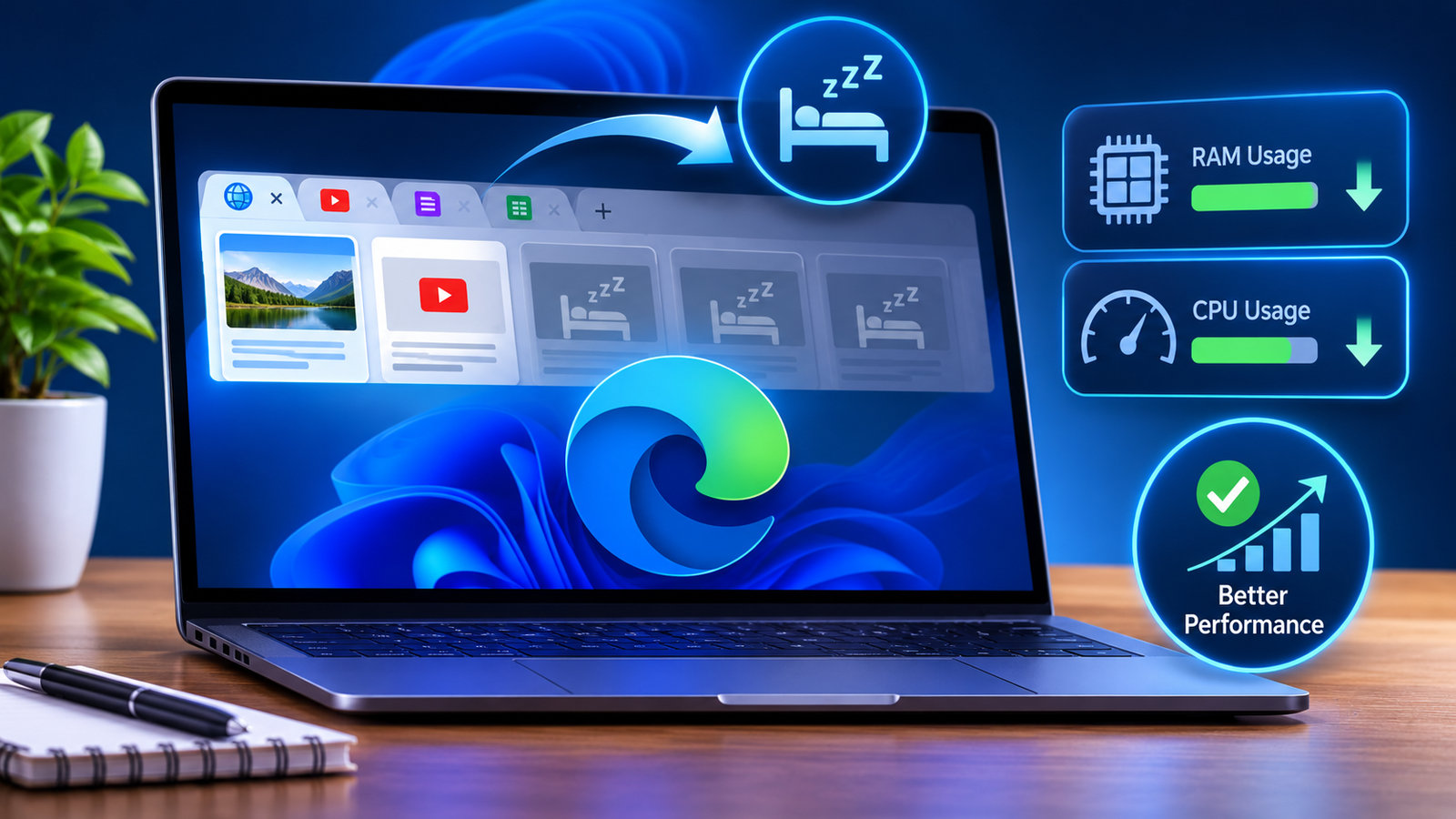
Microsoft Edge Sleeping Tabs Feature helps reduce memory and processor usage by automatically putting inactive browser tabs to sleep. Instead of allowing every open website to keep using system resources in the background, Microsoft Edge pauses tabs that you are not currently viewing. This can make browsing smoother, reduce unnecessary CPU activity, and help your computer manage memory more efficiently, especially when you regularly work with many tabs open.
What Is the Microsoft Edge Sleeping Tabs Feature?
The Microsoft Edge Sleeping Tabs Feature is a built-in browser function that helps manage system resources by pausing inactive tabs after a certain period. When a tab goes to sleep, Edge reduces its background activity instead of allowing it to continue consuming unnecessary CPU and memory resources. The website remains open, so you do not have to close it or lose your place.
Imagine opening 15 tabs while researching something. You might actively use only two or three, while the remaining websites sit in the background. Without resource management, some of those pages may continue performing background tasks. Sleeping Tabs helps reduce this unnecessary activity.
The feature is particularly useful for people who keep multiple websites open throughout the day. Students, researchers, bloggers, office workers, and anyone who regularly switches between different websites can benefit from it.
How Does Microsoft Edge Sleeping Tabs Work?
Microsoft Edge monitors open browser tabs and identifies those that have remained inactive for a certain period. When an eligible tab reaches the configured inactivity limit, Edge can put it into a sleeping state. This reduces the resources it uses while you continue working in another tab.
The sleeping process does not mean that Edge deletes the website or removes it from your browser. The tab remains visible in the tab bar, and you can return to it whenever you need it.
When you click a sleeping tab, Edge wakes it up and reloads or resumes its activity as needed. Depending on the website, this may take a moment. For example, a simple information page may become available almost immediately, while a complex web application might need additional time to restore its active content.
What Happens When a Tab Goes to Sleep?
When a tab enters the sleeping state, Edge suspends eligible background activity to reduce resource consumption. This can lower CPU usage and help free memory for other applications and active browser tabs.
The website itself is not permanently closed. Its tab remains available, and you can return to it without searching for the page again.
Some websites may behave differently when they wake up. A page containing live information, an online form, or an interactive application might refresh certain content before you continue working. This is normal because the browser has reduced the page’s background activity.
Why Microsoft Introduced Sleeping Tabs
Modern websites are more demanding than they used to be. A single browser tab can contain advertisements, scripts, animations, video elements, notifications, and other background processes. When several websites remain open simultaneously, their combined resource usage can become noticeable.
Microsoft introduced Sleeping Tabs to address this problem and make browsing more efficient. Rather than requiring users to close websites they might need later, Edge can automatically reduce the activity of inactive tabs.
This approach is practical because many people use their browsers as everyday workspaces. They might have research pages, email, documents, online tools, and reference websites open at the same time.
Sleeping Tabs provides a way to keep those pages accessible without allowing every inactive tab to remain fully active in the background.
Main Benefits of the Microsoft Edge Sleeping Tabs Feature
The biggest advantage of this feature is that it helps control unnecessary browser resource usage. However, its benefits extend beyond simply reducing memory consumption.
1. Reduces Memory Usage
Browser memory usage can increase when you keep several demanding websites open. Sleeping Tabs helps reduce the memory resources used by eligible inactive tabs, giving your computer more room to handle other tasks.
This can be particularly helpful on computers with limited RAM. If you regularly switch between a browser, a word processor, and other applications, reducing background browser activity may help improve the overall experience.
The exact memory savings depend on the number of tabs, the websites you visit, and your computer’s hardware.
2. Helps Reduce CPU Usage
Some websites continue performing background activities even when you are not looking at them. These activities may include scripts, animations, and other processes that use the processor.
Sleeping Tabs reduces eligible background activity when a tab goes to sleep. This can help lower unnecessary CPU usage and leave more processing power available for the applications you are actively using.
For example, someone editing documents while researching online may benefit from having inactive websites paused rather than constantly running in the background.
3. Improves Browser Responsiveness
When too many websites compete for system resources, browser performance can become less consistent. Pages may respond slowly, scrolling can feel less smooth, and switching between applications may take longer.
By reducing activity in inactive tabs, Edge can help your system concentrate more resources on the pages and applications you are currently using.
It does not guarantee faster browsing in every situation, but it can make a noticeable difference on resource-constrained computers.
4. Supports Better Battery Efficiency
Laptop users often have to balance performance and battery life. Background browser activity can contribute to power consumption, particularly when several websites are running scripts or other processes.
Sleeping Tabs can help reduce this activity, potentially improving energy efficiency.
However, battery savings vary depending on the laptop, screen brightness, processor, connected devices, and applications running in the background. It should be considered one part of battery management rather than a complete battery-saving solution.
5. Keeps Inactive Websites Available
One of the most convenient benefits is that you do not need to close every website you are finished using temporarily.
For example, you might keep an article open while writing a blog post, leave a product comparison page available, or save a research website in your browser tabs. Sleeping Tabs helps keep these pages accessible while reducing their background activity.
This makes it easier to organize your browsing without constantly reopening websites.
How to Enable the Microsoft Edge Sleeping Tabs Feature
Microsoft Edge includes Sleeping Tabs in its performance settings. You can access the feature directly through the browser without installing an extension or downloading additional software.
Step 1: Open Microsoft Edge
Start by opening Microsoft Edge on your Windows computer. Make sure you are using a reasonably recent version of the browser because settings and their names can change between releases.
Step 2: Open Browser Settings
Click the three-dot menu in the upper-right corner of the Edge window. Select Settings from the menu to open the browser configuration page.
You can also enter edge://settings in the address bar and press Enter to access settings directly.
Step 3: Find the System and Performance Section
Look for System and performance in the left-hand settings menu. Select it to open the options related to browser performance, resource usage, and background activity.
Step 4: Locate Sleeping Tabs
Scroll through the available performance options until you find the section related to optimizing performance or saving resources. Look for Save resources with sleeping tabs or the equivalent Sleeping Tabs setting in your version of Edge.
Step 5: Turn On the Feature
Enable the option to save resources with sleeping tabs. Once activated, Edge can automatically put eligible inactive tabs to sleep according to your configured preferences.
You do not need to restart your computer to use this feature. If the setting is missing, check whether your browser needs an update.
How to Change the Sleeping Tabs Timeout
The inactivity timeout determines how long an eligible tab should remain inactive before Edge puts it to sleep. Adjusting this setting can help you balance convenience and resource savings.
For example, someone who frequently switches between several websites may prefer a longer timeout. On the other hand, someone who keeps dozens of tabs open on a computer with limited memory may prefer a shorter period.
To change the timeout, open Edge Settings, navigate to System and performance, and find the Sleeping Tabs section. Look for the option that controls how long inactive tabs wait before going to sleep.
Choose an available time that matches your browsing habits. The exact options may vary depending on your Edge version.
What Is the Best Sleeping Tabs Timeout?
There is no single timeout that works for everyone. A shorter timeout can help reduce background resource usage sooner, while a longer timeout allows you to return to recently opened pages without waking them as frequently.
For everyday browsing, a moderate timeout is a sensible starting point. You can adjust it later if tabs seem to sleep too quickly or your computer continues using more resources than expected.
How to Exclude Websites From Sleeping Tabs
Not every website should necessarily go to sleep. Some websites need continuous background activity to perform their intended functions.
For example, you may want to keep a particular communication platform, web-based dashboard, or important work application active while using other tabs.
Microsoft Edge provides an option to exclude selected websites from Sleeping Tabs.
To use this option, open Settings, select System and performance, and find the Sleeping Tabs section. Look for an option such as Never put these sites to sleep. Add the website addresses you want Edge to keep active.
The exact wording and available controls can differ between browser versions.
Which Websites Should You Exclude?
Consider excluding websites that need to maintain continuous activity while they are open. Examples include certain web-based communication tools, live monitoring dashboards, and applications that depend on persistent background connections.
You do not need to exclude every website you visit. Adding too many exceptions can reduce the benefits of Sleeping Tabs because those pages may continue using resources even when you are not actively viewing them.
How to Turn Off the Microsoft Edge Sleeping Tabs Feature
Although Sleeping Tabs is useful, some users prefer to keep their websites active. This may be important when working with online tools that frequently update information or when switching between tabs without waiting for them to wake up.
Turning off the feature is straightforward. Open Microsoft Edge and navigate to Settings > System and performance > Performance. Find the option called Automatically put tabs to sleep and switch it off. Once disabled, Edge will stop automatically putting eligible inactive tabs to sleep under normal conditions.
You can turn it back on whenever you want. There is no need to uninstall anything, reset your browser, or change Windows settings.
Sleeping Tabs vs. Discarded Tabs: What’s the Difference?
Sleeping Tabs and discarded tabs both help manage browser resources, but they do not work in exactly the same way. Understanding the difference can help you decide how Edge should manage your open websites.
A sleeping tab pauses eligible background activity while keeping its page available for a quicker return. A discarded tab goes further by removing the page content from memory, which releases more resources but generally requires the website to reload when you open it again.
| Feature | Sleeping Tabs | Discarded Tabs |
|---|---|---|
| Background activity | Paused | Page discarded |
| Memory usage | Reduced | More memory released |
| CPU usage | Greatly reduced | No ongoing page activity |
| Returning to a page | Usually quicker | Usually requires reload |
| Page content | Preserved in sleeping state | Removed from memory |
For everyday browsing, Sleeping Tabs offers a convenient balance between resource savings and accessibility. Discarding is more aggressive and may be useful when the browser needs to free additional memory.
Microsoft explains that Sleeping Tabs uses Chromium’s freezing technology to pause script timers and reduce CPU activity.
Why Are Some Microsoft Edge Tabs Not Going to Sleep?
You might notice that certain websites remain active even after the configured inactivity period has passed. This does not necessarily mean that the feature is broken. Edge uses rules to avoid interrupting websites that are performing important tasks.
For example, an active tab will not go to sleep simply because you have been away from it for a short time. Websites playing audio, capturing your screen, or using your microphone or webcam may also be protected from sleeping.
This behavior helps prevent problems with video calls, audio playback, and other interactive services. Some internal business websites and pages being inspected through developer tools may also be excluded.
If a particular tab never seems to sleep, check whether it is performing one of these activities or has been added to your list of sites that should always remain active.
Microsoft Edge Sleeping Tabs Feature Not Working: Common Fixes
Sometimes Sleeping Tabs may not behave as expected. You might find that inactive pages remain active, the setting is missing, or websites refresh when you return to them. Most of these issues can be investigated through a few basic checks.
Check Whether Sleeping Tabs Is Enabled
Start with the simplest possibility. Open Edge settings and navigate to System and performance > Performance. Make sure the automatic sleeping option is switched on. If it is already enabled, review the timeout setting to see whether the browser is simply waiting longer than expected.
Review Your Website Exclusions
Websites added to the Always keep these sites active list are intentionally protected from Sleeping Tabs. Check this list if a particular page never enters the sleeping state. Remove any unnecessary exceptions and give Edge time to manage the tab again.
Update Microsoft Edge
An outdated browser version can sometimes cause unexpected behavior or missing settings. Open the three-dot menu, select Help and feedback, and choose About Microsoft Edge. The browser will check for available updates and install them when appropriate. Restart Edge if the update requires it.
Restart the Browser
Temporary browser problems can sometimes affect performance features. Save your work, close Microsoft Edge, and open it again. Then check whether inactive tabs are being managed correctly.
Check Organization Policies
If you use a work or school computer, your organization may control browser settings through administrative policies. These policies can enable or disable Sleeping Tabs, set the inactivity timeout, or prevent selected websites from sleeping.
If the relevant settings are unavailable or cannot be changed, contact your IT administrator rather than trying to bypass workplace restrictions.
Does Sleeping Tabs Affect Website Notifications?
One common concern is whether putting a website to sleep means missing important notifications. The answer depends on how the website handles notifications and whether Edge allows its background activity to continue.
Edge uses its own rules to avoid sleeping certain tabs that are performing useful background tasks, including displaying notifications. However, website notifications can also depend on browser permissions, Windows notification settings, and the website’s own implementation.
For example, if you rely on a web-based email service, check that notifications are allowed in Edge and that Windows has not blocked notifications for your browser. You should also test the website after changing its Sleeping Tabs settings rather than assuming every notification will work in exactly the same way.
Is Microsoft Edge Sleeping Tabs Safe to Use?
Yes, Sleeping Tabs is a normal Microsoft Edge performance feature. It is designed to manage inactive browser pages without permanently closing them or removing your saved browsing information.
It does not function as a file-cleaning tool, and it does not delete your bookmarks, browsing history, or saved passwords. Its purpose is to reduce unnecessary activity from eligible background tabs.
However, users should understand that some dynamic websites may refresh information or reconnect to services when they wake up. If you are completing an important online form or working with an application that needs continuous activity, consider keeping that website active.
For sensitive work, it is also sensible to save changes regularly rather than relying entirely on a browser tab remaining active.
Sleeping Tabs and Microsoft Edge Energy Saver
Sleeping Tabs works alongside other Edge performance features, including Energy Saver. Although both can help reduce resource consumption, they address slightly different aspects of browser performance.
Sleeping Tabs focuses on inactive browser tabs. It reduces their background activity so that system resources can be used elsewhere. Energy Saver, meanwhile, helps reduce power consumption by adjusting certain browser activities when energy-saving conditions apply.
For laptop users, using both features can be helpful. Someone working away from a power outlet might enable Energy Saver and allow inactive tabs to sleep automatically. This can help reduce unnecessary background activity while keeping important websites accessible.
The available behavior can depend on your device, battery conditions, and Edge version.
How to Check Whether Sleeping Tabs Is Saving Resources
If you want to understand whether the feature is making a difference, start by observing your browser’s resource usage. Open several websites, leave some inactive, and allow the configured timeout to pass.
You can then open Edge’s performance tools to inspect browser activity. Select the three-dot menu, navigate to More tools, and choose Performance if the option is available in your version.
You can also use Windows Task Manager to compare Microsoft Edge’s resource usage before and after inactive tabs have gone to sleep. Press Ctrl + Shift + Esc to open Task Manager, then review the Processes section.
Remember that memory and CPU usage can change for many reasons. A website may load new content, an extension may perform background work, or another application may use additional resources. One comparison does not provide a complete picture, but it can help you understand how your browser behaves.
Is Sleeping Tabs Useful for Computers With Limited RAM?
Yes, Sleeping Tabs can be particularly helpful on computers with limited RAM. When you regularly open many websites, background browser activity can compete with other applications for available memory.
For example, a laptop with 8GB of RAM may struggle when several demanding browser tabs are open alongside video meetings, document editors, and other programs. Sleeping Tabs can reduce the resources used by eligible inactive pages, helping the computer manage its available memory more effectively.
However, it cannot replace a RAM upgrade or fix every performance problem. If your computer regularly freezes, check other applications, browser extensions, and startup programs as well.
Conclusion
For most everyday users, keeping Sleeping Tabs enabled is a sensible choice. It works automatically, requires little maintenance, and helps reduce unnecessary background activity without forcing you to close websites.
If you regularly use multiple tabs for research, blogging, studying, or office work, the feature can make browser resource management easier.
You can adjust the timeout and exclude websites that need continuous activity. This gives you control over how Edge handles your browsing sessions.
The best approach is to keep it enabled, use a reasonable timeout, and add exceptions only when necessary. That way, you can enjoy its resource-saving benefits without unnecessarily interrupting important websites.
Frequently Asked Questions
1. What is the Microsoft Edge Sleeping Tabs Feature?
The Microsoft Edge Sleeping Tabs Feature automatically pauses eligible inactive browser tabs to reduce CPU and memory usage. It keeps the tabs available so you can return to them whenever needed.
2. Does Microsoft Edge Sleeping Tabs save RAM?
Yes. Sleeping Tabs reduces the resources used by inactive pages and allows Windows to reuse available memory for other tabs and applications. The amount of memory saved depends on the websites and your system.
3. How do I enable Sleeping Tabs in Microsoft Edge?
Open Microsoft Edge Settings, navigate to System and performance > Performance, and enable Automatically put tabs to sleep or the equivalent option displayed in your browser.
4. Can I stop certain websites from going to sleep?
Yes. Open the Sleeping Tabs settings and find Always keep these sites active. Add the website addresses you want Edge to exclude from automatic sleeping.
5. Does Sleeping Tabs affect open websites?
It can temporarily pause background activity, but it does not permanently close the website. When you select a sleeping tab, Edge wakes it so you can continue browsing.
Read also: Common WiFi Router Settings for Better Home Connectivity