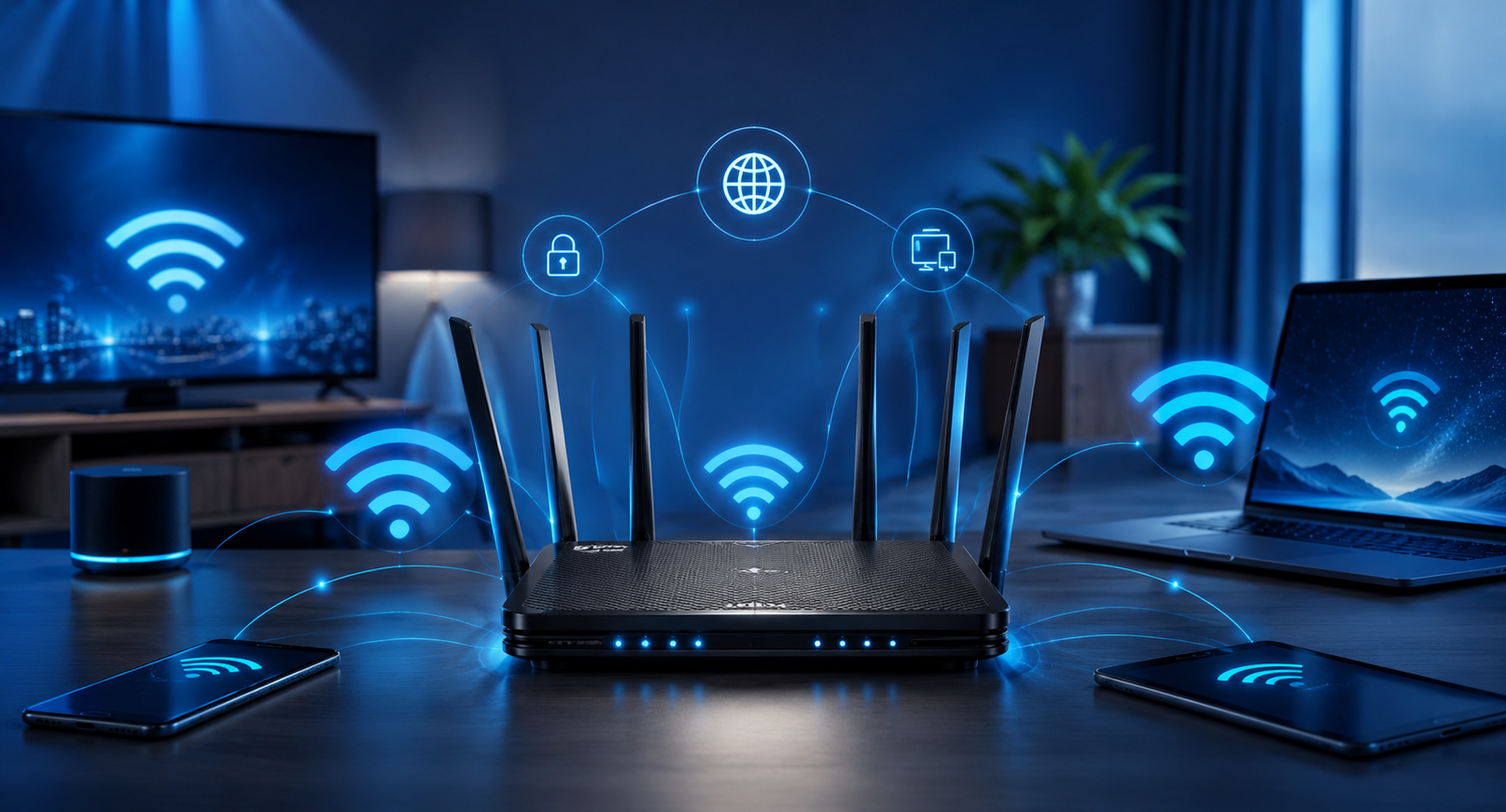
Common WiFi Router Settings for Better Home Connectivity can make a noticeable difference in internet speed, wireless coverage, connection stability, and overall browsing experience. If your WiFi frequently disconnects, videos keep buffering, or certain rooms receive weak signals, adjusting a few settings in your router’s administration panel may help. You don’t always need a faster internet package or an expensive new router. Sometimes, the problem is simply that your existing router isn’t configured properly.
What Are the Most Important WiFi Router Settings?
The most important WiFi router settings include choosing the right frequency band, selecting a suitable wireless channel, enabling WPA2 or WPA3 security, updating router firmware, positioning the router correctly, and managing connected devices. These adjustments can reduce wireless interference, improve network reliability, and help household devices maintain a stronger connection.
1. Choose the Right WiFi Frequency Band
One of the first settings worth checking is your router’s WiFi frequency band. Most modern routers support 2.4 GHz and 5 GHz networks, while newer models may also support 6 GHz through WiFi 6E or WiFi 7. The 2.4 GHz band generally covers a larger area and travels through walls more effectively, making it useful for devices located far from the router. However, it can experience more interference from neighboring networks and household electronics. The 5 GHz band usually offers faster wireless speeds and less congestion, but its range is shorter. For example, a laptop in the same room as your router may benefit from 5 GHz, while a smart plug in another room may work better on 2.4 GHz.
When Should You Use 2.4 GHz or 5 GHz?
Your choice should depend on the device’s location and internet requirements. Use 2.4 GHz for smart home devices, basic browsing, and equipment that needs a longer wireless range. Choose 5 GHz for online gaming, video streaming, large downloads, and devices located relatively close to the router. If your router supports band steering, it may automatically direct compatible devices toward an appropriate band. This can make network management easier without requiring you to switch connections manually.
2. Change the WiFi Channel to Reduce Interference
Wireless interference is a common reason home internet connections feel unreliable, particularly in apartments and crowded neighborhoods. Your router shares radio frequencies with nearby wireless networks, and several routers operating on overlapping channels can create congestion. Opening the wireless settings in your router’s administration panel allows you to select a different channel. On the 2.4 GHz band, channels 1, 6, and 11 are commonly recommended because they do not overlap with one another when using standard 20 MHz channel widths. For 5 GHz, the best channel depends on your location, router, and local regulations. Many routers include an automatic channel selection feature that scans the surrounding environment and chooses an available option.
How to Find a Better WiFi Channel
Check whether your router offers an automatic channel selection option before changing anything manually. If the automatic setting doesn’t provide a reliable connection, use a WiFi analyzer application to identify which channels nearby networks are using. Choose a less congested supported channel and test the connection afterward. Avoid assuming that one channel is always the fastest because wireless conditions can change throughout the day as neighbors connect and disconnect their devices.
3. Enable WPA2 or WPA3 WiFi Security
WiFi security is not only about protecting personal information. It also helps prevent unauthorized devices from accessing your home network and using your internet connection. Most modern routers offer WPA2-Personal or WPA3-Personal security. WPA3 provides stronger protection where supported, while WPA2 remains a widely compatible option for older devices. Open your router’s wireless security settings and check which encryption method is selected. If your router and devices support WPA3, consider enabling it. Otherwise, WPA2-AES is generally a suitable choice. Avoid outdated options such as WEP because they provide weak protection and should not be used for a modern home network.
Create a Strong WiFi Password
A strong WiFi password should be difficult to guess and different from passwords used for email, social media, or other accounts. Avoid simple combinations such as your name, phone number, or home address. A longer password containing a mixture of letters, numbers, and symbols offers better protection. You should also change the router’s default administrator password because it controls access to important network settings. Remember that your WiFi password and router administrator password serve different purposes.
4. Update Your Router Firmware Regularly
Router firmware is the software that controls how your networking equipment operates. Manufacturers release firmware updates to fix security weaknesses, address technical problems, improve compatibility, and sometimes introduce performance improvements. An outdated router may contain vulnerabilities or experience issues that have already been corrected through newer software. Visit the administration panel and look for an option named Firmware Update, Software Update, Router Upgrade, or System Maintenance. Some routers can automatically check for updates, while others require you to download the correct firmware from the manufacturer’s official website. Always select firmware designed for your exact router model and hardware revision.
Why Firmware Updates Matter
A firmware update can improve more than just security. It may resolve unexpected disconnections, fix wireless compatibility problems, and make certain router features work more reliably. However, an update does not guarantee faster internet because your connection speed also depends on your internet service provider, router hardware, signal conditions, and connected devices. Before installing an update, follow the manufacturer’s instructions and avoid disconnecting the router from power during installation.
5. Enable Quality of Service (QoS)
Quality of Service, commonly called QoS, is a router feature that helps manage network traffic when multiple devices are using the internet simultaneously. Imagine someone attending an important video meeting while another household member downloads a large game and a third person streams a high-resolution movie. Without traffic management, these activities may compete for available bandwidth. QoS allows compatible routers to prioritize selected devices, applications, or types of network traffic. Depending on your router, you may be able to give video calls, online gaming, or work-related devices higher priority.
When Is QoS Useful?
QoS is particularly useful in homes where several people share one internet connection. If video calls regularly freeze when someone starts downloading large files, prioritizing real-time communication may improve the experience. Some routers also offer adaptive QoS, which automatically manages traffic according to application requirements. Keep in mind that QoS cannot create additional internet bandwidth. It simply helps distribute available resources more intelligently, and poorly configured rules can sometimes reduce performance for other devices.
6. Select the Correct WiFi Channel Width
Channel width determines how much wireless spectrum your router uses to transmit data. Common options include 20 MHz, 40 MHz, 80 MHz, and 160 MHz, depending on the frequency band and router capabilities. Wider channels can support higher theoretical speeds, but they also occupy more wireless spectrum and may encounter interference in crowded environments. On the 2.4 GHz band, 20 MHz is generally a sensible choice because it reduces channel overlap. On 5 GHz, 80 MHz can provide a useful balance between speed and reliability when the wireless environment allows it. Some newer routers also support 160 MHz channels for compatible devices.
Should You Always Choose the Widest Channel?
Not necessarily. A wider channel may deliver impressive speeds in a clean wireless environment, but it can perform poorly when nearby networks compete for the same spectrum. If your connection becomes unstable after selecting a wider channel, try returning to a narrower option. The best configuration depends on your surroundings, router capabilities, and the devices connected to your network.
7. Change the Router’s DNS Settings
DNS, or Domain Name System, translates website names into IP addresses that your devices use to connect to online services. Your internet provider usually assigns DNS servers automatically, but some routers allow you to use alternative DNS providers. Services such as Google Public DNS and Cloudflare DNS are popular alternatives. Changing DNS settings may improve website lookup times or provide additional filtering features, although it will not increase your actual internet bandwidth. You can usually find this option under Internet Settings, WAN Settings, or Network Configuration. If you decide to change DNS servers, record your original settings first so you can restore them if necessary.
Popular Public DNS Options
Some commonly used public DNS services include Google DNS at 8.8.8.8 and 8.8.4.4, and Cloudflare DNS at 1.1.1.1 and 1.0.0.1. Both providers offer public DNS resolution, but their privacy policies and additional features differ. Choose a provider you trust rather than assuming every alternative DNS service is automatically faster or safer.
8. Enable MU-MIMO and Beamforming
Modern routers often include wireless technologies designed to improve communication with multiple connected devices. MU-MIMO stands for Multi-User Multiple Input Multiple Output. It allows compatible routers to communicate with multiple supported devices more efficiently instead of handling every transmission in exactly the same way. Beamforming is another useful technology that helps direct wireless signals toward compatible devices rather than distributing energy equally in every direction. If your router supports these features, check the advanced wireless settings to see whether they are enabled. They can be particularly helpful in households where smartphones, laptops, smart TVs, and other equipment frequently use the network at the same time.
Do These Features Improve WiFi Performance?
MU-MIMO and beamforming can improve wireless efficiency under suitable conditions, but the results depend on router capabilities, device compatibility, signal strength, and network traffic. They are not guaranteed solutions for dead zones or weak signals caused by thick walls. For the best results, keep compatible devices updated and test your connection after changing advanced wireless settings.
9. Use a Separate Guest WiFi Network
A guest WiFi network gives visitors internet access without requiring you to share your primary wireless password. Many modern routers allow users to create a separate network with its own name and password. Some also provide an option to isolate guest devices from your private home network. This is useful when friends, relatives, or visitors bring their own phones, laptops, and tablets. It also helps keep your main network credentials private. Open your router’s Guest Network settings, enable the feature, and choose a strong password. If available, activate guest isolation so connected visitors cannot access your personal computers, shared storage, or other private network devices.
10. Adjust DHCP Settings Carefully
DHCP stands for Dynamic Host Configuration Protocol. It automatically assigns IP addresses to devices that connect to your home network, allowing them to communicate without requiring manual network configuration. Most home routers have DHCP enabled by default, and this is usually the correct setting for ordinary households. You can find DHCP options under LAN Settings or Network Settings. Some routers also support DHCP reservations, which allow you to assign a consistent local IP address to a particular device. This can be helpful for network printers, security cameras, smart home hubs, and other equipment that benefits from a predictable address. Unless you understand your network configuration, avoid changing the DHCP address range or disabling the service unnecessarily.
11. Enable the Correct WiFi Mode
WiFi routers support different wireless standards, including WiFi 4, WiFi 5, WiFi 6, WiFi 6E, and WiFi 7. The available options depend on your router’s hardware and software. These standards determine how compatible devices communicate with the network and what wireless features are available. If your router supports WiFi 6, for example, selecting a compatible WiFi 6 mode can help newer devices use its advanced capabilities. However, setting the router to a mode that excludes older standards may disconnect devices that do not support newer technology. For most homes, a mixed or automatic wireless mode is a sensible option because it allows compatible older and newer devices to connect without unnecessary restrictions.
Why Compatibility Matters
Not every smartphone, laptop, television, or smart home device supports the latest WiFi standard. If you force a router to use a newer mode exclusively, some older equipment may stop connecting. Check the specifications of your connected devices before changing this setting. A mixed mode usually provides a better balance between compatibility and performance.
12. Place Your Router in a Better Location
Router placement is one of the simplest ways to improve home WiFi connectivity, yet it is frequently overlooked. Even perfectly configured wireless settings cannot compensate for a router hidden inside a cabinet or placed behind several thick walls. Ideally, position the router in a central, open location where its signal can reach the rooms that need internet access. Keeping it slightly elevated, such as on a shelf or table, may also help improve coverage. Avoid placing it directly beside large metal objects, microwaves, thick concrete walls, or other sources of interference. If your home has multiple floors, experiment with a central position that provides reasonable coverage throughout the building.
Places Where You Should Avoid Keeping a Router
Avoid hiding your router behind televisions, inside closed cupboards, or near large appliances that may interfere with wireless signals. Basements and far corners of the house can also create coverage problems if most connected devices are upstairs or on the opposite side of the building. A small change in placement can sometimes make a noticeable difference without purchasing additional equipment.
13. Manage Connected Devices
Every device connected to your home network uses some portion of the available network resources. Smartphones, tablets, laptops, smart TVs, gaming consoles, cameras, and smart appliances can all contribute to network traffic. Some devices consume very little bandwidth while idle, but others may continuously upload recordings, download updates, or stream high-resolution content. Most router administration panels include a Connected Devices or Client List section where you can see which equipment is using your network. Review this list occasionally and disconnect unfamiliar devices after checking that they are not legitimate household equipment. If you find unauthorized connections, change your WiFi password and review your router’s security settings.
14. Enable Automatic Router Reboot if Available
Some routers include an automatic reboot or scheduled restart feature. This allows the router to restart at a selected time, which may help resolve occasional software-related problems or temporary connection issues. However, regularly restarting a router is not a replacement for proper troubleshooting, firmware updates, or fixing underlying hardware problems. If your router offers scheduled rebooting, choose a time when nobody normally needs the internet. Avoid restarting it too frequently because every restart temporarily interrupts connected devices. If your router repeatedly freezes or loses its connection, investigate the cause instead of relying entirely on automatic restarts.
15. Check NAT and Firewall Settings
Network Address Translation (NAT) allows multiple devices on a private home network to share one public IP address. Most consumer routers perform this function automatically, so ordinary users rarely need to change NAT settings. Firewall settings help control incoming and outgoing network traffic and protect connected devices from unwanted connections. Keep the router’s built-in firewall enabled unless you have a specific technical reason to adjust it. Some routers offer different NAT types or firewall protection levels, particularly for gaming and remote access applications. Avoid disabling firewall protection or enabling unrestricted DMZ access simply to solve a connection problem. Instead, use the router manufacturer’s recommended configuration and make specific changes only when necessary.
16. Consider a Mesh WiFi System for Larger Homes
Sometimes the problem is not your router’s settings but the size and layout of your home. A single router may struggle to provide reliable coverage across multiple floors, long hallways, or rooms separated by thick walls. A mesh WiFi system uses multiple interconnected units to distribute wireless coverage throughout the property. Instead of relying on one router to reach every corner, mesh units work together to provide a more consistent network experience. This can be useful for larger homes where traditional router placement and channel adjustments are not enough. Before purchasing a mesh system, consider your internet speed, home layout, number of connected devices, and whether your existing router supports mesh expansion.
Common Mistakes to Avoid When Changing Router Settings
Changing router settings without understanding their purpose can sometimes make connectivity worse. One common mistake is selecting the widest wireless channel and assuming it will always provide the fastest connection. Another is disabling security features to troubleshoot a device that cannot connect. Users also sometimes change several settings at once, making it difficult to identify which adjustment caused a problem. A better approach is to change one setting at a time, save the configuration, and test your connection before making another adjustment. Keep a record of the original settings and learn how to restore your router to its previous configuration. If a particular feature is unfamiliar, check your router manufacturer’s documentation before enabling it.
How to Access Your WiFi Router Settings
Accessing your router’s administration panel is usually straightforward. Connect your phone or computer to the home network, open a web browser, and enter your router’s gateway address. Common addresses include 192.168.0.1 and 192.168.1.1, although the correct address depends on your router. You can also check the router’s label, instruction manual, or manufacturer’s mobile application. After entering the address, sign in using your administrator credentials. Once inside, look for sections such as Wireless, Network, Security, Advanced Settings, or System Maintenance. The names and locations of these options vary between manufacturers, so do not worry if your router’s interface looks different from online examples.
What to Do If the Router Login Page Does Not Open
First, make sure your device is connected to the router’s network rather than mobile data or another WiFi connection. Check the correct gateway address in your device’s network details and enter it into the browser’s address bar. If the page still does not load, restart your browser and router, then try again. Do not repeatedly guess administrator passwords. If you have forgotten your login details, consult the manufacturer’s instructions for account recovery or a factory reset. Remember that a factory reset usually removes customized settings, including your WiFi name and password.
Conclusion
Improving your home internet connection does not always require expensive networking equipment or a more costly internet package. The right frequency band, a less congested wireless channel, updated firmware, strong security, and sensible traffic management can all contribute to a better experience. Start with simple adjustments, such as checking router placement and reviewing connected devices, before experimenting with advanced options. Every home network is different, so test each change rather than expecting one universal configuration to work everywhere. With a little attention to these common WiFi router settings, you can build a more reliable home network for everyday browsing, streaming, gaming, and remote work.
Frequently Asked Questions (FAQs)
1. What are the best WiFi router settings for better connectivity?
The best settings include using WPA2 or WPA3 security, selecting an appropriate WiFi frequency band, choosing a less congested channel, enabling automatic firmware updates, and keeping QoS configured according to your household’s needs. These adjustments can improve network stability and wireless performance.
2. Does changing the WiFi channel improve internet speed?
Yes, changing the WiFi channel can improve wireless performance when interference from neighboring networks is causing congestion. Selecting a less crowded channel may reduce interference and make your connection more stable, particularly in apartments and densely populated areas.
3. Should I use 2.4 GHz or 5 GHz WiFi?
Use 2.4 GHz when you need better coverage over longer distances or have devices located behind walls. Choose 5 GHz when you want higher wireless speeds for streaming, gaming, and downloads and your device is relatively close to the router.
4. How often should I update my WiFi router firmware?
Check for firmware updates periodically and install them whenever the manufacturer releases an appropriate update. Enable automatic updates if your router supports them. Regular updates help protect your network and address software problems.
5. Can too many connected devices slow down WiFi?
Yes, too many actively used devices can compete for available bandwidth. Video streaming, online gaming, cloud backups, and large downloads can place additional demands on your connection. Managing network traffic through QoS may help distribute bandwidth more effectively.