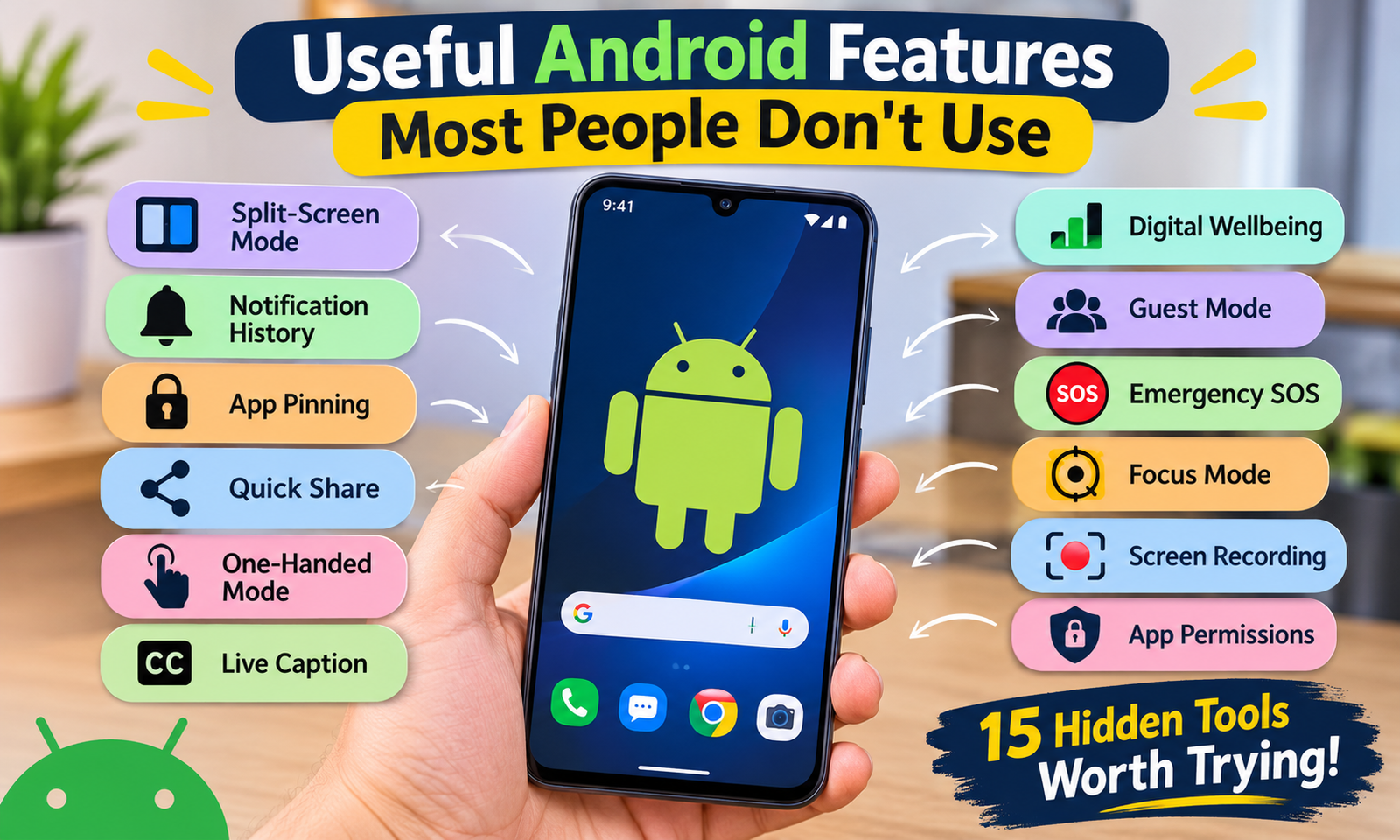
Useful Android Features Most People Don’t Use Android phones have many useful features that can make everyday tasks easier, improve privacy, save time, and help you get more out of your device. The problem is that most people only use the basic features they see on their home screen. Tools such as split-screen mode, app pinning, notification history, Quick Share, and Live Caption often go unnoticed.
Whether you use a Samsung Galaxy, Google Pixel, Xiaomi, Redmi, OnePlus, or another Android phone, there are several built-in features worth exploring. Some are available on almost every modern Android device, while others depend on your phone manufacturer and Android version.
Here are 15 useful Android features most people don’t use but should know about.
1. Split-Screen Mode for Using Two Apps at Once

For example, you can watch a video while browsing the internet, read a document while taking notes, or reply to messages while checking information in another app.
How to use it:
-
Open the first application.
-
Open the Recent Apps screen.
-
Tap the app icon above its preview.
-
Select Split screen if the option is available.
-
Choose the second application.
Both apps will appear on the screen. You can usually adjust the divider to give one application more space.
This feature is particularly helpful when researching something, following online instructions, or comparing information between two apps.
2. Notification History to Recover Dismissed Notifications

Have you ever accidentally dismissed a notification and then realized you needed to read it?
Android’s Notification History can help you recover recently dismissed notifications on supported devices.
Instead of wondering which application sent an alert, you can open the notification history and review previously received notifications.
How to enable it:
-
Open Settings.
-
Go to Notifications.
-
Find Notification history.
-
Turn on Use notification history.
On supported Android versions, this feature keeps a record of dismissed notifications, generally for the previous 24 hours.
One important detail: notification history usually needs to be enabled before a notification disappears. It cannot recover notifications from before activation.
3. App Pinning to Keep Someone Inside One Application

App pinning is useful when you hand your phone to someone but do not want them exploring your other applications.
For example, if you give your phone to a friend to view a photograph or let a child watch a video, you can pin the current application.
The person can use that application but cannot easily move to other parts of your phone without unpinning it.
How to enable app pinning:
-
Open Settings.
-
Search for App pinning or Screen pinning.
-
Open the feature.
-
Turn it on.
-
Enable the option to require a PIN, pattern, or password before unpinning, if available.
To pin an app, open Recent Apps, tap the app icon, and select Pin.
The exact steps for unpinning depend on your Android navigation settings.
4. Quick Share for Sending Files Without Messaging Apps

Quick Share makes it easier to transfer photographs, videos, documents, and other files between compatible nearby devices.
You do not need to upload everything to a messaging application or send files through email.
How to use Quick Share:
-
Open the photograph or file you want to share.
-
Tap the Share button.
-
Select Quick Share.
-
Choose the nearby receiving device.
-
Ask the recipient to accept the transfer if required.
Quick Share works with compatible Android devices and some other supported devices, including certain Windows PCs.
It is especially useful for sending large photographs and videos without relying on messaging-app compression.
5. One-Handed Mode for Using Large Phones Easily

Modern smartphones often have large displays. While bigger screens are useful for watching videos and reading, reaching the top of the screen with one hand can be difficult.
One-Handed Mode solves this problem by shrinking the usable screen area or moving the interface closer to your thumb.
How to enable it:
-
Open Settings.
-
Search for One-handed mode.
-
Open the feature.
-
Turn it on.
-
Follow the instructions for activating it.
Depending on your phone, you might activate it by swiping down near the bottom edge of the display.
This feature is especially helpful when carrying something in one hand or using a large smartphone while walking.
6. Live Caption to Read Spoken Words on Your Screen

Live Caption automatically generates captions for speech playing on your phone.
It can be useful when watching videos without headphones, following spoken content in a noisy environment, or understanding audio when you cannot turn up the volume.
Unlike ordinary video subtitles, Live Caption can work with supported audio from different applications.
How to use it:
-
Open Settings.
-
Go to Accessibility.
-
Find Live Caption.
-
Enable the feature.
-
Adjust caption preferences if needed.
On supported devices, you can also access Live Caption through the volume controls.
Language availability and support for different types of audio vary by device and Android version. Some processing happens directly on the device.
7. Nearby Device Sharing and Clipboard Features
Copying information between applications is something almost everyone does, but Android’s clipboard offers more flexibility than many users realize.
When you copy text, a clipboard preview may appear above the keyboard. Depending on your keyboard and device, you can use it to access recently copied text, edit snippets, or paste information into another application.
For example, you can copy an address from a browser and paste it into a messaging application without typing it again.
How to use it:
-
Select the text you want to copy.
-
Tap Copy.
-
Open the application where you want to use it.
-
Tap the text field.
-
Select Paste or open the clipboard from your keyboard.
Gboard users can tap the clipboard icon above the keyboard to access supported clipboard items.
Be careful when copying passwords, financial details, or other private information. Clipboard contents may be accessible to other apps under certain conditions, and clipboard history is not intended for permanent storage.
8. Digital Wellbeing to Understand Your Screen Time

Many people spend more time on their phones than they realize. Digital Wellbeing helps you understand how you use your device throughout the day.
It provides information about screen time, application usage, notifications, and how frequently you unlock your phone.
You can also set limits for applications that consume too much of your time.
How to access Digital Wellbeing:
-
Open Settings.
-
Find Digital Wellbeing and parental controls.
-
Open the dashboard.
-
Review your daily screen time.
-
Select an application to set an app timer.
For example, if you spend too much time scrolling through social media, you can set a daily usage limit.
When the timer runs out, Android pauses the application until the timer resets or you change the limit.
Digital Wellbeing is not about avoiding your phone completely. It simply gives you a clearer picture of your habits.
9. Guest Mode for Sharing Your Phone Privately

Sometimes, you need to let someone use your phone without giving them access to your personal applications, photographs, messages, and accounts.
Guest Mode can help on Android devices that support multiple users.
It creates a separate user environment where another person can use the phone without accessing your main profile’s personal information.
How to check whether your phone supports it:
-
Open Settings.
-
Search for Multiple users.
-
Open the available user settings.
-
Enable multiple users if necessary.
-
Select Add guest or Guest.
The guest can use supported phone features without directly accessing your primary profile’s personal apps and data.
When the guest session ends, you can switch back to your main account and remove the guest’s session.
Not all manufacturers offer Guest Mode, so the option may be missing on some phones.
10. Emergency SOS for Getting Help Quickly

Emergency SOS is one of the most important Android features because it can help you contact emergency services when you need assistance.
On supported phones, pressing the power button several times can activate an emergency process.
Depending on your device and region, this may include calling emergency services, sharing your location with emergency contacts, or sending an alert.
How to set it up:
-
Open Settings.
-
Search for Emergency SOS.
-
Open the safety settings.
-
Review the available emergency actions.
-
Add emergency contacts if supported.
-
Configure the activation method.
It is worth checking this feature before an emergency happens.
Remember that available emergency services and location-sharing capabilities vary by country, carrier, and device. Test only the setup options and avoid placing accidental emergency calls.
11. Focus Mode to Reduce App Distractions

Focus Mode is useful when you need to concentrate on studying, writing, working, or completing an important task.
Instead of uninstalling distracting applications, you can temporarily pause selected apps and reduce their notifications.
For example, you might pause social media applications while studying but continue receiving important calls and messages.
How to enable Focus Mode:
-
Open Settings.
-
Select Digital Wellbeing and parental controls.
-
Find Focus Mode.
-
Choose the applications you want to pause.
-
Tap Turn on now.
Some Android versions also let you schedule Focus Mode for specific days and times.
It is a simple way to create fewer distractions without permanently changing your phone settings.
12. Screen Recording Without Installing Another App

Many users install third-party screen recording applications without realizing that Android already includes a built-in screen recorder on many modern devices.
Screen recording lets you capture activities happening on your display.
It can help when creating tutorials, showing someone how to change a setting, recording an app demonstration, or explaining a technical problem.
How to use it:
-
Swipe down from the top of your screen to open Quick Settings.
-
Swipe down again to see additional shortcuts.
-
Find Screen Record.
-
Select your preferred audio and touch-display options, if available.
-
Tap Start.
Your phone will begin recording after a short countdown.
When you finish, stop the recording using the notification or on-screen controls. The video is generally saved in your phone’s gallery or Photos application.
Some devices let you record internal audio, microphone audio, or both. Protected content and certain applications may prevent recording.
13. Smart Lock and Extend Unlock for Convenient Access

Unlocking your phone repeatedly can become annoying, particularly when you are using it at home or connecting it to a trusted device.
Android’s Extend Unlock feature, previously known as Smart Lock, can help keep your device unlocked under certain trusted conditions.
Depending on your Android version, available options may include:
-
Trusted devices, such as a connected Bluetooth device.
-
Trusted places, where supported.
-
On-body detection on supported versions.
How to find it:
-
Open Settings.
-
Search for Extend Unlock or Smart Lock.
-
Open the security settings.
-
Follow the instructions for supported trusted conditions.
Be aware that keeping a phone unlocked for longer periods can reduce security. Anyone with physical access to an unlocked device may be able to view personal information.
Use this feature carefully, especially when your phone contains sensitive accounts or documents.
14. App Permissions to Control What Applications Can Access

Many applications request access to your camera, microphone, contacts, location, and photographs.
However, not every application needs all these permissions to perform its main function.
Android provides permission controls that let you decide which information an application can access.
How to review app permissions:
-
Open Settings.
-
Go to Security and privacy or Privacy.
-
Open Permission Manager.
-
Select a permission, such as Camera, Microphone, or Location.
-
Review which applications have access.
-
Change permissions where appropriate.
You can also open an individual application’s App Info page and select Permissions.
For example, a simple calculator application generally does not need access to your microphone or contacts.
You can also use the Privacy Dashboard on supported devices to review recent access to sensitive permissions.
This is one of the most useful Android features for people who want more control over their personal information.
15. Magnification to Zoom In on Small Text

Sometimes, text on a website, photograph, or application is too small to read comfortably.
Instead of changing the display size across your entire phone, Android’s Magnification feature lets you temporarily zoom into a specific area of the screen.
It can help when reading small instructions, viewing detailed images, or examining content that does not support normal pinch-to-zoom gestures.
How to enable Magnification:
-
Open Settings.
-
Select Accessibility.
-
Find Magnification.
-
Enable the magnification shortcut.
-
Follow the instructions for activating and controlling zoom.
The activation method depends on your Android version and device. It may use an accessibility button, a gesture, or another shortcut.
This feature is particularly useful for people who regularly struggle to read small text.
More Android Features Worth Exploring
Besides the 15 features above, several other Android tools deserve attention.
| Feature | What it does |
|---|---|
| Nearby Share history is not required | Quick Share transfers files between compatible devices. |
| Do Not Disturb | Silences selected notifications and calls. |
| Data Saver | Helps reduce mobile data usage. |
| Battery Saver | Reduces background activity to extend battery life. |
| Find Hub | Helps locate compatible lost devices and items. |
| Live Transcribe | Displays speech as text in supported languages. |
| Bedtime Mode | Helps create a quieter nighttime phone experience. |
Availability and names can differ between Android manufacturers.
How to Find More Hidden Features on Your Android Phone
You do not need to explore every Settings category manually. Android has a built-in search function that makes finding hidden tools much easier.
Try these steps:
-
Open your phone’s Settings application.
-
Tap the search bar.
-
Enter the name of a feature, such as App pinning, Magnification, or Notification history.
-
Open the matching setting.
-
Read the available options before enabling it.
You can also explore the Quick Settings panel by swiping down twice from the top of your screen. Some useful shortcuts are hidden there.
Conclusion
Android offers much more than calling, messaging, browsing, and using social media. Features such as Notification History, Split-Screen Mode, App Pinning, Live Caption, and Digital Wellbeing can make your phone considerably more convenient.
You do not need to activate everything at once. Start with the features that solve everyday problems, explore the available settings, and keep the ones that genuinely improve your experience.
The best part is that many of these tools are already available on your phone. You just need to know where to look.
Frequently Asked Questions
1. Are these Android features available on every phone?
No. Most features are available on many modern Android phones, but some depend on the Android version, manufacturer, hardware, and region. Samsung, Google Pixel, Xiaomi, and OnePlus may also use different names for similar settings.
2. Do hidden Android features require additional applications?
Most features discussed in this article are built into Android or provided by the phone manufacturer. You generally do not need to install another application to use them.
3. How can I find hidden settings on Android?
Open Settings and use the search bar to find a particular feature. You can also explore Accessibility, Privacy, Security, Notifications, and Digital Wellbeing.
4. Which Android features are most useful for privacy?
App Permissions, Privacy Dashboard, App Pinning, Guest Mode, and Emergency SOS are particularly useful. They help you manage application access, protect personal information, and prepare for unexpected situations.
5. Can I use these features without updating Android?
Many features work on older Android versions, but newer tools may require an update. Check Settings, open System, and look for Software Update to see whether a newer version is available for your phone.