A simple idea: one upload, one task, one result
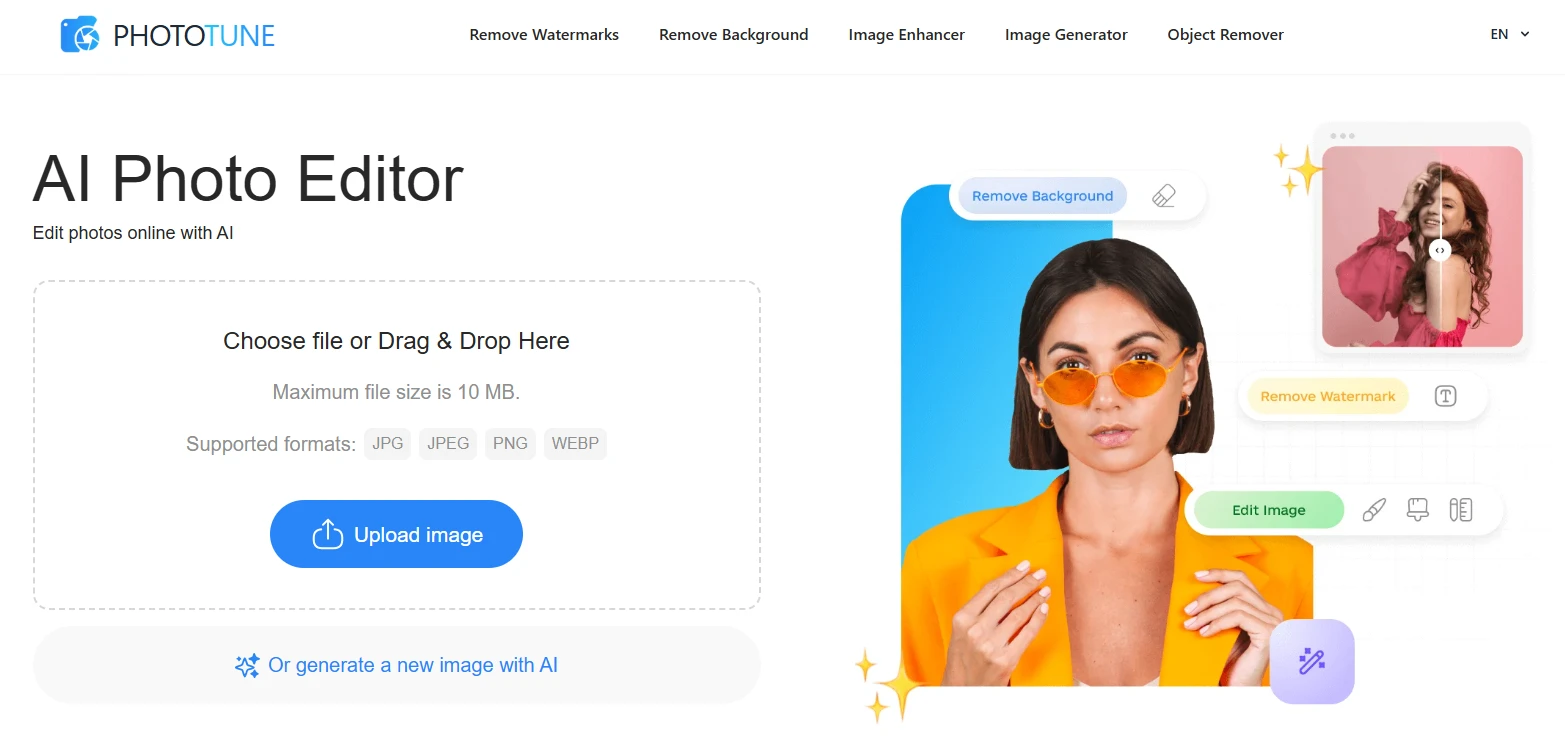
Most “online editing” experiences fall apart right at the start: too many buttons, unclear steps, or a workflow that assumes you already know what you’re doing. Phototune is built around a different pattern—upload an image, pick the outcome you need, and get a clean result without digging through menus. The homepage is organized around common, practical tasks: removing backgrounds, cleaning watermarks, enhancing quality, removing unwanted objects, or generating a brand-new image from a text prompt.
That matters in everyday situations. A small shop owner might have a decent product photo, but the background is messy. A creator might have a great shot that’s slightly soft and needs a quality boost. A marketer might need a few variations of a visual for a Facebook ad set, fast, without turning it into a “project.” The point isn’t to replace careful design work; it’s to avoid getting stuck on simple image chores that eat time.
What you can do inside Phototune without switching tools
The toolset is pretty straightforward, and that’s the main reason it feels usable. On the core editor flow, you upload a file and choose what you want to do with it—remove background, remove watermark, enhance quality, or use an object remover.
Background removal is positioned as a quick step: upload, let AI separate the subject, then download a transparent version or swap to a different background style. It’s the kind of thing an ecommerce seller uses repeatedly: one product, multiple marketplaces, each with slightly different image requirements.
Watermark cleanup is treated as a separate focused task. The flow is intentionally minimal—upload and preview the result—so it’s easier to run quick tests when you’re deciding whether a particular image is even usable.
Quality enhancement is also packaged as a single-purpose tool: sharpen, reduce blur, and upscale up to 2x or 4x in the browser. In practice, this is what you reach for when an image looks “fine” on your phone but falls apart the moment you crop it for a banner or a YouTube thumbnail.
Then there’s an object remover: upload, roughly mark what you want removed, and the tool rebuilds the background textures to keep the image looking natural. This tends to be useful for small annoyances—random clutter on a table, a distracting sign, or text you forgot was in the frame.
Finally, Phototune also offers an AI image generator where you type a prompt, choose a style, and generate new visuals directly in the browser. That’s handy when you don’t have a photo at all, only a concept you need to illustrate.
Why the workflow feels faster than “manual editing” for basic jobs
Speed here doesn’t come from magic. It comes from removing decisions you shouldn’t have to make. If your only goal is “clean background” or “remove that thing,” it’s frustrating to spend time setting up a workspace, picking the right tool, adjusting settings, then exporting in the correct format. Phototune compresses that whole chain into a single task screen.
It also helps that it runs in the browser and doesn’t require sign-up for basic use—so the friction of “I’ll do it later” disappears. You can open the page, drop an image, and test whether the output is usable in the time it takes to make coffee.
There’s another small detail that matters when you work with lots of images: file support and limits. Phototune accepts common formats like JPG, JPEG, PNG, and WebP, with a stated maximum file size of 10 MB on the upload screens. That’s enough for most web workflows—social posts, product images, blog headers—without needing a separate conversion step.
Who tends to benefit most, and what “using it well” looks like
If you’re a creator, the biggest win is iteration. You can try a cleaner background for a portrait, then enhance sharpness for a crop, then generate a few extra visuals for Pinterest that match the mood of the post. You’re not committing to a heavy workflow; you’re just keeping momentum.
If you run an ecommerce store, consistency becomes the prize. The same product shot can be turned into a clean catalog image, a lifestyle variation, and a sharper version for zoomed listings. When you’re doing this repeatedly, small time savings become real.
Designers and marketers often use tools like this as a first pass. You generate or clean assets quickly, then decide what’s worth refining. It’s not “either AI or manual work.” It’s more like: remove the boring parts early, keep your attention for the creative choices.
If you want a short rule of thumb: treat Phototune as a task-based workspace. Decide the output you need before you upload. When you do that, the tool feels less like “editing software” and more like a quick production step you can repeat without mental overhead.