How to speed up a slow Windows 11 computer without reinstalling it using simple fixes for startup apps, storage, RAM, and system performance. A slow computer can turn simple tasks into a frustrating experience. Windows takes forever to start, applications freeze, and even opening a browser feels like a chore. The good news is that you don’t always need to reinstall Windows 11 to fix these problems. Learning how to speed up a slow Windows 11 computer without reinstalling starts with finding what’s causing the slowdown and making a few practical changes.
In many cases, disabling unnecessary startup apps, clearing temporary files, checking resource usage, and updating Windows can improve performance. If your computer still feels sluggish, checking its storage drive and available RAM can help you decide what to do next. Let’s walk through the fixes, starting with the easiest ones.
1. Restart Your Windows 11 Computer
Restarting your computer is one of the simplest ways to fix temporary performance issues. When Windows runs for a long time, background processes, memory usage, and stuck applications can sometimes affect responsiveness. Save your work, open the Start menu, select Power, and click Restart. Give Windows a moment to load before opening your usual applications. If you typically leave your computer in sleep mode for days, a proper restart may make an immediate difference.
2. Disable Unnecessary Startup Apps

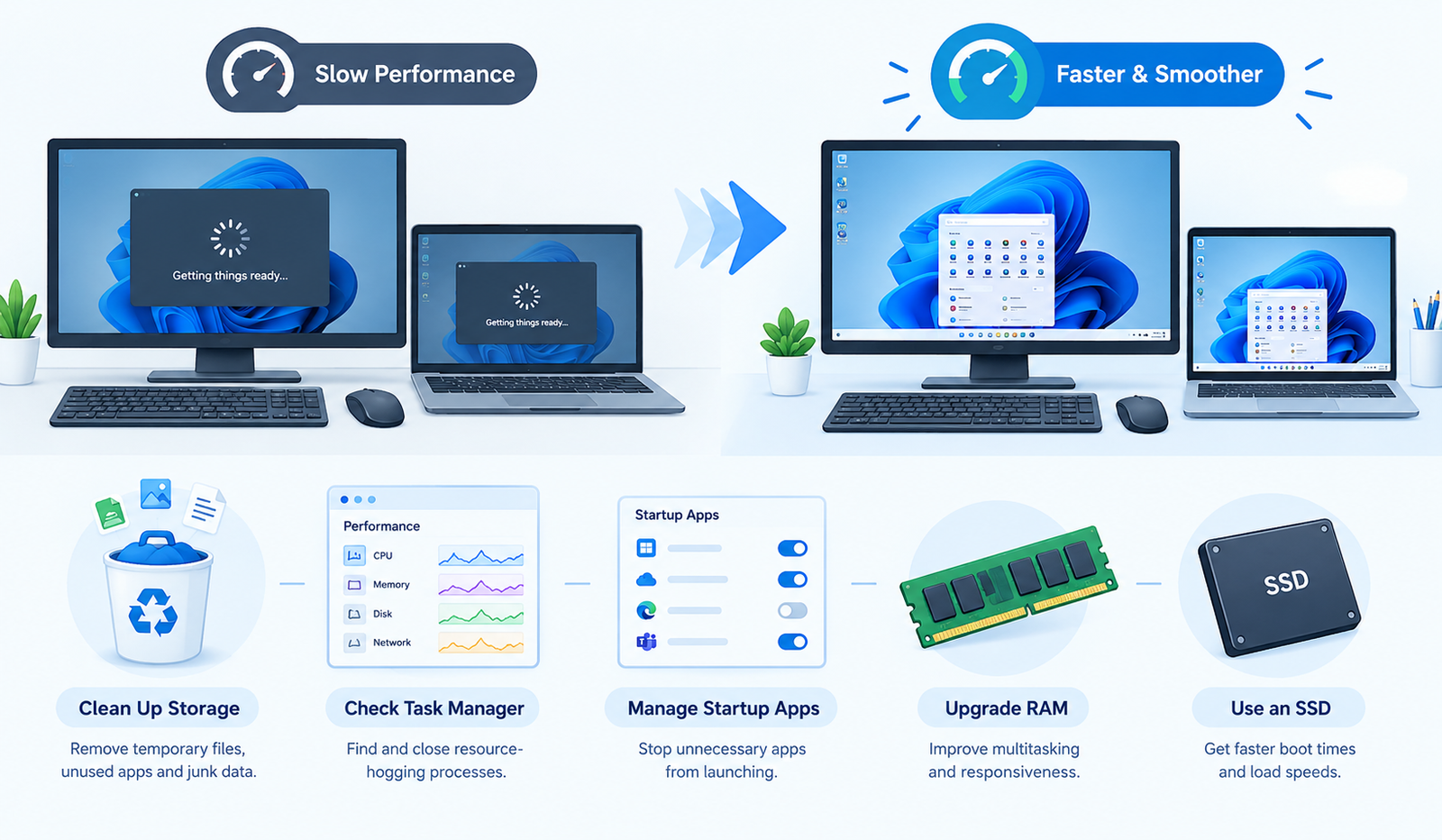
Too many startup applications can make Windows 11 take longer to boot and leave less memory available for the programs you actually use. To manage them, press Ctrl + Shift + Esc to open Task Manager, select Startup apps, and review the listed programs. Disable unnecessary apps that you don’t need immediately after signing in, such as game launchers or optional music applications. Keep essential security software enabled, and avoid disabling unfamiliar system components without checking their purpose. Reducing startup activity can make your computer feel quicker from the moment you turn it on.
3. Free Up Space on Your C: Drive

A nearly full system drive can interfere with temporary file storage, updates, and everyday tasks. Open Settings, go to System, select Storage, and review how much space is available on your C: drive. Open Temporary files and remove items you no longer need, taking care not to delete files you want to keep. You can also uninstall unused applications and move large personal files, such as videos, to another drive. Try to leave a reasonable amount of free space rather than allowing the drive to remain almost full.
4. Use Task Manager to Find What’s Slowing Down Your PC
Sometimes, one application is responsible for most of the slowdown. Task Manager helps you identify programs that are using too much CPU, memory, or disk activity. Press Ctrl + Shift + Esc, open the Processes tab, and click the CPU, Memory, or Disk column to sort applications by resource usage. If a browser has dozens of tabs open or an application is consuming unusually high resources while idle, close it or investigate why it’s behaving that way. Don’t end unfamiliar Windows processes simply because their names look unusual.
5. Reduce Unnecessary Visual Effects
Windows 11 uses animations, transparency, shadows, and other visual effects to create a polished appearance. These effects may affect responsiveness on older computers, especially systems with limited RAM or weaker graphics hardware. To adjust them, search Windows for “Adjust the appearance and performance of Windows,” open the matching result, and select Adjust for best performance under Visual Effects. Apply the changes and see whether the system feels smoother. Some visual details may disappear, but you can choose individual effects instead if you want to keep a balance between appearance and speed.
6. Change the Power Mode for Better Performance
Your computer’s power settings can affect how quickly it responds to demanding tasks. On a laptop, Windows may prioritize battery life over maximum performance, which can make certain applications feel less responsive. Open Settings, select System, and go to Power & battery. Under Power mode, choose Best performance if the option is available. This can help during multitasking or demanding work, although it may use more battery and produce additional heat. If you mainly use your laptop away from a charger, Balanced mode may be a better everyday choice.
7. Update Windows 11 and Essential Drivers
Outdated software or problematic drivers can contribute to freezing, crashes, and poor performance. Open Settings, select Windows Update, and click Check for updates. Install relevant updates and restart your computer when prompted. You can also review optional driver updates under Advanced options, but install only those that apply to your hardware. For graphics, chipset, and other important drivers, use your computer manufacturer’s official support website when necessary. Avoid unknown driver updater utilities that promise instant speed improvements, since they may install unsuitable software or create additional problems.
8. Scan Your Computer for Malware
Malware can run hidden processes, consume system resources, and cause unexpected slowdowns. If your computer has become noticeably slower without an obvious reason, checking for malicious software is a sensible step. Open Windows Security, select Virus & threat protection, and run a Quick scan. If the problem continues or you suspect an infection, run a Full scan. Remove or quarantine detected threats according to Windows Security’s recommendations. You should also avoid suspicious downloads and browser extensions, because preventing unwanted software is easier than dealing with its effects later.
9. Stop Unnecessary Background Apps
Some applications continue running in the background even when you’re not actively using them. Depending on the app, this activity may consume memory, use the network, or perform unnecessary tasks. Review your installed applications under Settings and check whether individual apps offer background activity controls or startup options. Disable background permissions where Windows provides them and where they aren’t needed. Be selective, though. Messaging, cloud backup, security, and synchronization apps may need background access to work correctly, so disabling everything isn’t the best approach.
10. Optimize Your Storage Drive

Your storage drive plays a major role in how quickly Windows starts and applications open. Search for “Defragment and Optimize Drives” in the Start menu to check the status of your drives. Windows can optimize traditional hard disk drives through defragmentation and maintain solid-state drives using appropriate optimization methods. Select the drive and follow the built-in tool’s recommendations. If your computer uses an old HDD, optimization may help in some situations, but it won’t provide the same improvement as switching to an SSD. If the drive repeatedly reaches 100% usage or produces errors, investigate its health rather than assuming it only needs optimization.
11. Clear Temporary Files and Browser Clutter
Temporary files accumulate as Windows and applications perform everyday tasks. Browsers also store cached data, cookies, and other information that can sometimes contribute to browser-specific problems. Use Windows Storage settings to remove unnecessary temporary files, then review your browser’s extensions and remove those you no longer use. If a browser remains slow, test it with fewer tabs or temporarily disable extensions to identify the cause. Clearing the entire browser history isn’t always necessary, and deleting cookies may sign you out of websites, so choose cleanup options carefully.
12. Repair Windows System Files
If Windows feels slow because of damaged system files, built-in repair tools may help without requiring a reinstall. Open the Start menu, search for Command Prompt, and select Run as administrator. Run the following command and wait for it to finish:
DISM /Online /Cleanup-Image /RestoreHealthAfter DISM completes, run System File Checker:
sfc /scannowThese tools check and repair supported Windows component and system-file problems. Keep your computer connected to power and avoid closing the command window while the scans are running. If either tool reports an error, note the message before trying additional repairs.
13. Uninstall Programs You No Longer Need
Unused software takes up storage space and may add background services, scheduled tasks, or startup entries. Open Settings, go to Apps, and select Installed apps. Review the list and uninstall applications you recognize but no longer use. Remove trial software and unnecessary utilities if you’re sure you don’t need them. Avoid deleting unfamiliar components simply because their names are confusing, as some may belong to your hardware or essential software. Removing unwanted applications can reduce clutter, free up storage, and simplify troubleshooting.
14. Adjust Windows Search Indexing Carefully
Windows Search uses an index to help you find files, settings, and applications quickly. On some systems, indexing activity may temporarily increase CPU or disk usage, especially after a large number of files have changed. If you notice that Search Indexer frequently consumes resources for long periods, open Settings and look under Privacy & security for Searching Windows. Review which folders are indexed and exclude locations you don’t need to search regularly. Don’t disable indexing blindly, because doing so may make file searches slower rather than improve your overall experience.
15. Check Whether Your PC Needs More RAM
If your computer becomes slow whenever you open several applications, insufficient RAM may be part of the problem. Open Task Manager and select Performance, then Memory, to see how much RAM is installed and how heavily it’s being used. If memory usage frequently remains near capacity, close unnecessary apps and browser tabs first. Computers with 4 GB of RAM may struggle with modern multitasking, while 8 GB can be adequate for basic use and 16 GB often provides more room for everyday multitasking. Check your device’s upgrade compatibility before purchasing additional memory.
16. Upgrade From an HDD to an SSD if Possible
An old mechanical hard drive can be one of the biggest reasons a Windows 11 computer feels slow. An SSD can significantly reduce boot times, improve application loading, and make routine tasks feel more responsive. If your computer still uses an HDD as its main Windows drive, check whether an SSD upgrade is supported. Before changing drives, back up your important files and make sure you have a reliable plan for transferring Windows and your data. An SSD won’t solve every performance problem, but it can make a substantial difference on compatible systems that rely on older hard drives.
17. Check for Overheating
A computer that runs well at first but becomes sluggish after several minutes may be overheating. When the processor gets too hot, it can reduce its speed to protect the hardware. Make sure the laptop’s vents aren’t blocked, keep desktop air vents clear, and place your computer on a firm surface that allows airflow. Dust buildup inside the cooling system can also contribute to high temperatures. If the fan runs loudly all the time or the computer frequently slows down under light workloads, consider having the cooling system inspected rather than installing random temperature-fixing utilities.
18. Use a Clean Boot to Find Conflicting Software
If you’ve tried the basic fixes and Windows still behaves strangely, a clean boot can help identify whether a third-party application or service is causing the problem. Search for System Configuration, open it, and select the Services tab. Check Hide all Microsoft services before choosing Disable all. Next, use Task Manager to disable startup applications, then restart the computer. This is a troubleshooting method, not a permanent performance setting. If the slowdown disappears, re-enable services and startup apps gradually to identify the source. Keep track of changes so you can restore normal startup behavior afterward.
19. Check Your PC’s Health Before Problems Get Worse
A slow computer isn’t always suffering from a software problem. Storage errors, failing hardware, and recurring system crashes can also affect performance. If your PC freezes frequently, files disappear, or the drive makes unusual clicking sounds, back up important data as soon as possible. Check Windows’ built-in drive information and manufacturer-provided diagnostic tools for signs of trouble. Avoid repeatedly stressing a drive that may be failing. Identifying hardware problems early can help protect your files and prevent you from spending time on software tweaks that won’t address the real cause.
20. When Should You Consider Resetting Windows?
Most basic performance problems can be investigated without reinstalling Windows, but some persistent issues may require more substantial repair. If Windows continues crashing after system-file repairs, malware removal, driver troubleshooting, and hardware checks, consider using Windows recovery options as a later step. Back up your files before making major changes and understand what each recovery option removes. A reset should not be your first response to a slow computer. It’s better to identify the cause first, since a fresh installation won’t fix failing hardware or inadequate system specifications.
Common Mistakes to Avoid When Speeding Up Windows 11
Be careful with registry cleaners, unofficial debloat scripts, aggressive services-disabling guides, and applications that promise to boost performance with one click. These tools can remove necessary components, cause instability, or make troubleshooting harder. Avoid deleting unfamiliar files from Windows folders or disabling every background process you see. Also, don’t expect a disk cleanup to fix a failing hard drive or a software tweak to compensate for insufficient memory in every situation. Focus on changes that address an identifiable problem, then check whether your computer actually performs better.
Conclusion
You can often improve a sluggish PC without reinstalling Windows 11. Start by restarting your computer, disabling unnecessary startup apps, freeing up storage, and checking Task Manager for resource-hungry programs. Then move on to Windows updates, malware scans, system-file repairs, and drive-health checks if the problem continues.
The most effective fix depends on what’s actually slowing your computer down. An overloaded startup, a nearly full drive, limited RAM, overheating, and an aging HDD all require different solutions. Work through the steps one at a time and check the results after each major change. That way, you’ll spend less time making unnecessary adjustments and more time fixing the problem that matters.
FAQs About Speeding Up Windows 11
1. How can I speed up Windows 11 without reinstalling it?
Disable unnecessary startup apps, remove temporary files, uninstall unused programs, install relevant updates, and check Task Manager for applications consuming excessive resources. If the computer remains slow, investigate its RAM, storage drive, temperature, and system-file health.
2. Why is my Windows 11 computer so slow all of a sudden?
Sudden slowdowns may result from a background update, a resource-heavy application, malware, a nearly full drive, or a driver issue. Check Task Manager first to identify unusual CPU, memory, or disk activity, then investigate the process responsible.
3. Does disabling startup apps really make Windows 11 faster?
Yes, disabling unnecessary startup apps can shorten boot times and reduce background resource usage. The improvement depends on how many applications launch automatically and how much CPU or memory they consume.
4. How much free space should I keep on my Windows 11 drive?
There isn’t one universal requirement, but keeping several gigabytes free at a minimum is sensible, and having around 10–20% of the drive available can provide useful breathing room on many systems. Large updates and demanding applications may need additional space.
5. Does Windows 11 run faster on an SSD than an HDD?
Generally, yes. An SSD offers much faster access to stored data than a traditional mechanical HDD, which can improve Windows startup, application loading, and general responsiveness. The exact improvement depends on the rest of the computer.
Read also: 5 Best Budget Laptop for Video Editing Under $800