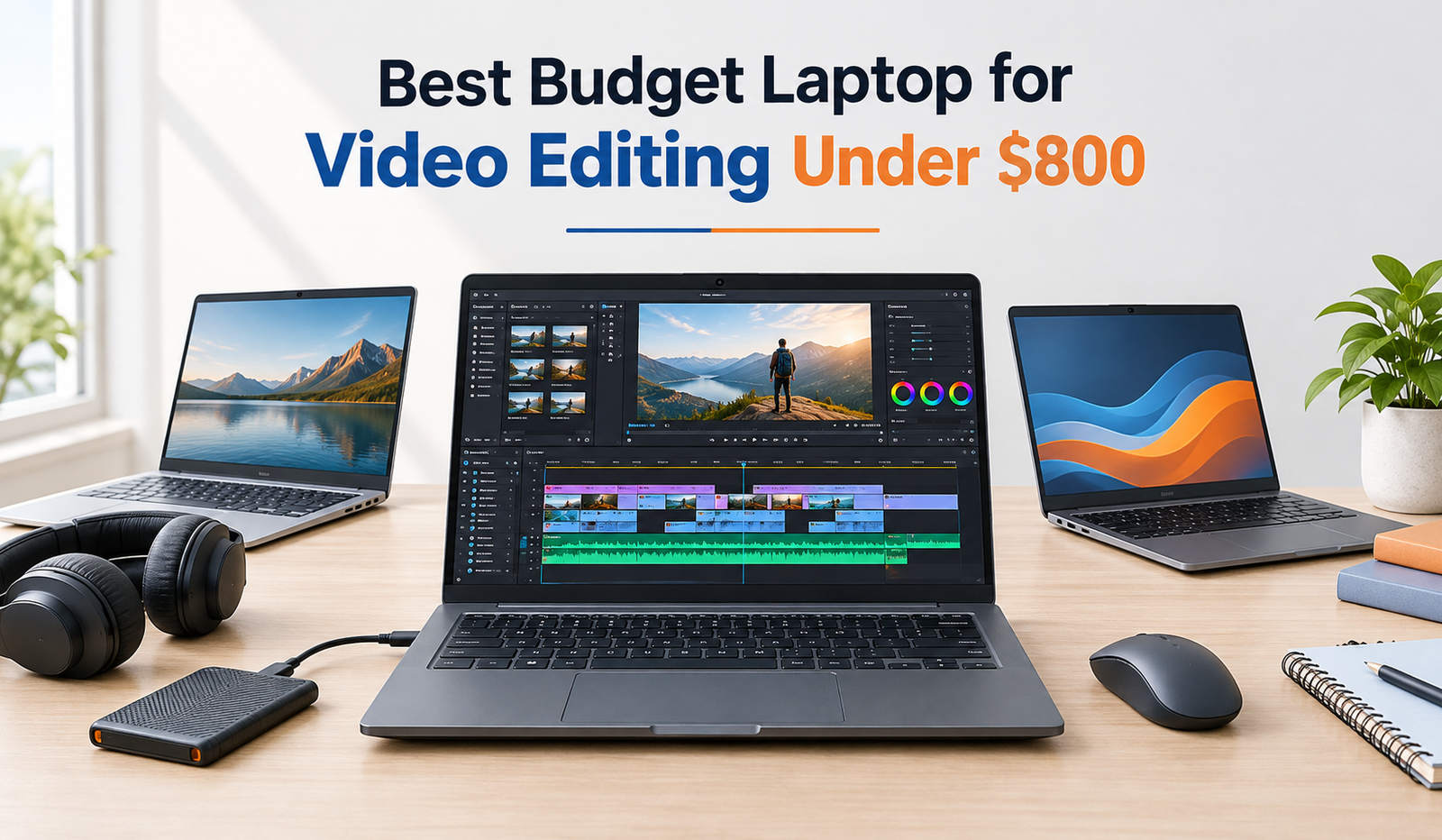
Find the best budget laptop for video editing under $800 with fast performance, 16GB RAM, and powerful graphics card such as the RTX 4050. These specifications can provide a good balance of performance for 1080p editing, common effects, and many moderately demanding projects.
A laptop with integrated graphics can also work well for basic editing, particularly for short videos and simple cuts. However, if you regularly use DaVinci Resolve, apply visual effects, or work with high-resolution footage, a dedicated GPU can make a noticeable difference. Always compare the exact configuration because laptops sold under the same model name may have different processors, graphics cards, memory, and displays.
5 Best Budget Laptops for Video Editing Under $800
1. Lenovo LOQ 15: Best Overall for Video Editing

The Lenovo LOQ 15 is one of the first laptops worth checking if you want strong editing performance without spending more than $800. Depending on the configuration, it can offer a modern Ryzen or Intel processor, an NVIDIA RTX graphics card, upgradeable memory, and enough processing power for editing YouTube videos, adding transitions, and working with multiple video layers. The best configuration to look for includes an RTX 4050, 16GB of RAM, and a 512GB SSD. Its main drawback is portability because gaming laptops tend to be heavier than thin everyday notebooks, and battery life can decrease quickly during demanding editing sessions.
2. Acer Nitro V 15: Best for Rendering and Effects

The Acer Nitro V 15 is another practical option for creators who want dedicated graphics at an affordable price. Configurations with an NVIDIA RTX 4050 can handle GPU-accelerated effects, video encoding, and demanding editing tasks more effectively than many entry-level laptops with integrated graphics. Look for a model with 16GB of RAM, a modern Core i5 or Ryzen processor, and a display that offers good color reproduction. Some versions prioritize gaming performance over display accuracy, so check the screen specifications before purchasing. If you find a suitable configuration below $800, it can be a good fit for creators who regularly edit longer videos.
3. ASUS Vivobook S 16 OLED: Best for Display Quality

The ASUS Vivobook S 16 OLED is worth considering if you spend hours adjusting colors, reviewing footage, and editing content away from your desk. An OLED display can deliver deep blacks, strong contrast, and vibrant colors, making video previews more enjoyable than on many basic laptop screens. Certain configurations also offer capable modern processors and 16GB or more of memory. The trade-off is graphics performance, since many versions rely on integrated graphics rather than a dedicated RTX GPU. For everyday 1080p editing, short-form videos, and general creative work, it can be a sensible choice, but check the exact price and specifications before deciding.
4. Apple MacBook Air M2: Best for Portability

The Apple MacBook Air M2 is an attractive option if you prefer macOS, need good battery efficiency, and often edit while traveling. Its processor can handle many 1080p projects and a range of moderate 4K editing tasks, while its lightweight design makes it easier to carry than most gaming laptops. The challenge is finding one under $800 with enough memory and storage, particularly if you want a new device. A reputable refurbished model with 16GB of unified memory is worth considering, but check battery health, warranty coverage, and the return policy. The base 8GB version may be less comfortable for demanding projects or heavy multitasking.
5. HP Victus 15: Best Alternative to Lenovo and Acer

The HP Victus 15 can be a good alternative when Lenovo LOQ and Acer Nitro models are unavailable or overpriced. Some configurations include dedicated NVIDIA graphics, a modern processor, and upgradeable memory, making them suitable for content creation as well as gaming. For video editing, aim for a configuration with an RTX 4050 and 16GB of RAM if your budget allows. Its actual performance will depend on the specific processor, GPU power limits, cooling system, and display. Compare those details rather than choosing a laptop based on its brand name alone.
What Specifications Matter Most for Video Editing?
Processor: Choose a Modern CPU
The processor affects how smoothly your editing software responds, particularly when you import footage, scrub through a timeline, render effects, or export a completed project. A recent Intel Core i5, Intel Core Ultra 5, or AMD Ryzen 5 processor is a reasonable starting point for a laptop in this price range. Higher-tier processors can help with complex projects, but a powerful CPU is not the only thing that matters. A balanced laptop with a capable processor, sufficient RAM, and good cooling can be a better purchase than a model with an impressive processor and weak graphics or limited memory.
RAM: Why 16GB Is the Sweet Spot
RAM helps your editing software manage footage, effects, previews, and other open applications. For most budget video editors, 16GB is the recommended starting point because it offers a better experience than 8GB when working with larger timelines or several applications at once. If you edit 4K footage regularly, use advanced effects, or keep multiple creative programs open, 32GB can be helpful. Before buying, check whether the laptop’s memory can be upgraded. Some models have soldered RAM, meaning you cannot add more later.
Graphics Card: Is an RTX 4050 Necessary?
A dedicated graphics card is particularly useful for GPU-accelerated effects, color grading, and supported encoding workflows. The NVIDIA RTX 4050 with 6GB of VRAM is an appealing option when available under your budget because it provides more graphics headroom than many integrated solutions. However, an RTX 4050 is not essential for every editor. Basic cutting, trimming, subtitles, and simple transitions can run well on several modern integrated-graphics systems. Your software, footage format, effects, and export settings all influence performance.
Storage: Why an SSD Makes a Difference
A solid-state drive helps your laptop start quickly, launch editing software, and load project files without the delays associated with older mechanical hard drives. A 512GB SSD is a reasonable minimum, although video files can fill it surprisingly fast. A few large 4K projects, cached previews, and downloaded assets can consume hundreds of gigabytes. If you work with substantial footage libraries, look for a laptop with an upgradeable SSD or plan to use an external SSD for project files and backups.
Display: Do Not Ignore Color Accuracy
A laptop screen affects how you judge brightness, contrast, and color in your finished videos. A display with close to 100% sRGB coverage is a useful target for general web and social media content. OLED screens can offer excellent contrast, while a good IPS panel can also provide accurate colors without the potential burn-in concerns associated with prolonged static content on OLED displays. Remember that a high refresh rate does not automatically mean a screen is suitable for color-critical work. Check color coverage, brightness, and independent reviews where possible.
Which Laptop Is Best for Different Editing Software?
Best Laptop for Adobe Premiere Pro
Adobe Premiere Pro benefits from a balanced combination of CPU performance, memory, and GPU acceleration. For an $800 budget, start with a Lenovo LOQ 15 or Acer Nitro V configuration that includes an RTX 4050 and 16GB of RAM. These specifications are suitable for many 1080p projects and moderate editing workloads. More complicated timelines, demanding effects, and high-resolution footage may require additional memory or optimized media to keep playback responsive.
Best Laptop for DaVinci Resolve
DaVinci Resolve makes substantial use of GPU resources for many color grading, effects, and image-processing tasks. That makes a dedicated graphics card particularly attractive if you plan to use advanced color tools or Fusion effects. An RTX 4050 configuration is a sensible target within this budget, but its 6GB of VRAM can become a limitation with demanding projects. For smoother editing, use optimized media or proxy files when needed, and avoid assuming that every 4K workflow will run perfectly just because a laptop has a dedicated GPU.
Best Laptop for CapCut and YouTube Editing
If you mainly create YouTube videos, Instagram Reels, TikToks, tutorials, or product clips in CapCut, you may not need a high-end graphics card. A modern processor, 16GB of RAM, and a fast SSD can provide a comfortable experience for many everyday projects. You can spend less on graphics and prioritize a good screen, portability, or battery life if your editing is relatively simple. However, adding many effects, editing high-resolution footage, and running several applications together can increase your hardware requirements.
Can You Edit 4K Videos on a Laptop Under $800?
Yes, you can edit 4K videos on a laptop under $800, but the experience depends on your footage, software, and editing style. A laptop with a modern processor, 16GB of RAM, an RTX 4050, and a fast SSD can manage many moderate 4K projects. However, heavy noise reduction, complex effects, multiple high-resolution layers, and demanding codecs can cause slow playback or longer export times. Using proxy files, lowering preview resolution, and keeping enough free storage can make editing more manageable without upgrading your entire setup.
New vs. Refurbished: Which Is Better Under $800?
A new laptop offers the reassurance of a fresh battery, manufacturer warranty, and a known usage history. That matters if you depend on your laptop for work or study and cannot afford unexpected repair costs. A refurbished laptop, on the other hand, may give you access to a more powerful processor or dedicated graphics card for the same money. If you consider a used MacBook or gaming laptop, inspect the battery condition, screen, keyboard, ports, cooling system, and storage health. Buy from a seller with a clear return policy, and compare the total cost rather than focusing only on the advertised price.
How to Get the Best Performance From Your Budget Laptop
Even a capable laptop can struggle when the editing workflow is poorly optimized. Keep your editing software updated, close unnecessary applications, and use proxy files when working with demanding footage. Store active projects on a fast SSD and back up important files to another drive or a reliable backup service. During long exports, use the laptop’s appropriate performance mode and keep its cooling vents unobstructed. If your laptop supports a memory upgrade, adding RAM later may be a cost-effective way to extend its useful life.
Common Mistakes to Avoid When Buying a Video Editing Laptop
One common mistake is buying a laptop based on its processor name without checking the graphics card, memory, or display. Another is assuming that every laptop marketed for gaming will have a color-accurate screen. It is also easy to underestimate storage requirements when working with large video files. Before making a purchase, check the complete model number, GPU, installed RAM, upgrade options, screen specifications, warranty, and final price. If a configuration has only 8GB of RAM or a small SSD, consider whether the savings justify the compromises.
Conclusion
For most people, the Lenovo LOQ 15 is the first model I would compare when looking for the best budget laptop for video editing under $800. An RTX 4050 configuration with 16GB of RAM, a 512GB SSD, and a color-accurate screen offers a sensible balance of performance and value. The Acer Nitro V 15 is another strong candidate, while the ASUS Vivobook S 16 OLED and MacBook Air M2 may be better suited to people who prioritize display quality, portability, or battery efficiency. Prices and configurations change, so compare the exact specifications before buying. The smartest purchase is not necessarily the laptop with the highest price or most powerful processor; it is the one that handles your actual editing workload without forcing you to pay for features you will rarely use.
Frequently Asked Questions
1. What is the best laptop for video editing under $800?
The Lenovo LOQ 15 and Acer Nitro V 15 are strong options when configured with an NVIDIA RTX 4050, 16GB of RAM, and a 512GB SSD. Compare the exact display and processor before purchasing.
2. Is 16GB RAM enough for video editing?
Yes, 16GB is enough for many 1080p editing projects and some moderate 4K workflows. For complex timelines, heavy effects, or frequent multitasking, 32GB can provide more breathing room.
3. Is a gaming laptop good for video editing?
Yes. Gaming laptops often offer dedicated graphics cards, capable processors, and cooling systems that can also benefit video editing. Their disadvantages may include extra weight, fan noise, and shorter battery life.
4. Can I edit 4K videos with an RTX 4050 laptop?
Yes, many RTX 4050 laptops can handle moderate 4K editing projects. Performance varies with the software, codec, effects, memory, and available VRAM, so demanding projects may require proxies or optimized media.
5. Is a MacBook Air better than a Windows laptop for editing?
It depends on your workflow. A MacBook Air offers portability and efficient performance, while a Windows gaming laptop under $800 may offer stronger dedicated graphics for GPU-heavy editing. Software preference and the exact configuration matter.
Read also: What Is a Passkey and Should I Switch From Passwords?