Password Manager vs Browser Autofill Which Is Safer? compare security features, and learn how to protect your passwords online. Choosing between a password manager and browser autofill might seem like a small decision, but it can make a real difference to your online security. Think about how many accounts you use every week. You probably have an email account, social media profiles, shopping accounts, and perhaps online banking. Remembering a different password for every website is difficult, so most people rely on tools that save and fill their login details automatically. The question is whether your browser’s built-in password storage is enough or whether you should use a dedicated password manager instead. A dedicated password manager is generally the better choice for people who want stronger password management across multiple devices and browsers, but browser autofill can also be secure when configured properly. The right option depends on how you use the internet, how well you protect your devices, and which security features matter most to you.
Password Manager vs Browser Autofill: Understanding the Difference
A password manager is a tool designed to store, organize, and protect your login credentials, while browser autofill is a feature that automatically enters saved information into login forms. The distinction is not always as simple as it sounds because modern browsers, including Chrome, Edge, Firefox, and Safari, have built-in password management systems. A dedicated password manager works separately from your browser and may offer features such as secure sharing, password health reports, emergency access, and support for different browsers. Browser autofill focuses more on convenience, allowing you to visit a website and sign in without typing your credentials every time. Both options can be useful, but their security capabilities, flexibility, and available controls depend on the specific product you choose.
What Is a Password Manager?
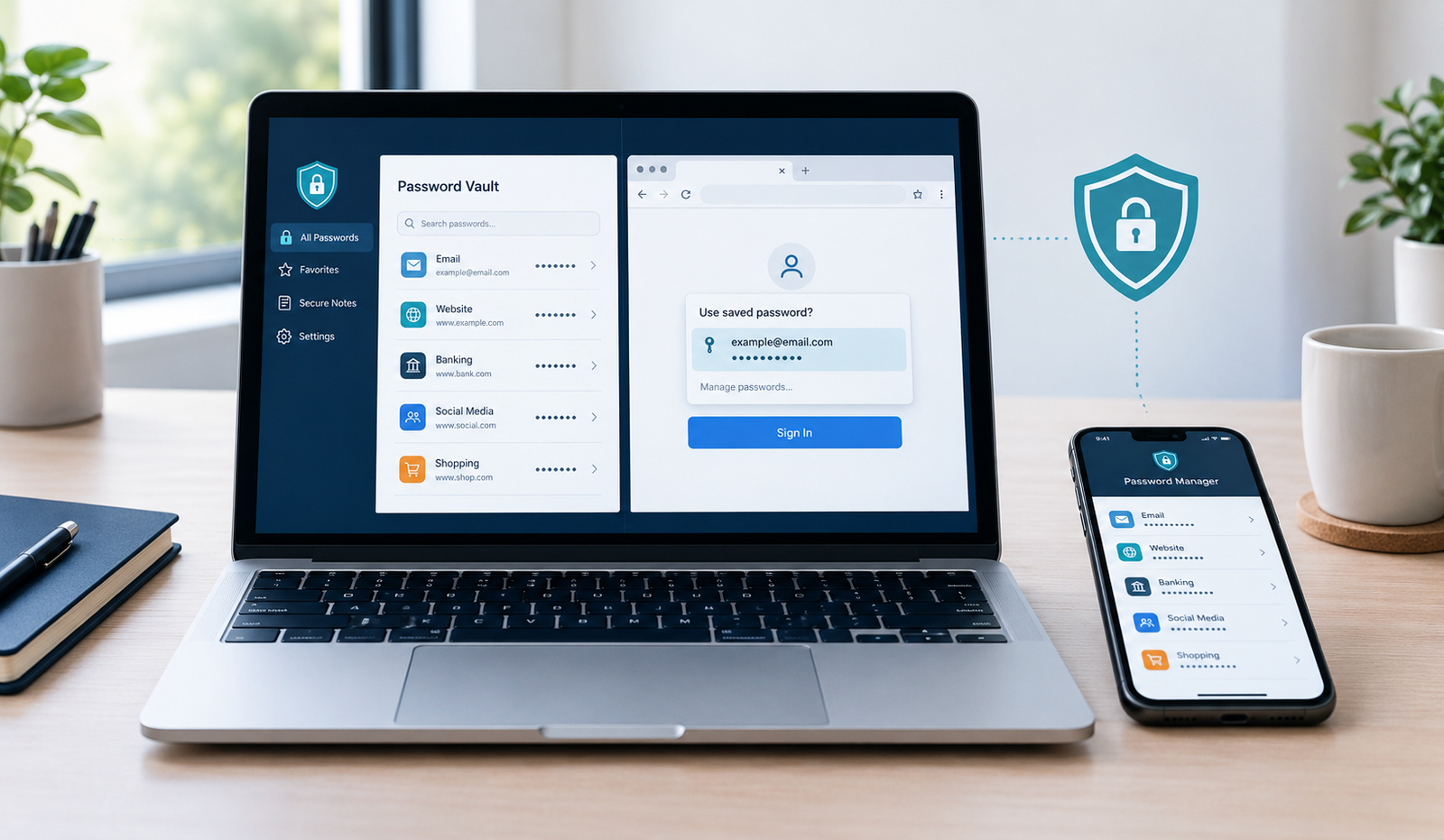
A password manager is an application or service that stores your passwords in a protected digital vault, helping you keep your login information organized without memorizing every password. Instead of creating short passwords that are easy to remember, you can generate long, random combinations for each account and let the manager fill them in when needed. Many dedicated services also support passkeys, secure notes, password-sharing features, breach monitoring, and synchronization between computers and mobile devices. Some use end-to-end encryption so that your vault is encrypted before it leaves your device, although the exact security model varies by provider. You typically unlock the vault with a master password, biometric authentication, or another supported method, making the manager’s own security an important part of your overall protection.
What Is Browser Autofill?
Browser autofill is a built-in feature that remembers information you have saved in your web browser and enters it into matching forms automatically. When you sign in to a website, your browser may offer to save your username and password, then suggest those details the next time you visit the same site. Chrome Password Manager, Microsoft Edge’s password manager, Firefox password management, and Apple’s password features provide versions of this convenience. Browser-based tools are attractive because they are already available, usually require little setup, and can synchronize information through the associated account when that feature is enabled. However, their available security controls and compatibility with other applications differ, so it is worth checking what your particular browser supports instead of assuming every browser works in exactly the same way.
Password Manager vs Browser Autofill: Which Is Safer?
When comparing a password manager with browser autofill, the most important factors are how passwords are encrypted, how access is controlled, how credentials are matched to websites, and what happens if someone gains access to your device. A reputable dedicated password manager often provides more security-focused features and greater control over your saved credentials, particularly when you use multiple browsers or devices. Browser password managers can still provide strong protection, especially when your browser account is secured with multifactor authentication and your computer has a reliable screen lock. Neither option guarantees complete security, and a poorly configured password manager may be less safe than a well-protected browser manager. Your habits and the quality of the product matter just as much as the category of tool you choose.
Password Encryption and Data Protection
Encryption helps protect saved passwords from being read by someone who does not have the necessary authorization or decryption keys. Many reputable password managers encrypt the contents of your vault, and some use a zero-knowledge architecture designed to prevent the provider from accessing your stored secrets. Browser password managers also use security protections, but the details depend on the browser, operating system, account settings, and synchronization method. For example, protecting passwords stored on a shared or unattended computer requires more than relying on encryption alone. You should also lock the device, secure your account, and understand whether saved credentials can be accessed by another person using your logged-in profile.
Protection Against Phishing Websites
Phishing occurs when someone creates a fake website or message to trick you into revealing passwords, payment information, or other sensitive details. Password managers can help because they commonly associate saved credentials with a particular website address rather than simply filling them into any page that looks familiar. Browser password managers can offer similar protection, so this is not an automatic win for dedicated software. If a password is not offered for a website where you expected it, check the domain carefully before entering anything manually. A password manager also cannot protect you from every phishing technique, such as a convincing fake login that persuades you to disclose information directly. Passkeys and hardware security keys can provide stronger protection against many forms of phishing when supported by the website.
Protection If Your Device Is Stolen
If someone steals your laptop or phone, the safety of your saved passwords depends on whether the device is locked, whether your account is protected, and how easily the person can access your password vault. A dedicated password manager may offer automatic locking, reauthentication requirements, and separate vault controls, depending on the product. Browser password storage can also be protected through operating-system security and account authentication. However, if someone steals an already unlocked device or gains access to your active user session, neither option should be treated as automatically safe. Enable a strong screen lock, set your password manager to lock when idle, and avoid leaving sensitive accounts signed in on devices that other people can use.
Key Security Features Compared
The main difference between these options is not simply that one is safe and the other is unsafe. A dedicated password manager usually offers a wider set of tools for controlling and organizing credentials, while browser autofill keeps password management close to the browsing experience. The following comparison highlights common differences, although individual products may offer more or fewer features.
| Security feature | Dedicated password manager | Browser autofill |
|---|---|---|
| Unique password generation | Commonly available | Available in many browsers |
| Password encryption | Depends on the provider | Depends on browser and platform |
| Multifactor authentication | Often supported | Depends on the account and platform |
| Cross-browser compatibility | Usually broader | Usually centered on one browser |
| Password health checks | Common in many products | Available in some browsers |
| Secure password sharing | Available in some products | More limited or varies |
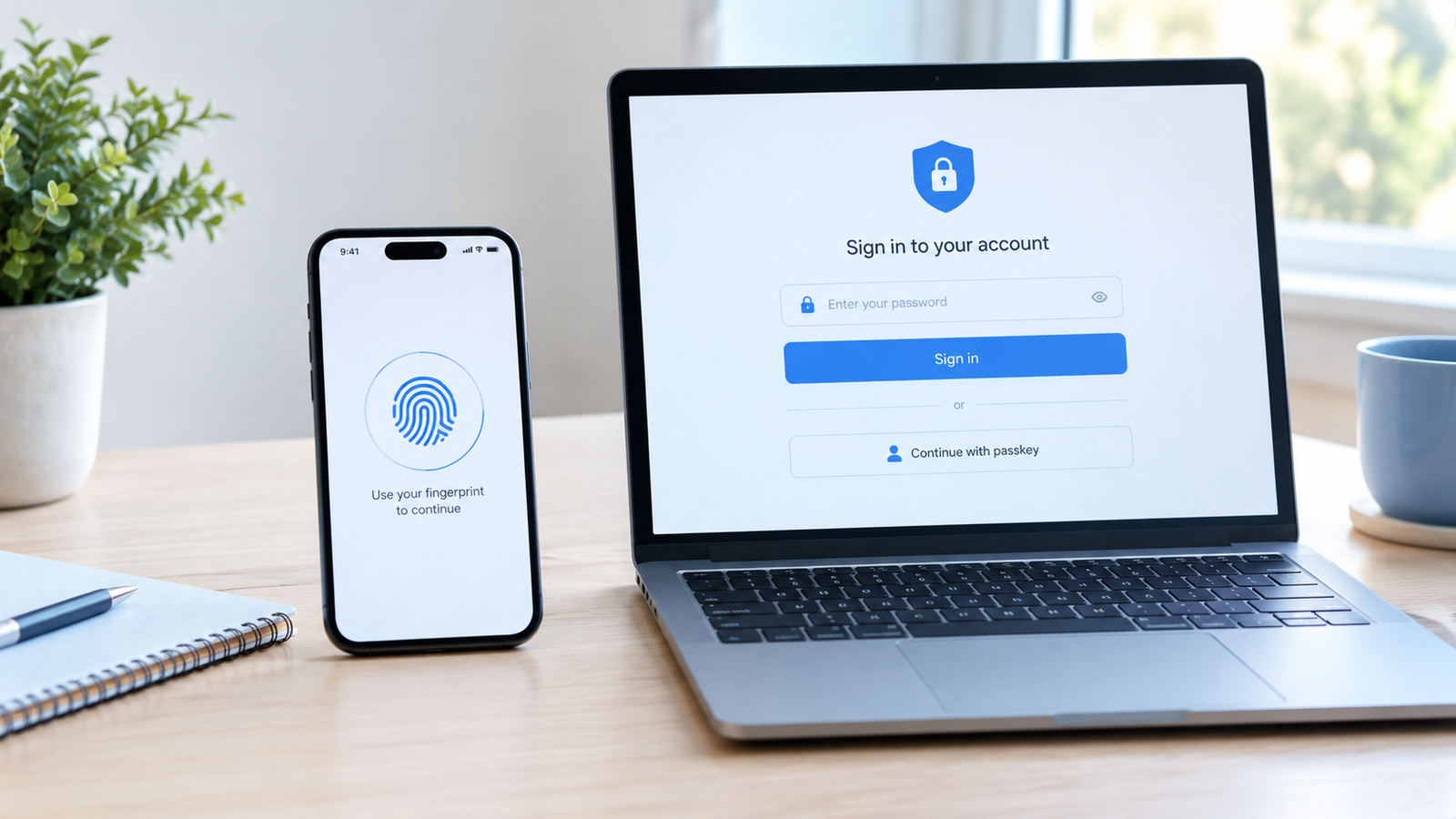
| Passkey support | Available in many modern tools | Available in supported browsers |
| Setup and everyday use | Requires initial setup | Usually very convenient |
Password Generation and Reuse Prevention
One of the biggest security benefits of any good password manager is its ability to generate strong, unique passwords for individual accounts. If you reuse the same password on several websites, a breach at one company can put your other accounts at risk. Unique passwords prevent a leaked credential from automatically unlocking every other account that uses it. Both dedicated managers and many browser password managers can generate random passwords, so you do not necessarily need a separate app to get this benefit. What matters is using the feature consistently instead of relying on familiar passwords that are easy to remember but easier to guess or reuse.
Multifactor Authentication and Account Recovery
Multifactor authentication adds another verification step beyond a password, helping protect an account even if someone learns the password. Dedicated password managers often support additional authentication methods, but the available options vary between providers and subscription plans. Browser-based password storage may rely on the security of your browser account, your operating-system account, or the device itself. Account recovery deserves attention too, because losing access to a password manager without a recovery plan can be stressful. Set up supported recovery methods, keep backup codes somewhere secure, and never assume that a provider can restore an encrypted vault if you lose the information required to unlock it.
Advantages and Disadvantages of a Dedicated Password Manager
A dedicated password manager is particularly useful when your digital life extends beyond one browser or device. You might use a Windows laptop for work, an Android phone while traveling, and a different browser for personal projects. A dedicated tool can keep your credentials available across those environments while offering a central place to review password strength, manage passkeys, and organize sensitive information. Some services also provide secure sharing for families or teams. The downside is that you must choose a trustworthy provider, learn its settings, and protect access to your vault. You are also relying on another service, so its security practices, recovery process, and long-term availability deserve consideration before you commit to it.
When a Dedicated Password Manager Makes Sense
A dedicated password manager is a strong choice if you maintain dozens of accounts, work across different browsers, or want to manage personal and professional credentials separately. It is also useful if you need to share selected passwords securely with family members or colleagues rather than sending them through ordinary messages. Many products provide security reports that identify weak, reused, or potentially compromised passwords, helping you prioritize improvements. These features can make account protection easier to maintain over time. However, you should choose a manager with a clear security model, a reliable update history, and practical recovery options rather than selecting one based only on popularity or price.
Potential Risks of Password Managers
A dedicated password manager can become a valuable target because its vault may contain access to many of your online accounts. If an attacker obtains your master password and bypasses any additional safeguards, the consequences could be serious. A compromised device, malicious browser extension, phishing attack, or weak recovery process can also undermine otherwise good protection. This does not mean password managers are inherently dangerous; it means they need sensible setup and maintenance. Use a long, unique master passphrase, enable multifactor authentication where available, install updates, and download the application from the official provider. Avoid sharing your master password or storing it in an easily accessible note on the same device.
Advantages and Disadvantages of Browser Autofill
Browser autofill has one major advantage: it removes friction from everyday internet use. You can save a password while signing in, let the browser suggest a strong replacement, and fill in your credentials on future visits. For someone who primarily uses one trusted browser on a personal device, this may be all the password management they need. Browser tools can also synchronize credentials across devices when synchronization is enabled and the relevant accounts are properly secured. The limitations appear when you want advanced sharing, detailed vault organization, or consistent access across several browsers. The precise feature set varies, so check your browser’s current password settings before deciding whether you need an additional tool.
When Browser Autofill Is Enough
Browser autofill can be sufficient for someone who uses a single browser, keeps their software updated, and wants a straightforward way to manage everyday logins. If your browser already generates unique passwords and checks saved credentials for known security problems, you may have access to many of the features that matter most. You do not need to install a dedicated application simply because it sounds more secure. Instead, review the protections available in your current browser, secure the account used for synchronization, and make sure other people cannot access your saved passwords through your computer profile. If your needs become more complex later, you can move to a dedicated manager without changing your overall approach to good password habits.
Risks of Relying on Browser Autofill
Browser autofill can create problems when passwords are saved in a browser profile that other people can access. Someone using an unlocked computer might be able to visit signed-in websites or access saved credentials, depending on the browser and device protections. Synchronization also means you should secure the account connected to your browser, because it may contain more than just passwords. Another concern is assuming autofill makes every login safe. It does not stop you from visiting a fraudulent website, approving a malicious sign-in request, or giving away your credentials through a convincing scam. Review which passwords are saved, remove credentials from shared devices, and avoid enabling password synchronization on computers you do not control.
How to Choose the Safest Option for Your Needs
The safest option is the one that helps you maintain good security habits without creating so much friction that you start taking shortcuts. If you want more control, work across several browsers, or manage many accounts, a reputable dedicated password manager is usually the more flexible choice. If you use one browser on a personal device and need basic password storage, built-in autofill may be perfectly reasonable. In either case, choose a tool that supports strong password generation, secure storage, appropriate authentication, and useful recovery options. Your decision should also reflect how comfortable you are with the provider and whether you can maintain the settings it recommends.
How to Switch From Browser Autofill to a Password Manager
Moving to a dedicated password manager usually begins with choosing a reputable provider and importing your existing passwords through its supported process. Before importing anything, secure your account and enable any recommended authentication safeguards. Review the imported entries for duplicate, weak, or outdated passwords, then change the most important ones first, especially your primary email and financial accounts. Once you have confirmed that the new manager works properly across your devices, decide whether to turn off password saving in your browser to avoid maintaining two competing password stores. Keep a secure recovery plan and verify that your important logins work before removing your old records. Never leave an exported password file sitting unprotected on your desktop after the migration.
Best Practices for Keeping Your Passwords Safe
Good password security comes from a few habits repeated consistently, not from installing the largest number of security applications. Start by using a unique password for every important account and enabling multifactor authentication wherever possible. Secure your primary email account because it is often used to reset passwords for other services. Keep your browser, operating system, and password manager updated, and never approve a login request you did not initiate. Review security alerts promptly, remove old accounts you no longer use when practical, and sign out of shared devices. These steps improve your security whether you prefer a dedicated password manager or your browser’s built-in autofill.
Conclusion
For most people who want greater control over their passwords, a reputable dedicated password manager is the better overall choice because it commonly provides broader compatibility, more advanced vault controls, and additional credential-management features. Browser autofill remains a sensible option for people who want simplicity and already have a well-secured browser and device. Neither option can protect you from every threat, and both depend on the quality of the software and the way you use it. Rather than worrying about which category is always safest, focus on generating unique passwords, securing the account that protects them, and using phishing-resistant authentication where available. Those habits will make a meaningful difference to your online security.
FAQs Password Manager vs Browser Autofill
1. Is a password manager safer than browser autofill?
Generally, a dedicated password manager offers more security controls and flexibility, but reputable browser password managers can also protect saved credentials effectively. Your settings and device security matter.
2. Is Chrome Password Manager safe to use?
Chrome Password Manager can be a safe option when you keep Chrome updated, secure your Google account, and protect your device. Review its available security and synchronization settings.
3. Can hackers steal passwords from a password manager?
Yes, under certain circumstances. Phishing, compromised devices, stolen credentials, or weaknesses in account recovery can put a vault at risk. Strong authentication and a unique master password help reduce that risk.
4. Should I disable browser password autofill?
Not necessarily. Browser autofill is convenient and can be secure. If you switch to a dedicated manager, consider disabling competing browser password storage to keep your credentials organized in one place.
5. Do password managers prevent phishing attacks?
They can help by matching saved credentials to the correct website, making it harder to autofill passwords on lookalike domains. However, they cannot prevent every phishing attack. Passkeys and security keys provide stronger protection against many phishing attempts.
Read also: How to Debug Python with Claude Code