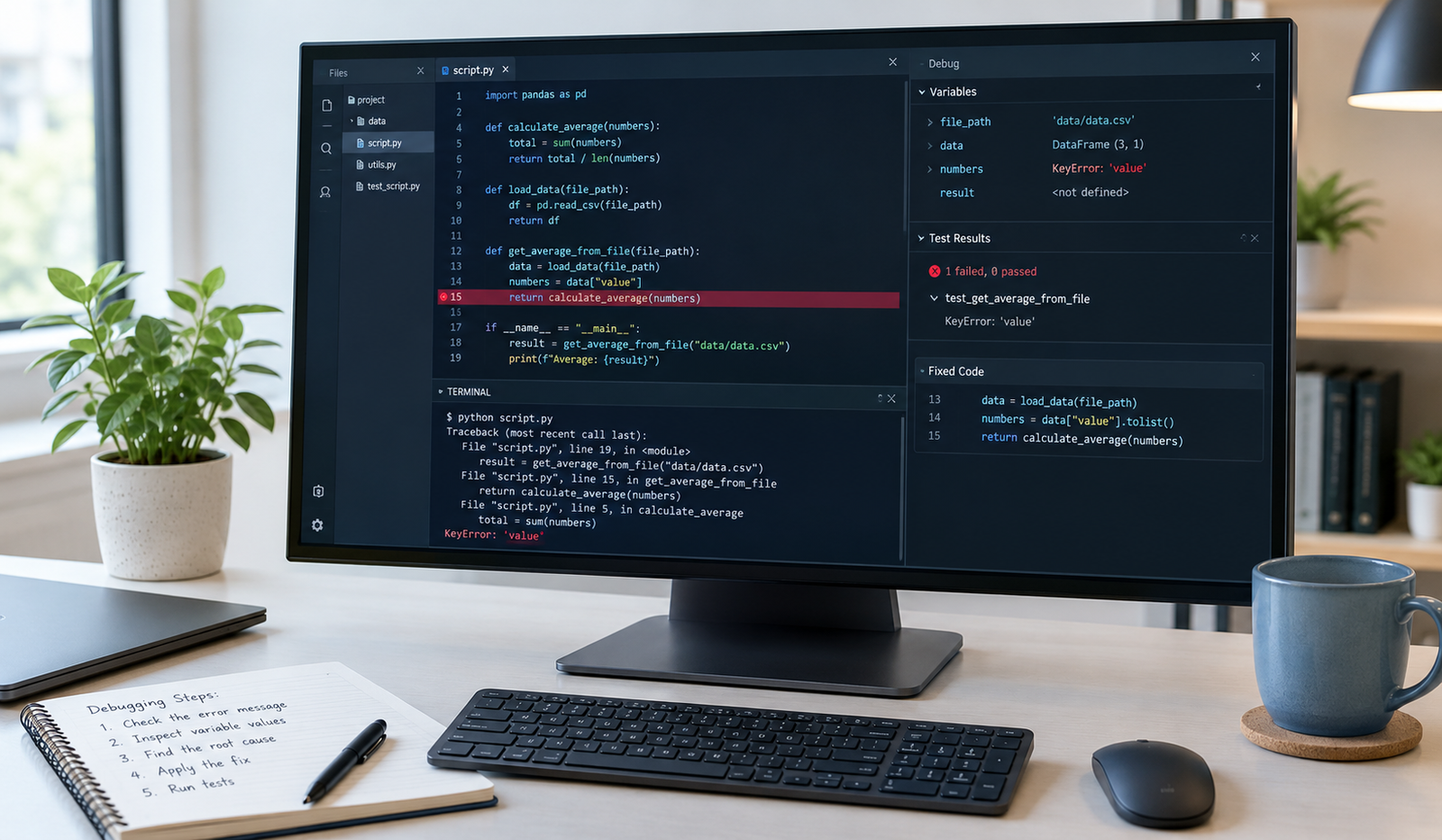
Learn How to Debug Python with Claude Code, fix common errors, inspect variables, and test solutions with confidence. Debugging Python code can feel frustrating, especially when a script looks correct but still throws an error. You might spend twenty minutes checking a function only to discover that the problem comes from a missing value, an incorrect variable, or a package that was never installed. This is where Claude Code can help. It can inspect your project, explain error messages, suggest corrections, and help you test whether a fix actually works.
Learning Claude Coding how to debug Python scripts step by step is about more than getting an error to disappear. It means understanding why the problem happened, making a small and sensible change, and checking that the rest of your program still works. Whether you’re a beginner learning Python or a developer maintaining a larger application, a structured debugging process can save time and help you become more confident with code.
What Is Claude Code, and How Does It Help Debug Python?
Claude Code is an AI-powered coding tool from Anthropic that can work with files in your project, help investigate bugs, propose code changes, and run development commands when you authorize them. Unlike a simple chatbot that only sees the code you paste into a message, Claude Code can work within a project directory and use the surrounding files to understand how different parts of an application fit together.
For Python developers, this is useful because bugs rarely exist in isolation. A function might fail because it receives unexpected input from another file, depends on a missing library, or uses a configuration value incorrectly. Claude Code can help trace those connections and explain the likely cause instead of focusing only on the line where the error appeared.
How to Debug Python Scripts Step by Step Using Claude Code
The best way to debug with Claude Code is to follow a clear process. Start by reproducing the problem, examine the traceback, investigate the cause, apply a focused correction, and then run tests. This keeps you in control and makes it easier to spot mistakes in a suggested solution.
Step 1: Install and Open Claude Code
Before debugging, make sure Python is installed on your computer and that you can run your project from a terminal. Install Claude Code by following the current instructions in the official Claude Code documentation. You will also need to meet its account and authentication requirements.
Once setup is complete, open a terminal and navigate to your Python project folder. Start Claude Code from that directory so it can inspect the relevant files and understand the project structure. If you use a virtual environment, activate it first so your script runs with the correct Python interpreter and dependencies.
Step 2: Run Your Python Script and Reproduce the Error
Before asking Claude to change anything, run the script yourself. This establishes what is actually failing and gives you a concrete error message to investigate. For example, run python app.py if your script is named app.py, or use python3 app.py if that is the command supported by your system.
Suppose the script crashes with a ZeroDivisionError. That message tells you that a calculation attempted to divide by zero, but it does not necessarily explain why the denominator became zero. Copy the complete traceback, including the relevant file name and line number, and share it with Claude Code along with the steps needed to reproduce the issue.
Step 3: Ask Claude to Identify the Root Cause
A useful debugging request asks Claude to investigate before making changes. Tell it to read the relevant function, follow the data that reaches the failing line, explain the cause in plain English, and suggest the smallest safe fix. This is much more useful than asking it to rewrite the entire program.
For example, you could say: “Investigate this Python error and identify its root cause. Explain which line fails, why the input produces this result, and what the smallest appropriate fix would be. Do not change unrelated code. Show me how to verify the correction.” A focused prompt encourages Claude to explain its reasoning and keeps the proposed solution tied to the actual problem.
Step 4: Understand the Error Before Changing the Code
Once Claude identifies a possible cause, ask it to explain the relevant Python behavior. This matters because the first visible error is not always the original problem. A function might receive an empty list, an unexpected string, or a missing configuration value from an earlier operation. Understanding how that value travels through your code helps you avoid applying a quick fix that merely hides the symptom.
For example, if Claude discovers that your script divides by the length of an empty list, ask whether the correct behavior should be to return a default value, skip the calculation, or raise a meaningful exception. The right choice depends on what your application is supposed to do. Review the explanation and expected behavior before accepting a code change.
Step 5: Use Claude to Fix a Python Error
After identifying the cause, ask Claude Code to make a minimal correction rather than rewriting working functions. Smaller changes are easier to review, test, and reverse if something goes wrong. If your project uses Git, check your current changes before editing so you can compare the original code with the proposed solution.
Consider this simple example of a function that calculates an average:
def calculate_average(numbers): return sum(numbers) / len(numbers)scores = []print(calculate_average(scores))The function fails because len(numbers) is zero when the list is empty. A possible correction is to handle that case explicitly:
def calculate_average(numbers): if not numbers: return None return sum(numbers) / len(numbers)scores = []print(calculate_average(scores))Now the function returns None when no scores are available. That is only one possible design choice; returning zero or raising a clear exception may be more appropriate for a particular application. Ask Claude to explain the alternatives and choose the behavior that matches your requirements.
Step 6: Debug Python Variables and Functions
Some errors are harder to diagnose because the code runs but produces the wrong result. A variable may contain an unexpected value, a function may receive arguments in the wrong order, or a condition may never behave as intended. In these situations, ask Claude to trace the data through the relevant functions and identify where the actual value first differs from the expected value.
For example, if a discount calculation returns the wrong total, ask Claude to inspect the original price, discount percentage, calculation order, and returned value. You can also add temporary print() statements to inspect intermediate results. This approach helps you locate the exact point where the logic goes wrong without changing unrelated parts of the program.
Step 7: Use Python Breakpoints for Line-by-Line Debugging
When reading the code is not enough, Python’s built-in debugger can help you examine the program while it runs. Add breakpoint() immediately before the suspicious operation, then execute the script normally. Python will pause at that point, allowing you to inspect variables and move through the code one step at a time.
For example, insert breakpoint() before a calculation that produces an unexpected result. At the debugger prompt, type p variable_name to inspect a variable, n to execute the next line, s to step into a function, and c to continue running. You can ask Claude Code which lines would be most useful to inspect and what values you should expect to see. This combination is particularly helpful when a bug depends on runtime data that is difficult to predict from the source code alone.
Step 8: Fix Import Errors and Missing Python Packages
A ModuleNotFoundError usually means Python cannot locate a module required by your script. The package might not be installed, the wrong virtual environment might be active, or the import name might be incorrect. Ask Claude to inspect the import statement and your project configuration before installing anything or changing dependencies.
Check which interpreter your terminal is using with python --version and, where supported, python -m pip --version. If the project has a virtual environment, activate it and install the required package into that environment. Using python -m pip install package_name can help ensure that pip belongs to the same interpreter running your script. Avoid installing random packages suggested by an error message without first checking whether the dependency is actually required and trustworthy.
Step 9: Ask Claude to Run Python Tests
A script that runs without crashing is not necessarily correct. It might return the wrong result for an empty input, mishandle a negative number, or break a feature that previously worked. This is why testing should be part of every debugging session, not an optional final step.
Ask Claude Code to identify the relevant tests, run them where permitted, and report the actual results. If the project has no tests, ask it to create focused tests for the function being repaired. For the average-calculation example, test a normal list, an empty list, and values that might expose a calculation error. Confirm that the chosen behavior matches your requirements before treating the fix as complete.
Step 10: Debug Larger Python Projects Without Breaking Working Code
Debugging a project with several files requires more care than fixing a small script. An error in a web application, automation workflow, or data-processing tool may involve configuration files, imported modules, database calls, or external services. Ask Claude to trace the relevant execution path and inspect only the files needed to understand the problem before proposing changes.
It is also wise to make changes in small stages. Review the diff, run the targeted test, and then run broader tests if the correction affects other parts of the application. Keep credentials, API keys, passwords, and private customer information out of prompts and logs. If a command could delete files, alter a database, or modify a production environment, review its effects carefully before approving it.
Common Python Errors Claude Code Can Help You Debug
Different Python exceptions point toward different types of problems. Knowing what they usually mean helps you ask better questions and evaluate Claude’s suggestions.
NameError
A NameError occurs when Python encounters a name it cannot resolve in the current context. This may happen because of a typo, a variable that was never assigned, or a name being used outside its intended scope. Ask Claude to trace where the name is created, where it is referenced, and whether its spelling and scope are correct.
TypeError
A TypeError generally means an operation received an object of an incompatible type. For instance, adding a number to a string without converting or otherwise handling the values may produce this exception. Ask Claude to inspect the types involved and recommend a correction that preserves the intended meaning of the calculation.
IndexError
An IndexError commonly occurs when code accesses a list position that does not exist. This often happens when a list is empty or a loop uses an incorrect boundary. Claude can help you inspect the list length, the index calculation, and whether the code should handle an empty collection before accessing an element.
KeyError
A KeyError appears when code tries to retrieve a dictionary key that is missing. The key might be misspelled, the data might be incomplete, or an upstream process might not have supplied the expected field. Ask Claude to check the dictionary’s structure and determine whether the missing key should trigger an error, use a default value, or be handled as a validation problem.
AttributeError
An AttributeError means an object does not provide the attribute or method your code tried to access. This can happen when a variable contains a different type of object than expected or when a method name is incorrect. Ask Claude to trace the variable’s origin and verify the object’s type before changing the method call.
SyntaxError
A SyntaxError indicates that Python cannot parse part of the code. Common causes include missing colons, unclosed brackets, unmatched quotation marks, and incorrect indentation. Claude can usually help identify the affected line, but remember that the actual mistake may be just before the location highlighted in the error message.
Best Claude Code Prompts for Debugging Python Scripts
The quality of your debugging results often depends on how clearly you describe the problem. A useful prompt includes the error message, the expected behavior, what actually happened, and any steps needed to reproduce the issue. You do not need complicated technical language; a clear explanation of the problem is usually more helpful than a vague request to fix everything.
Here are several prompts you can adapt to your project.
For understanding an error
“Explain this Python traceback in simple language. Identify the failing line, explain the root cause, and suggest the smallest safe fix without changing unrelated code.”
For incorrect output
“My Python script runs but produces the wrong result. Trace the relevant variables and calculations, compare expected and actual behavior, and identify where the logic goes wrong.”
For testing a proposed fix
“Create or identify tests for this bug, including normal inputs and edge cases. Run the relevant tests if possible, report the actual results, and flag any remaining problems.”
Tips for Getting Better Debugging Results with Claude Code
Share the Right Context
Claude can make better suggestions when it has the relevant code, full traceback, expected output, and actual output. Explain what you were doing when the error appeared and whether it started after a recent change. If the issue involves several files, point Claude toward the relevant function or module rather than dumping unrelated code into the conversation.
Make One Change at a Time
It is tempting to accept a large rewrite when a script is failing, but broad changes can introduce new problems. Ask Claude to make the smallest reasonable correction, inspect the proposed diff, and run a targeted test before moving on. If the result gets worse, you will have a clearer idea of which change caused it.
Verify Every Important Fix
An explanation that sounds convincing is not the same as a verified solution. Run the script with the inputs that originally caused the problem, then test relevant edge cases. For important applications, run the broader test suite and review any warnings or failures rather than assuming that one successful run proves everything is correct.
Keep Your Project and Dependencies Organized
A clean project structure makes debugging easier for both you and Claude. Use a virtual environment, maintain a dependency file such as requirements.txt when appropriate, and use version control to track changes. These habits make it easier to reproduce errors, compare working and broken versions, and return to a known-good state if a fix causes unexpected behavior.
Is Claude Code Good for Python Debugging?
How to Debug Python with Claude Code can be useful for investigating Python exceptions, tracing logic errors, understanding unfamiliar code, suggesting fixes, and helping write tests. It is particularly helpful when you want to learn why a bug happens instead of simply receiving a replacement function. Its usefulness depends on the quality of the available context, the complexity of the bug, and whether the proposed solution is tested in the actual environment.
It is not a substitute for careful testing or human judgment. Claude may misunderstand a requirement, overlook an unusual edge case, or suggest a fix that works for one input but fails for another. Treat its recommendations as changes to review and verify, especially when code handles payments, private data, production systems, or other sensitive operations.
Conclusion
Learning How to Debug Python with Claude Code gives you a practical way to investigate errors without guessing at random fixes. Start by reproducing the problem, read the traceback, ask Claude to explain the root cause, and make one focused change at a time. Use Python debugging tools when you need to inspect runtime values, and run tests to confirm that the solution works as expected.
The biggest benefit comes from understanding the process, not just removing an error message. As you practice this approach, you will become better at spotting common Python mistakes, writing useful tests, and maintaining code that is easier to troubleshoot in the future.
Frequently Asked Questions
1. How to Debug Python with Claude Code automatically?
Yes. Claude Code can inspect relevant files, investigate errors, suggest fixes, and run tests or commands when permitted. You should still review changes and verify the results.
2. How do I give Claude Code a Python error?
Share the complete traceback, relevant code, expected behavior, and steps to reproduce the error. Ask Claude to explain the root cause before changing the code.
3. Can Claude Code fix Python syntax errors?
Yes. It can help identify common syntax mistakes, including missing colons, unmatched brackets, incorrect indentation, and unclosed strings.
4. Is Claude Code better than using a Python debugger?
They serve different purposes. Claude Code helps explain problems and suggest solutions, while tools such as pdb let you inspect variables and step through live execution. Using both can be effective.
5. Can beginners use Claude Code to learn Python debugging?
Yes. Beginners can ask for simple explanations of tracebacks, examples of corrected code, and step-by-step testing instructions. Reviewing each fix helps build debugging skills.
Read also: How to Speed Up a Slow Windows 11 Computer Without Reinstalling