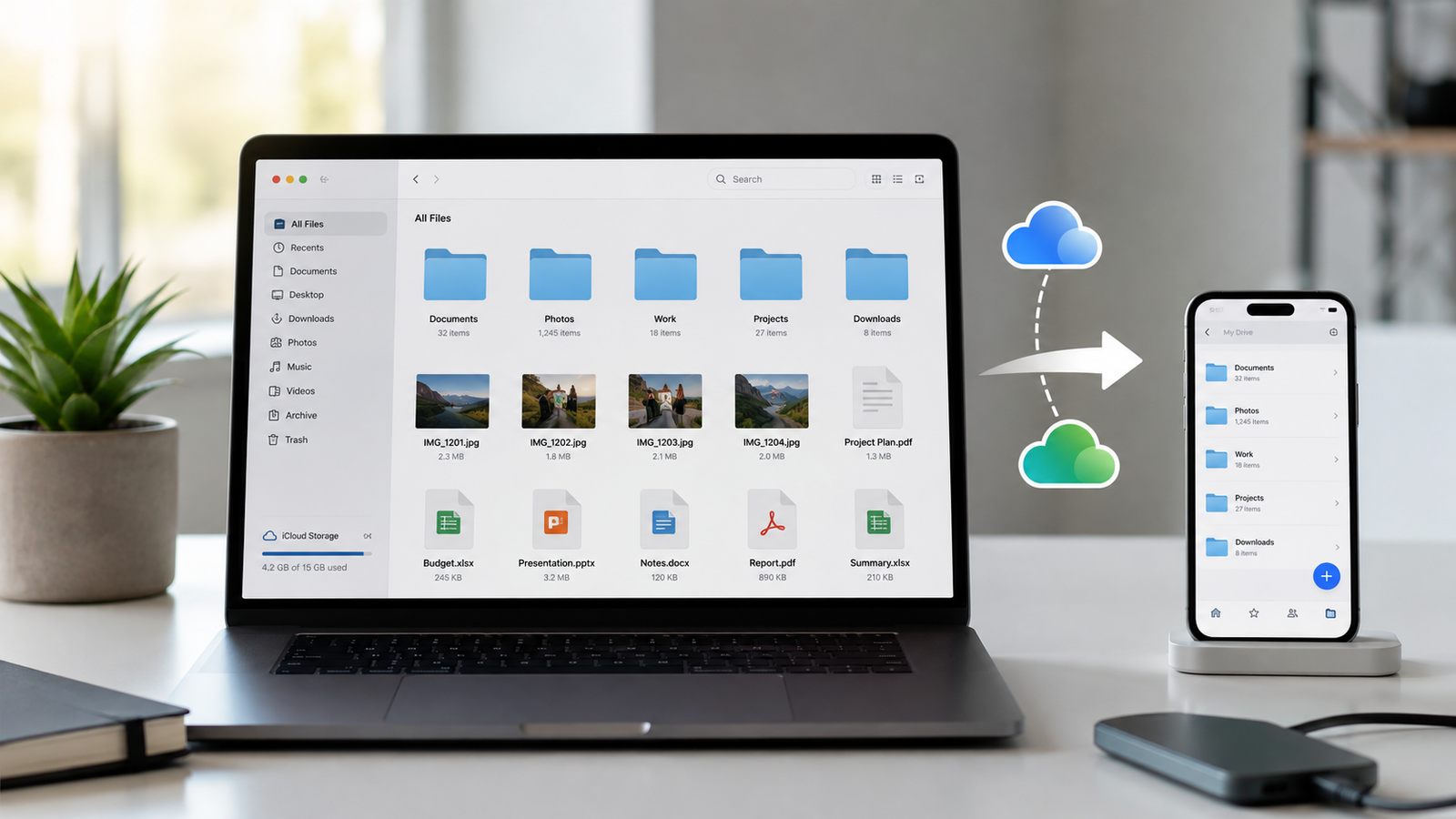
how to migrate from iCloud to Google Drive without losing files using safe transfer methods, backup tips, and simple verification steps. Moving your files from iCloud to Google Drive can make it easier to access documents, photos, and other important data across different devices. However, the thought of losing personal files during the transfer can make the process feel risky. You might have years of family photos, work documents, downloaded PDFs, or folders that you cannot easily replace.
The good news is that you can move your files safely if you follow the right process. The most important rule is simple: copy your files to Google Drive, verify that the transfer is complete, and keep your iCloud originals until you are confident everything is safe.
In this guide, you will learn how to migrate from iCloud to Google Drive without losing files, which transfer methods work best, how to handle photos and videos, and what to check before deleting anything from your Apple account. Whether you use a Windows PC, a Mac, or an iPhone, the right approach can help you complete the migration with less stress.
Why Move From iCloud to Google Drive?
People move from iCloud to Google Drive for different reasons. Some want easier access to their documents on Windows computers, while others prefer Google’s file-sharing tools or already use Google Workspace for work and study. Google Drive can also be convenient when you regularly collaborate with people who do not use Apple devices.
Another reason is flexibility. Google Drive works through a web browser and has apps for major desktop and mobile platforms. This makes it practical to access your files without relying entirely on Apple’s ecosystem. Still, moving your files does not automatically mean you should close your iCloud account or stop using every Apple service.
Before making the switch, consider what you actually want to move. Your iCloud Drive documents, iCloud Photos library, device backups, contacts, and app data are different types of information. Google Drive is primarily a file storage service, so it does not replace every feature offered by iCloud.
Can You Migrate From iCloud to Google Drive Without Losing Files?
Yes, you can transfer files from iCloud to Google Drive without losing the originals, provided you use a careful copying process and verify the results. For ordinary documents and folders, you can download the files from iCloud Drive and upload them to Google Drive. For photos and videos, you can use a suitable download-and-upload method or Apple’s supported transfer service to Google Photos.
The safest method depends on the type and amount of data you have. A small collection of PDFs may take only a few minutes, while a large photo library can take hours or days. Some Apple-specific features, sharing arrangements, file metadata, and album structures may not transfer exactly as they were.
Remember that Google Drive and Google Photos are separate services with different purposes, even though they share the same Google account storage allowance. Choosing the correct destination before you begin helps prevent confusion later.
What to Do Before Starting the Migration
Preparation is the part many people rush through, but it can prevent the most common transfer problems. Start by reviewing your iCloud storage, identifying which files matter most, and checking the available space in your Google account. If your iCloud library is larger than your available Google storage, you will need to free up space, purchase additional storage, or transfer your data in stages.
It is also worth checking your internet connection and the amount of free space on your computer. Downloading a large collection of videos can consume considerable disk space, especially if you intend to keep a second local copy. If you are transferring important work documents or irreplaceable family photos, make a separate backup before proceeding.
Check Your iCloud and Google Storage
Open iCloud.com and sign in with your Apple Account to review your available files and storage information. Then open Google Drive and check how much space remains in your Google account. Google storage is shared across Google Drive, Gmail, and Google Photos, so email attachments and existing photos may affect the amount you can use for the migration.
Do not assume that the same number of gigabytes will always be enough for every stage of the process. Temporary downloads, duplicate files, and differences in file formats can affect your local storage needs. Having enough room before you begin makes the transfer easier to manage.
Organize Your Files Before Moving Them
Create a folder on your computer named something like “iCloud Migration Backup.” Inside it, organize your downloaded files into sensible categories such as Documents, Work, Photos, Videos, and Personal. This structure gives you a clear reference point when checking whether everything arrived in Google Drive.
You do not have to reorganize your entire digital life before transferring anything. Start with the folders you use most often, then handle older or less important material afterward. Keeping the original folder structure wherever practical will also make it easier to locate files after the migration.
Method 1: Download Files From iCloud and Upload Them to Google Drive
Downloading files from iCloud and uploading them to Google Drive is a straightforward option for documents, PDFs, spreadsheets, presentations, and other files stored in iCloud Drive. It gives you direct control over what gets transferred and allows you to keep a local copy on your computer.
First, visit iCloud Drive and sign in to your Apple Account. Browse your folders and select the files you want to move, then use the available download option. Depending on the selection and your browser, multiple files may be downloaded together in an archive rather than as individual files. If that happens, extract the archive on your computer before uploading its contents.
Next, open Google Drive in your browser. Click New, choose Folder upload or File upload, and select the downloaded content. Wait for the upload process to finish before closing the browser tab. If you have a large collection of files, transfer it in smaller batches so that failed uploads are easier to identify and repeat.
Verify the Uploaded Files
After uploading, open several files directly from Google Drive to confirm that they work. Check the filenames, folder organization, file sizes where practical, and the number of items in important folders. For documents you rely on every day, confirm that the content is complete and readable rather than assuming a successful upload notification guarantees everything is correct.
Keep your downloaded local copy until you have finished these checks. If something is missing or damaged, you will have another copy available without needing to repeat the entire transfer.
Method 2: Move iCloud Photos to Google Photos
If your main goal is to transfer an iPhone photo library, Google Photos may be a better destination than Google Drive. Google Photos is designed for browsing, searching, organizing, and backing up pictures and videos, while Google Drive is better suited to conventional folders and documents.
Apple offers a direct transfer service that can copy supported iCloud Photos content to Google Photos. To begin, visit Apple Data & Privacy and sign in. Look for the option to transfer a copy of your data, select the iCloud Photos transfer option, and follow the instructions to choose Google Photos as the destination.
You will need to authorize the transfer and have enough available Google storage. Apple indicates that the process generally takes between three and seven days, although the actual time can vary. Your original photos remain in iCloud during the transfer, which makes this option useful when you want to preserve the existing library while creating a copy elsewhere.
Understand the Limitations of Photo Transfers
Not every detail of an Apple photo library is guaranteed to appear exactly the same in Google Photos. Some shared content, album arrangements, metadata, RAW files, or Live Photo features may have limitations. Edited photos may also transfer in a way that does not preserve every version or editing detail.
Before relying on the transferred library as your only copy, check important images, videos, dates, and albums. If you have professional photography files or images whose original quality matters, keep an additional original copy on an external drive or another suitable backup location.
Method 3: Use a Mac to Transfer iCloud Drive Files
Mac users can often manage the process through Finder, which provides access to iCloud Drive and makes it easier to work with folders. However, you must confirm that the files are actually downloaded before copying them. With Apple’s storage optimization features, some files may exist in the cloud without a complete local copy on your Mac.
Open Finder and select iCloud Drive from the sidebar. Locate the folders you want to move, then download any cloud-only files by using the available download control. Once the files are available locally, you can copy them into a folder that you will upload to Google Drive.
For a more convenient ongoing workflow, you can also install Google Drive for desktop and use its supported file management features. Keep in mind that syncing a folder with Google Drive is not the same as making an independent backup. If you later delete a file from a synced location, that deletion may also be reflected in the cloud.
Method 4: Transfer Files Using a Windows PC
Windows users can download their files from iCloud through a browser or use the available iCloud for Windows features when appropriate. For a simple one-time migration, downloading from iCloud.com and uploading through the Google Drive website is often the easiest route.
If you use iCloud for Windows, check the status of each file before copying it. Cloud placeholders are not necessarily complete local files, and attempting to transfer them before they finish downloading can lead to missing content or failed operations. Make sure the files are available offline, then copy them into a separate migration folder.
Once your local files are ready, open Google Drive in a browser and upload the folder. Keep the computer connected to a reliable internet connection until the uploads are complete. For a large transfer, avoid putting the computer to sleep during the process and check for any failed-upload messages before moving on.
Method 5: Transfer Files From an iPhone or iPad
You can move files using an iPhone or iPad, although the process may be less convenient for large libraries. Open the Files app and browse to iCloud Drive. Select the items you need, then use the available copy, move, or sharing options to make the files available for uploading through Google Drive.
If you choose to move files directly between locations in the Files app, pay close attention to which storage location is selected. For a safer migration, copying the files first is preferable to moving them because the original remains available until you verify the new copy.
For documents and a small number of photos, the mobile approach can work well. For hundreds of gigabytes of data, a computer is usually easier to manage because you can review folders, monitor upload progress, and check files more efficiently. If your goal is to transfer your entire photo library, Apple’s direct transfer service may be more practical.
How to Prevent File Loss During Migration
The best protection against file loss is to maintain more than one copy until the migration has been checked. Think of the transfer as a process with three stages: the original in iCloud, a downloaded or otherwise preserved copy, and the new copy in Google Drive. You should not remove the original until you know the new copy is complete.
Avoid transferring everything in one enormous batch if your internet connection is unreliable. Smaller groups are easier to monitor, and any failed uploads will affect fewer files. Keep a basic record of which folders have been downloaded, uploaded, and verified so that you do not accidentally skip an important section.
For especially valuable documents, open the uploaded versions and compare them with the originals. For photos, check a selection from different dates and albums. If you are moving files used for work, verify that spreadsheets, presentations, and documents retain their expected content and can be opened in the applications you use.
Watch Out for Duplicate Files
Duplicates can appear when you repeat uploads after a failed transfer or download the same folders more than once. Some systems may rename duplicate files rather than replacing existing versions, leaving you with multiple copies that look similar.
To reduce confusion, upload one organized batch at a time and check the destination before repeating a failed operation. Do not automatically delete duplicate-looking files without comparing their contents, sizes, and dates. Two files with similar names may contain different versions of an important document.
Preserve Important File Formats and Metadata
Most common file types, including PDFs, JPEG images, PNG files, and standard office documents, can be uploaded to Google Drive without changing their basic contents. However, an upload does not guarantee that every Apple-specific feature or piece of metadata will remain intact.
If you use Live Photos, specialized RAW images, app-specific documents, or files with complex sharing permissions, test a few examples before migrating the entire collection. You may need a separate export or backup for certain formats. Keeping the original files provides an extra layer of protection if the destination handles a feature differently.
Common Mistakes to Avoid
One common mistake is deleting iCloud files immediately after an upload finishes. Upload completion is a useful signal, but it is not a substitute for checking the destination. Another mistake is assuming Google Drive replaces an iPhone or iPad backup. Device backups, application data, messages, and other Apple services are not all ordinary files that you can drag into Drive.
People also forget about storage limits. If your Google account runs out of space during a transfer, some files may not upload. Check your available storage again if you are moving a large collection, especially when Google Photos and Gmail already use part of your allowance.
Finally, be careful with syncing tools and automatic cleanup features. A synchronized folder can keep changes consistent across devices, but that also means deletions may propagate. If your goal is to leave iCloud behind, finish the migration and verification first, then decide which services you want to stop using.
What Should You Do After the Migration?
Once you have checked your transferred files, keep your local backup for a reasonable period rather than deleting it immediately. Open your most important documents, review photos and videos, and confirm that the new folder structure makes sense. If you have a large library, you can verify it in stages, starting with essential personal and work files.
You can then update your daily workflow. Install Google Drive on your computer or phone if you want convenient access, and choose which folders should be available offline. If you transferred photos to Google Photos, check its backup settings separately from Google Drive.
There is no need to close your Apple Account simply because you have moved your files. You may still use iCloud for device settings, backups, contacts, or other Apple services. If you eventually want to reduce your iCloud storage plan, do so only after confirming that any content you still need has been preserved elsewhere.
Conclusion
Learning how to migrate from iCloud to Google Drive without losing files comes down to a few practical habits: prepare your storage, copy files rather than immediately moving or deleting them, choose the right destination for photos and documents, and verify the results before making permanent changes.
For ordinary documents, downloading from iCloud and uploading to Google Drive is a straightforward option. For a large iCloud Photos library, Apple’s transfer service to Google Photos can save time. Whatever method you choose, keep an additional copy of important data until you are satisfied that the migration is complete.
A little preparation can save you hours of frustration later. Move carefully, check your files, and make the final switch only when you know your important data is safe.
Frequently Asked Questions
1. Can I transfer everything from iCloud to Google Drive?
You can transfer many ordinary files, including documents, PDFs, photos, and videos. However, Google Drive does not replace every iCloud feature. Device backups, application data, contacts, and some Apple-specific information may require separate export or transfer methods.
2. Will transferring files to Google Drive delete them from iCloud?
Downloading and uploading files creates copies, so the originals generally remain in iCloud. The same is true of Apple’s supported iCloud Photos transfer to Google Photos. However, syncing and moving files between locations can behave differently, so always verify the process you are using.
3. What is the easiest way to move iCloud Photos to Google?
Apple’s Data & Privacy transfer service is a convenient option for moving supported iCloud Photos content to Google Photos. Alternatively, you can download photos and videos and upload them manually. Check for format and album limitations before relying on the destination as your only copy.
4. How long does an iCloud to Google Drive migration take?
The time depends on the amount of data, internet speed, file sizes, and upload limits. A small folder may transfer in minutes, while a large photo or video collection can take hours or longer. Apple’s direct photo transfer service generally takes three to seven days.
5. Do I need to pay for Google Drive to transfer my iCloud files?
Not necessarily. A free Google account includes 15 GB of storage shared across Google Drive, Gmail, and Google Photos. If the files you want to move exceed your available space, you may need to remove unnecessary data or upgrade your storage.
Read also: Password Manager vs Browser Autofill Which Is Safer?