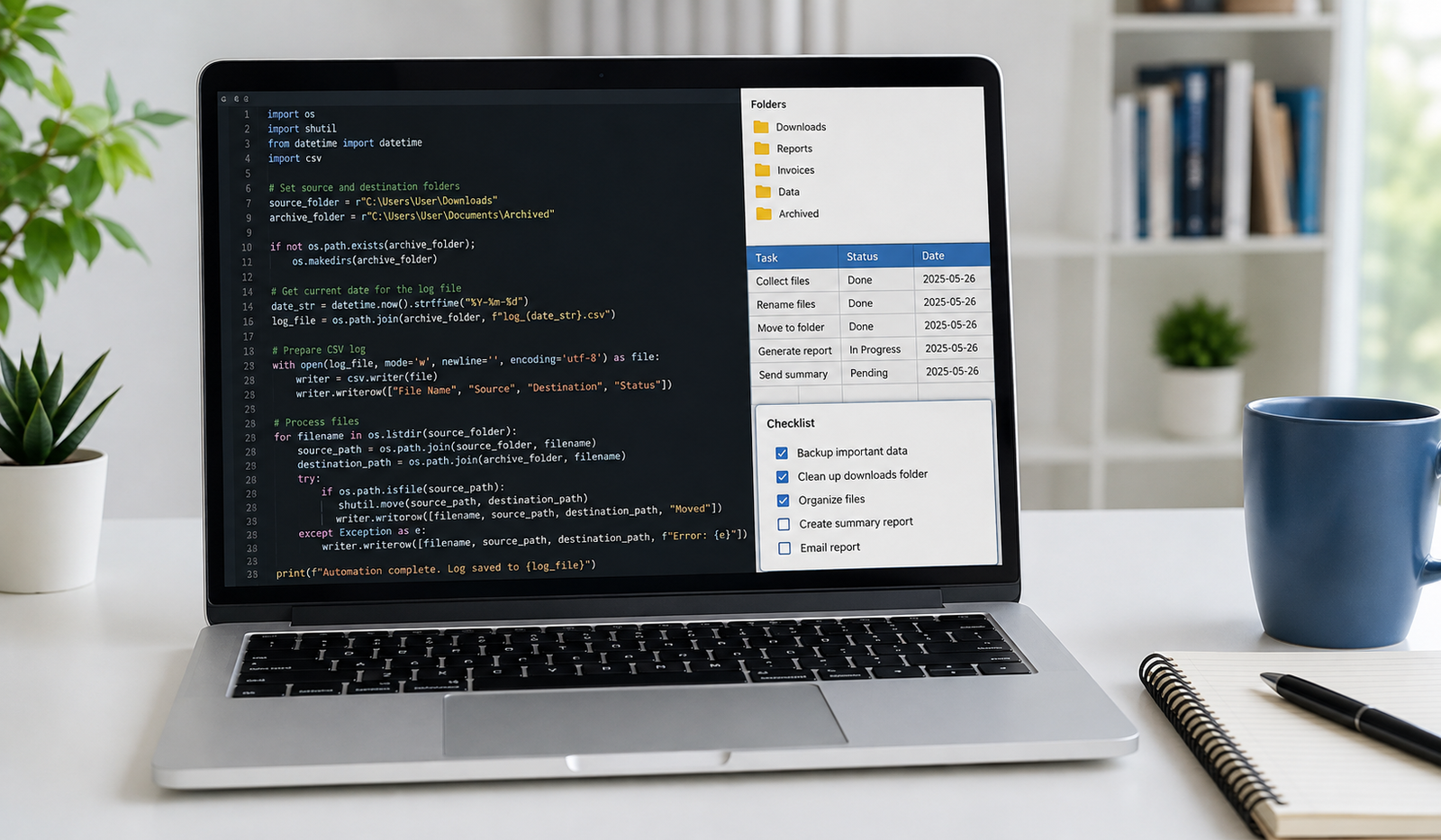
how to automate repetitive tasks with Python for beginners, from organizing files and cleaning text to processing spreadsheets and scheduling scripts. Repetitive computer tasks can quietly take up hours of your week. Renaming files, organizing folders, checking spreadsheets, cleaning text, and updating records may seem simple, but doing the same work every day gets tiring. Learning how to automate repetitive tasks with Python for beginners can help you save time and reduce mistakes without needing advanced programming skills. Python allows you to write small scripts that follow instructions automatically, whether you want to organize downloaded documents or process hundreds of article titles. The best part is that you can start with basic code and build your skills gradually. In this guide, you’ll learn how Python automation works, which tools to use, practical examples to try, and how to turn your first script into something genuinely useful.
What Is Python Automation?
Python automation is the process of using Python code to perform repetitive tasks automatically instead of completing every step by hand. You give the computer a set of instructions, and the script follows them whenever you run it. For example, a simple program can find every PDF file in a folder, check a spreadsheet for missing information, or create folders from a list of names. Once the script is tested, you can reuse it whenever the same task comes up. This makes Python particularly useful for work that follows predictable rules and involves large numbers of similar actions.
Why Should Beginners Learn Python Automation?
One of the biggest advantages of Python automation is that it helps you spend less time on routine work and more time on tasks that require attention and creativity. Imagine spending 30 minutes every morning organizing files or checking content lists. A well-designed script might complete much of that work in seconds. Automation can also improve consistency because the program follows the same instructions every time. However, it is not magic. You still need to write the correct instructions, test the results, and handle unexpected situations. Start with a small problem you understand well, and Python becomes much easier to learn.
How to Get Started With Python Automation
Install Python on Your Computer
Before creating your first automation script, install Python from the official Python downloads page. Choose the version suitable for your operating system and follow the installation instructions. Windows users should select the option to add Python to PATH if it appears during installation. Once the installation finishes, open Command Prompt and enter python --version. If that command does not work, try py --version. A version number confirms that Python is available through that command. You can then create a dedicated folder for your projects and keep your practice scripts in one place.
Choose a Code Editor
A code editor gives you a convenient place to write, save, and manage Python scripts. Beginners can use a basic text editor, but Visual Studio Code is a useful option because it supports Python extensions, syntax highlighting, and error detection. After installing your editor, create a file named first_script.py and enter a simple command such as print("Hello, Python!"). Save the file and run it from your terminal. Seeing your first program work is a small step, but it helps you understand the connection between the code you write and the instructions your computer follows.
Learn the Python Basics You Actually Need
You do not need to master every part of Python before starting automation. Focus first on variables, lists, loops, conditions, and functions. Variables store information, lists hold multiple values, loops repeat instructions, and conditions let a program make decisions. Functions allow you to reuse a block of code without rewriting it every time. These concepts appear in almost every practical automation project. Once you understand them, you can build scripts that process many files, check records, or clean long lists of text. Learning through small projects is often more useful than trying to memorize programming rules in isolation.
Best Repetitive Tasks to Automate With Python
1. Organize Files and Folders Automatically
File management is one of the easiest ways to start learning automation. If your Downloads folder contains invoices, screenshots, PDFs, and images mixed together, Python can help you identify and sort those files by extension. The built-in pathlib module makes it possible to inspect folders and work with file paths without installing an extra package. Begin by listing files before moving anything, then add sorting rules after you understand how the script behaves. This approach is useful for students, office workers, bloggers, and anyone who regularly handles large collections of documents.
2. Rename Multiple Files in Seconds
Renaming files one at a time becomes frustrating when you have dozens of images or documents. Python can generate consistent filenames using a loop, a numbering system, or information already stored in a spreadsheet. For example, a blogger might rename downloaded images to blog_image_1.jpg, blog_image_2.jpg, and blog_image_3.jpg. Before applying changes, print the old and proposed filenames so you can check the results. Always preserve file extensions and avoid overwriting existing files. A short script can save considerable time, but a quick preview can prevent a small mistake from affecting an entire folder.
3. Process Excel and CSV Files
Spreadsheets are another excellent place to use Python automation. You might need to remove empty records, find duplicate entries, calculate totals, or separate published articles from drafts. Python’s built-in csv module handles CSV files, while libraries such as openpyxl work with Excel workbooks. For larger datasets, pandas offers tools for filtering, cleaning, and analyzing information. Rather than checking hundreds of rows manually, you can write a script that applies the same rules to every record. This is especially helpful when you regularly receive reports, product lists, customer records, or content calendars.
4. Clean and Format Text
Text processing is useful when working with article titles, product descriptions, email lists, or large collections of notes. Python can remove extra spaces, standardize capitalization, find repeated phrases, and count words. For example, if a spreadsheet contains titles with unnecessary spaces at the beginning or end, the strip() method can clean them automatically. You can also use Python to identify blank titles or flag entries that appear more than once. These small improvements are particularly valuable when maintaining a content library, because they make large lists easier to review and manage without checking every entry individually.
5. Automate Routine Web Browser Actions
Python can control a web browser for tasks such as testing your own website, navigating pages, filling out permitted forms, and checking whether specific page elements appear. Tools such as Playwright provide ways to automate supported browsers through Python. Browser automation requires more care than basic file management because websites can change their layouts, require authentication, or restrict automated access. Start with a simple test on a website you own or have permission to use. Avoid bypassing security controls or automating actions that violate a website’s rules. For many beginners, browser automation is best learned after becoming comfortable with loops, functions, and error handling.
Practical Python Automation Examples for Beginners
Example 1: Find All PDF Files in a Folder
Suppose you have a folder containing different document types and want to identify the PDFs quickly. You can use Python’s built-in pathlib module to search for files ending in .pdf. Create a script named find_pdfs.py and try this code.
from pathlib import Pathfolder = Path("practice_files")for file in folder.glob("*.pdf"): print(file.name)The script looks inside the practice_files folder and prints the name of each PDF it finds. Create that folder beside your Python script and add a few sample PDFs before running the program. If the folder does not exist, you will need to create it or add appropriate error handling. You can also use folder.rglob("*.pdf") when you want to search through subfolders as well as the main directory.
Example 2: Find Duplicate Article Titles
If you maintain a blog, duplicate titles can make a content calendar harder to manage. Python can compare titles and flag repeated entries without requiring you to inspect the entire list manually. The following example uses a set to remember which titles have already appeared.
titles = [ "Python Automation", "Healthy Eating Tips", "Python Automation", "Home Design Ideas"]seen = set()for title in titles: if title in seen: print("Duplicate found:", title) else: seen.add(title)When the program reaches the second occurrence of Python Automation, it reports the duplicate. A set makes this kind of membership check straightforward, even when your list contains many entries. For real content projects, you may also want to compare titles without considering capitalization or extra spaces. You can do that by normalizing each title before checking it, while preserving the original title for your final report.
Example 3: Read a CSV File and Filter Records
Imagine you have a file called articles.csv containing article titles and their publication status. You want to display only the titles that are still drafts. Python’s built-in csv module can read the records and let you apply a condition to each row.
import csvwith open( "articles.csv", newline="", encoding="utf-8") as file: reader = csv.DictReader(file) for row in reader: if row["status"] == "draft": print(row["title"])This program assumes the CSV file has columns named title and status. It checks each row and prints the title whenever the status is draft. You can adapt the same pattern to identify missing values, find unpublished products, or create a simple report. If the file is large or comes from an unfamiliar source, check the column names and data format before relying on the output.
Example 4: Create Folders From a List of Names
Creating individual folders for a new project is simple, but repeating the process for dozens of topics can take unnecessary time. Python can generate those folders from a list while leaving existing folders untouched. The mkdir() method includes an option called exist_ok=True, which prevents an error when a folder already exists.
from pathlib import Pathtopics = [ "Python Basics", "Content Planning", "Website Design"]base_folder = Path("projects")for topic in topics: folder = base_folder / topic.replace(" ", "_") folder.mkdir(parents=True, exist_ok=True) print("Prepared:", folder)The script creates a projects directory and a separate folder for each topic. The example replaces spaces with underscores to produce simpler folder names. For a larger project, you should also sanitize characters that are not allowed in filenames on your operating system. This method is handy for organizing article drafts, client projects, study materials, or recurring reports.
Useful Python Libraries for Automation
Python includes many built-in modules, so you can begin automating simple tasks without downloading additional software. The pathlib module handles file paths, shutil helps copy and move files, csv processes CSV data, and datetime works with dates and times. When your projects become more advanced, you can explore openpyxl for Excel workbooks, pandas for structured data, and Playwright for browser automation. Each library solves a different problem, so there is no need to install everything at once. Choose the tool that matches your task, read its documentation, and test a small example before adding it to a larger script.
How to Schedule Python Scripts to Run Automatically
Running a script manually is a good starting point, but scheduling allows you to automate tasks at regular intervals. Windows users can use Task Scheduler, while Linux and macOS users can use cron. For example, you could schedule a script to generate a report every morning or check a designated folder once a day. To make scheduled tasks reliable, use clear file paths, save error messages when something fails, and confirm that the script works outside your editor. Remember that scheduling does not fix problems in the code itself. Test the script manually first, then configure the schedule and check that it runs as expected.
Common Python Automation Mistakes Beginners Should Avoid
A common beginner mistake is trying to automate a complicated workflow before understanding its individual steps. Another is running a script on important files without testing it on copies. Scripts can also fail when filenames contain unexpected characters, folders are missing, or a website changes its structure. To avoid these problems, keep your code simple, use descriptive variable names, and test one feature at a time. Add error handling when something may go wrong, and use preview output before making changes to important data. Automation should make your work more dependable, not create another problem to troubleshoot.
A Simple Seven-Day Learning Plan
If you’re unsure where to begin, follow a small daily practice plan instead of trying to learn everything at once. On the first day, learn variables and lists; on the second, practice loops and conditions; on the third, explore files and folders. Spend the fourth day cleaning text and checking duplicates, then use the fifth day to read a CSV file. On the sixth day, combine those skills into a small project, such as preparing folders from article titles. Use the seventh day to review your code, handle errors, and explore scheduling. Adjust the pace to suit your experience, and focus on understanding each script rather than simply copying it.
Conclusion
The best first project solves a problem you already understand. Think about a task you repeat several times a week and write down its steps in plain English. If you frequently organize downloads, start with a script that lists files and identifies their types. If you manage a blog, create a program that checks article titles for duplicates. If you work with spreadsheets, build a tool that filters records by status. Choose a task with a clear result and limited risk, then improve it gradually. This practical approach helps you learn programming concepts while producing something you can actually use.
Frequently Asked Questions
1. Can a complete beginner automate tasks with Python?
Yes. Beginners can automate straightforward tasks such as renaming files, cleaning text, organizing folders, and reading CSV data. Start with basic Python concepts and build one small script at a time. You do not need advanced programming knowledge to get useful results.
2. Is Python automation free?
Python is free to download and use, and many automation features are included in its standard library. Several popular third-party libraries are also free. However, external services, paid APIs, or certain commercial tools used in a larger workflow may have their own costs.
3. What are the easiest tasks to automate with Python?
File organization, bulk renaming, duplicate checking, text formatting, and simple spreadsheet processing are good starting points. These tasks follow predictable rules and let you practice essential Python skills without needing complicated systems or advanced programming techniques.
4. Can Python automate Excel tasks?
Yes. Python can process CSV files using the built-in csv module and work with Excel workbooks using libraries such as openpyxl. The pandas library is useful for cleaning and analyzing larger datasets. The right choice depends on the format of your files and the changes you need to make.
5. Can Python scripts run automatically every day?
Yes. You can schedule scripts with Windows Task Scheduler, cron, or an appropriate scheduling service. Configure the script’s location, permissions, and execution environment, then test it to confirm that it runs correctly at the scheduled time.
Read also: How to Migrate From iCloud to Google Drive Without Losing Files