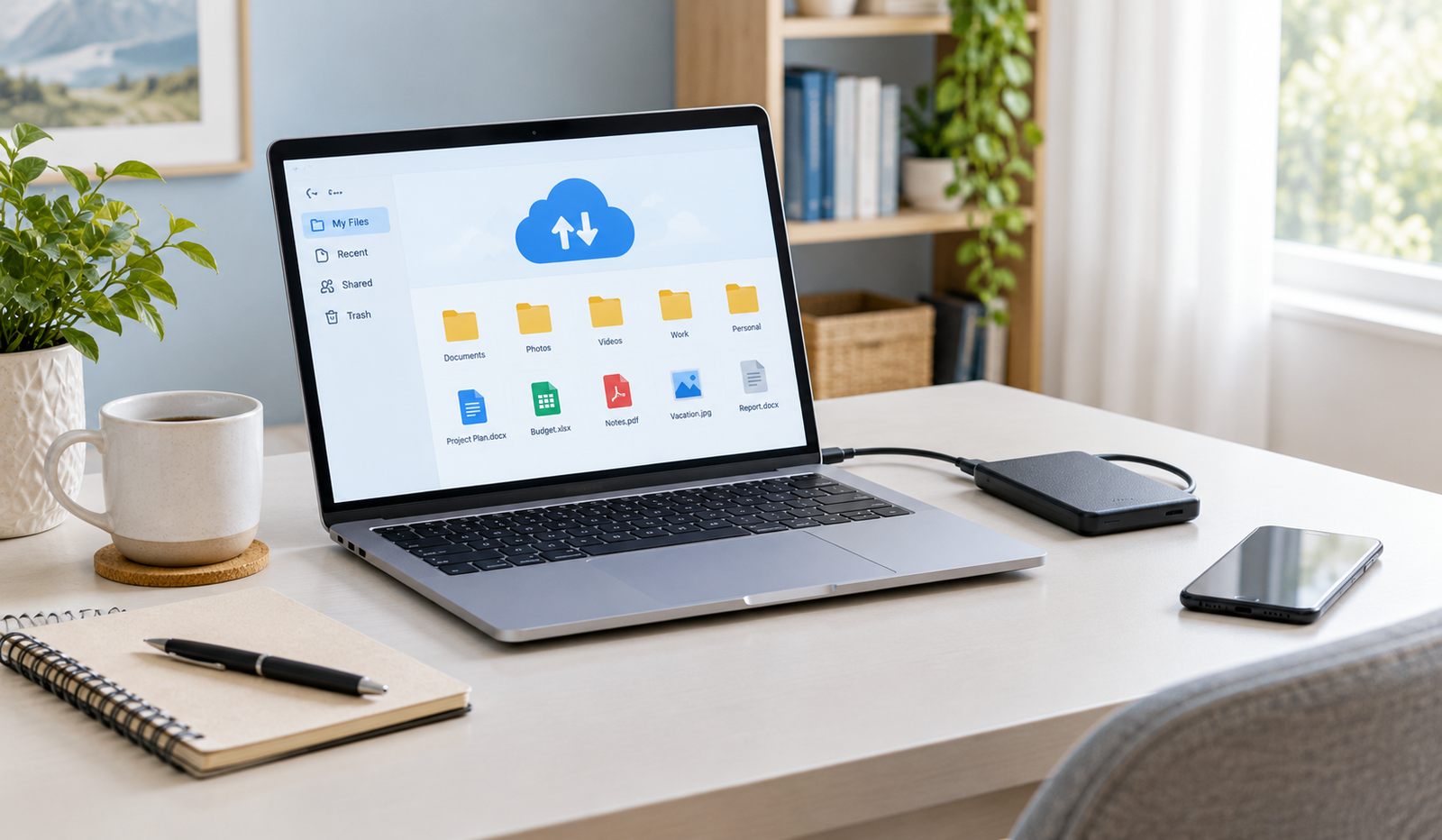
how to use cloud storage to back up important files, protect your data, enable automatic backups, and recover documents when needed. Cloud storage is a service that lets you save files on remote servers instead of keeping them only on your computer, phone, or external drive. You access those files through an internet connection using a web browser, desktop application, or mobile app. Services such as Google Drive, Microsoft OneDrive, Dropbox, and Apple iCloud provide different ways to store and manage digital content. When you upload a document to one of these services, a copy is stored online so you can access it from another compatible device. Some services also synchronize changes automatically, which makes everyday file management easier. However, cloud storage and cloud backup are not exactly the same thing. Synchronization keeps files consistent across devices, while a backup is intended to help you recover data after something goes wrong. Understanding that difference is important when protecting files you cannot easily replace.
Why Should You Back Up Important Files to the Cloud?
Most people do not think much about backups until they experience a problem. A laptop might stop starting, a phone could be stolen, or an accidental deletion might remove a folder containing years of photographs. Cloud backups reduce the risk of losing everything when one device fails. They are also useful when moving to a new computer because you can retrieve your saved documents without transferring every file manually. For students, they provide convenient access to assignments and research. For bloggers and small business owners, they can protect article drafts, original images, invoices, and other valuable work. Cloud storage is not a complete guarantee against data loss, but it provides an additional layer of protection that is easy to use once properly configured.
How to Use Cloud Storage to Back Up Important Files Step by Step
Getting started does not require advanced technical knowledge or expensive equipment. The key is to choose a suitable service, identify the files that matter most, and confirm that your backup actually works. A little preparation at the beginning can save considerable time and frustration later.
1. Choose the Right Cloud Storage Service
The first step is choosing a cloud storage provider that fits your devices, budget, and storage requirements. Google Drive is convenient for people who use Google Docs, Gmail, and Android devices, while Microsoft OneDrive works well with Windows and Microsoft Office applications. Apple iCloud is a natural option for people who use iPhones, iPads, and Macs, and Dropbox offers straightforward file synchronization and sharing. Compare the available storage, supported devices, security features, file recovery options, and subscription costs before making a decision. You do not need to sign up for several services immediately. For most beginners, one primary cloud service is enough to start protecting everyday files, provided it offers the storage and backup features they need.
2. Create an Account and Set Up Your Storage
Once you have chosen a provider, create an account or sign in to an existing one. Visit the provider’s official website or download its application from a trusted source. Before uploading files, check how much storage is available and whether your account has enough space for your documents, photos, and other important data. Create a few clearly named folders, such as Personal Documents, Photos, Work Projects, and Blog Content, to keep everything organized. If you manage multiple websites, you might create separate folders for article drafts, website graphics, and business records. A simple folder structure makes it easier to locate files when you need them, especially if you have been using cloud storage for several months.
3. Identify the Files You Need to Back Up
Not every file on your computer deserves the same level of attention. Start with anything that would be difficult, expensive, or impossible to replace. This might include family photographs, educational certificates, personal documents, tax records, original designs, business invoices, and unfinished projects. If you publish blog content, remember to save article drafts, featured images, research notes, and editorial calendars. You may also want to keep copies of important website configuration files and database backups. Before uploading, review your folders for duplicate downloads and unnecessary temporary files. Organizing your data first reduces clutter and helps you use your available cloud storage more efficiently. For highly sensitive documents, consider whether cloud storage is appropriate and apply additional security measures before uploading them.
4. Upload Your Files to the Cloud
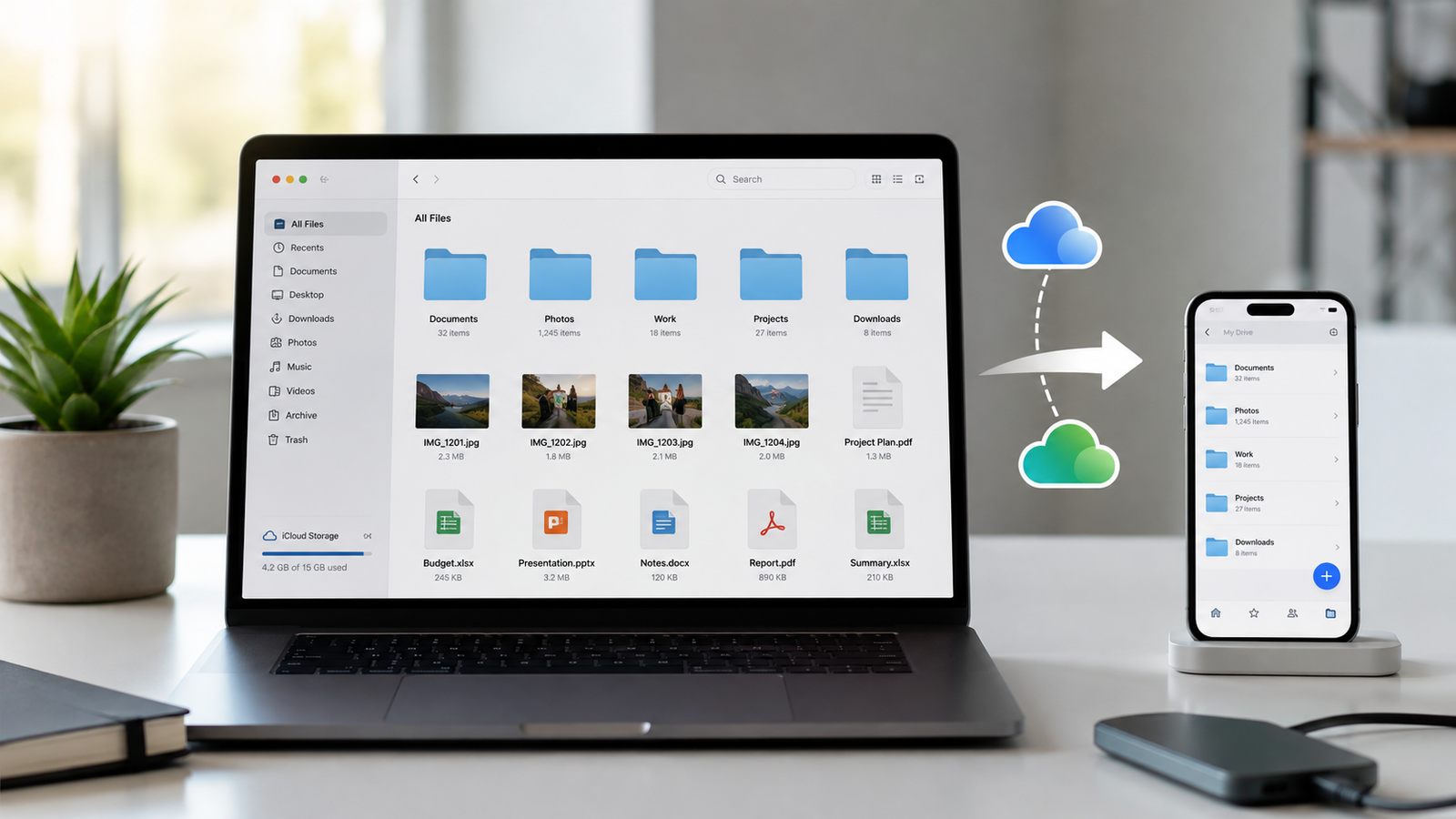
After organizing your files, begin uploading them to your chosen service. In Google Drive, for example, you can select the New button, choose File upload or Folder upload, and select the content you want to store. Other services provide similar options through their websites or desktop applications. If you have many large files, upload them in manageable batches and keep your computer connected to a reliable internet connection. Wait until the upload process finishes before closing the application or shutting down your device. Then, open the cloud folder and check that the files appear correctly. Try opening a few documents or downloading a test file to confirm that the uploaded copies are accessible. Never assume that a file is safely backed up simply because you dragged it into a folder or started an upload.
5. Enable Automatic Cloud Backup
Manual uploads work well for occasional documents, but they are easy to forget when you create new files every day. Automatic backup or synchronization can make the process more convenient by keeping selected folders updated. On Windows, OneDrive can protect supported folders such as Desktop, Documents, and Pictures when you enable folder backup in its settings. Mac users can use iCloud Drive for supported files and folders, while iCloud Backup protects supported device data on eligible Apple devices. Google Drive for desktop can synchronize selected folders, depending on your configuration. Read the settings carefully before enabling these features because synchronization is not always the same as an independent backup. If you delete a synchronized file on one device, that deletion may also appear in the cloud. Choose the folders you want protected and periodically confirm that new files are actually being saved.
6. Organize Your Cloud Files for Easy Recovery
A backup becomes much more useful when you can find the right document quickly. Instead of placing every file in one large folder, organize your content by purpose, project, or year. For example, a blogger might create folders named Article Drafts, Published Content, Featured Images, Website Backups, and Business Records. Inside each folder, use clear file names that explain what the document contains. A name such as monthly-content-calendar-october-2026 is more useful than document-final-new2. You can also separate current projects from archived material so older files do not get mixed up with active work. Avoid creating too many folder levels, though, because an overly complicated structure can be just as frustrating as having no organization at all.
7. Secure Your Cloud Storage Account
Your backup is only as safe as the account protecting it. Start by creating a strong, unique password that you do not use for other websites. Enable two-factor authentication so a password alone is not enough to access your account. Keep your recovery email and phone number current, and review the devices connected to your account from time to time. Pay attention to file-sharing settings as well. A document containing private information should not be accessible through a public link unless you have a specific reason to share it. For especially confidential files, consider encrypting them before uploading and storing the recovery key separately in a secure place. Avoid signing in to your account on untrusted computers, and never share authentication codes with anyone who contacts you unexpectedly.
8. Check That Your Backup Is Working
Setting up cloud storage is only the beginning. You also need to confirm that your files remain available and can be restored when necessary. Open your cloud account periodically and check whether recently created documents have appeared. Choose a few important files, download them to a temporary location, and make sure they open correctly. If you use automatic synchronization, check its status for error messages or folders that are no longer included. Pay attention to available storage space because a full account can prevent new files from uploading. It is also worth reviewing the provider’s file recovery and version history features so you understand what options are available after an accidental change or deletion. A quick monthly check can reveal problems before they become serious.
Best Cloud Storage Services for Backing Up Important Files
Several cloud storage providers can help protect your data, but each has its own strengths. The right choice depends on the devices you use, the size of your files, and whether you need automatic synchronization, collaboration, or more traditional backup features.
Google Drive
Google Drive is a practical starting point for beginners who want to store documents, spreadsheets, PDFs, photographs, and work files online. It works through a browser and has applications for supported desktop and mobile devices. Its integration with Google Docs, Sheets, and other Google services makes it particularly useful for people who already use those tools. You can organize files into folders, share selected documents, and access them from different devices. Google Drive also offers desktop synchronization features, although you should check which folders are included and understand how deletions are handled. Visit the official website at Google Drive to review the available storage options.
Microsoft OneDrive
Microsoft OneDrive is especially useful for Windows users and people who regularly work with Word, Excel, and PowerPoint. Depending on the account and configuration, it can synchronize files across devices and back up selected Windows folders. Its integration with Microsoft 365 can make it convenient for students, professionals, and businesses that already use Microsoft’s software. OneDrive also provides sharing controls and file recovery features, though their availability and retention periods depend on the account and circumstances. Before relying on it, verify that your important folders are included in the backup settings. You can learn more at Microsoft OneDrive.
Apple iCloud
Apple iCloud is a convenient option for people who use multiple Apple devices. iCloud Drive can keep supported files available across an iPhone, iPad, and Mac, while iCloud Backup protects supported device data according to Apple’s backup settings. iCloud Photos is designed to synchronize photos and videos across compatible devices. These features serve different purposes, so it is worth checking which one covers the information you want to protect. Remember that synchronization can also replicate deletions, and the available storage is shared among supported iCloud services. Visit Apple iCloud to explore its features and storage plans.
Dropbox
Dropbox offers cloud file storage, synchronization, and sharing features for individuals and teams. It can be useful when you regularly move between computers or collaborate with other people on documents and creative projects. Depending on the plan, it may also offer file recovery and version history tools that help you restore earlier versions of supported files. Check the limits of your chosen plan before depending on those features for important data. Dropbox can be a good option if its workflow suits your needs, but you should compare its available storage and costs with other providers before subscribing. Visit Dropbox for current plan information.
Cloud Storage Backup vs. External Hard Drive Backup
Cloud storage and external hard drives both help protect important files, but they solve slightly different problems. Cloud storage keeps copies online, making them accessible from other locations, while an external hard drive stores files on a physical device that you control. Cloud storage is convenient when your computer is damaged or unavailable, but access generally depends on your account and an internet connection. An external drive can work without the internet and is useful for storing large collections of photographs, videos, and website backups. However, it can also be lost, damaged, or affected by malware if it remains connected to an infected computer. For important files, using both options provides better protection than relying on either one alone.
Common Cloud Backup Mistakes to Avoid
One common mistake is assuming that every file on a computer is automatically backed up as soon as a cloud account is connected. In reality, you may need to select specific folders or enable particular settings. Another mistake is treating synchronization as a complete backup, even though deletions and unwanted changes can sometimes spread across devices. People also forget to check storage limits, overlook failed uploads, or leave sensitive files accessible through public sharing links. Some users upload their files once and never check them again. These problems are usually avoidable if you review your settings, protect your account, maintain a separate backup, and occasionally test file recovery. The goal is not simply to store files online; it is to make sure you can retrieve them when you need them.
How Often Should You Back Up Important Files?
The ideal backup schedule depends on how frequently your files change and how much work you can afford to lose. If you write articles, edit business documents, or manage projects every day, automatic backup or frequent synchronization can help protect recent work. For personal photographs and documents, a weekly check may be sufficient if new files are not added regularly, although valuable new files should be protected as soon as practical. Large projects and website databases may need a more deliberate schedule based on how often they are updated. Whatever routine you choose, check that backups are completing successfully and make occasional test restores. A consistent schedule is far more useful than making a backup only when you remember that something could go wrong.
Conclusion
Learning how to use cloud storage to back up important files is a practical step toward protecting your digital life. Start by choosing a service that works with your devices, organize your most valuable files, and upload them carefully. Enable automatic backup where appropriate, secure your account, and make sure you understand the difference between synchronization and a recoverable backup. For files that would be difficult to replace, keep an additional copy on an external drive or another independent storage location. You do not need an elaborate system to get started. A few sensible steps today can save you from losing important documents, personal memories, and hours of work later.
Frequently Asked Questions
1. What is the easiest way to back up important files to the cloud?
The easiest method is to choose a cloud storage service, create an account, upload your important files, and enable automatic backup for supported folders if available. Check that the files have uploaded successfully.
2. Is Google Drive good for backing up important files?
Yes. Google Drive is useful for storing documents, photographs, spreadsheets, and other files. However, you should check its synchronization settings and keep another copy of particularly important data.
3. Can I back up my entire computer to cloud storage?
Some cloud services and dedicated online backup tools support broader computer backups, but ordinary cloud drives may require you to select folders manually. Check the service’s supported backup features, storage limits, and recovery options.
4. What happens if I delete a file from cloud storage?
The file may move to a trash or deleted-items folder, where it may remain recoverable for a limited period. If the file is synchronized, deleting it on one device may also delete it elsewhere. Recovery depends on the provider’s policies and your account settings.
5. Is cloud storage safe for personal documents?
Cloud storage can be a safe option when you use a reputable provider, enable two-factor authentication, restrict sharing permissions, and protect sensitive files appropriately. No storage method is completely risk-free.
Read also: How to Automate Repetitive Tasks With Python for Beginners