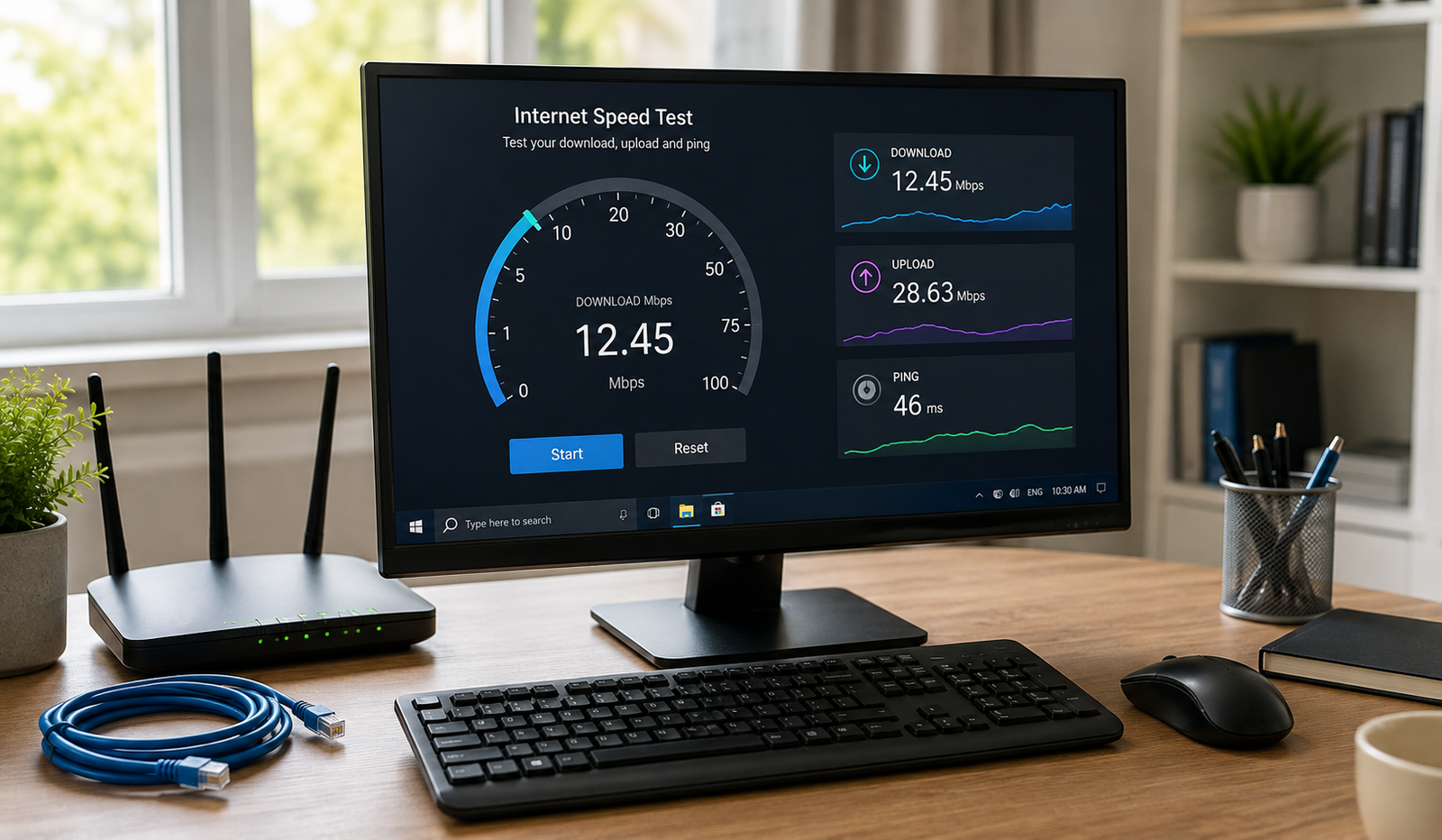
How to fix slow internet speed on a Windows computer with easy tips for Wi-Fi, network drivers, DNS settings, background apps, and Windows 11. Slow internet on a Windows PC can have several causes. A weak Wi-Fi signal may reduce connection quality, while Windows updates, cloud backups, and large downloads can consume available bandwidth. Outdated network drivers, incorrect DNS settings, VPN connections, and router problems can also affect performance.
Sometimes, the issue is not your computer at all. Your internet provider may be experiencing congestion or a service interruption. The easiest way to narrow down the cause is to check whether other devices connected to the same network are also running slowly.
1. Restart Your Computer and Wi-Fi Router
Restarting your Windows computer and router is one of the simplest ways to resolve temporary internet problems. Routers can occasionally develop connection errors, and Windows may experience network glitches that disappear after a fresh start.
Save your work, restart your computer, and unplug your router from its power source for about 30 seconds. Plug it back in and wait a few minutes for the connection to return. Then open your browser and test your internet speed again.
This quick fix will not solve every problem, but it is a sensible first step before changing network settings or installing additional software.
2. Check Your Internet Speed Before Making Changes
Before troubleshooting Windows, check how fast your internet connection actually is. Visit Speedtest by Ookla or Fast.com and run a speed test. Look at your download speed, upload speed, and ping. Download speed affects activities such as streaming and downloading files, while upload speed matters for video calls and sending files. Ping measures response time, so a lower value is generally better for online gaming and real-time communication. Run the test a few times and compare the results with your internet plan to see whether the slowdown is consistent.
3. Move Closer to Your Wi-Fi Router
A weak wireless signal can make even a fast internet connection feel painfully slow. If your computer is far from the router, or several walls separate the two devices, your connection may struggle to deliver consistent speeds. Try moving your laptop closer to the router or repositioning your desktop’s wireless adapter for better reception. Keep the router in an open location rather than hiding it inside a cabinet. If your internet becomes faster when you move closer, the problem is likely related to Wi-Fi coverage rather than your Windows settings or internet plan.
4. Switch to a Better Wi-Fi Frequency Band
Many routers offer both 2.4 GHz and 5 GHz Wi-Fi connections, and choosing the right band can improve your experience. The 2.4 GHz band generally reaches farther and passes through walls more effectively, while 5 GHz often provides faster speeds when your computer is relatively close to the router. If your router displays separate network names, try connecting to the 5 GHz network when working nearby. If you are several rooms away, test 2.4 GHz instead. The best choice depends on your home, wireless interference, router capabilities, and computer hardware.
5. Close Background Applications Using Your Internet
Background applications can quietly use your internet connection while you are trying to browse, stream videos, or attend an online meeting. Cloud storage services, game launchers, file downloads, and backup programs may consume significant bandwidth without being immediately obvious. Press Ctrl + Shift + Esc to open Task Manager and review the running applications. Pause large downloads or unnecessary synchronization tasks, then test your connection again. Avoid ending unfamiliar Windows processes because some are necessary for your computer to function correctly. If your internet improves after pausing a download, you have found a likely contributor to the slowdown.
6. Disable a VPN Temporarily
A virtual private network, or VPN, can sometimes reduce internet speed because your traffic travels through an additional server. The effect depends on the server’s location, network congestion, encryption, and routing quality. If you notice slow browsing while connected to a VPN, disconnect it temporarily and run another speed test. If performance improves, try a nearby server or a different connection protocol offered by your VPN provider. Do not disable a VPN permanently if you need it for privacy, work, or security. The purpose of this test is simply to determine whether the VPN contributes to the problem.
7. Update Your Windows Network Adapter Driver
Your network adapter driver helps Windows communicate with your computer’s Wi-Fi or Ethernet hardware. When the driver becomes outdated, corrupted, or incompatible with a Windows update, you may experience slow connections, random disconnections, or unstable network performance. To check for updates, right-click the Start button, open Device Manager, expand Network adapters, right-click your wireless or Ethernet adapter, and select Update driver. You can also check Windows Update for optional driver updates. If the slowdown started immediately after a driver update, check the adapter’s Properties for a Roll Back Driver option. Download drivers only from Windows Update or the computer or adapter manufacturer’s official website.
8. Run the Windows Network Troubleshooter
Windows includes troubleshooting tools that can help identify common network problems without requiring advanced technical knowledge. On Windows 11, open Settings, select System, choose Troubleshoot, and then open Other troubleshooters to find the relevant network troubleshooter available on your system. Windows 10 users can look under Settings and Network & Internet for the network troubleshooting option. Follow the instructions and review any suggested repairs. The troubleshooter may identify adapter or configuration problems, although it cannot fix every cause of slow internet. If the issue comes from a damaged cable, poor Wi-Fi coverage, or your internet provider, you may need a different solution.
9. Flush the DNS Cache in Windows
DNS helps your computer translate website names into the addresses needed to connect to them. Windows temporarily stores some DNS information, and clearing that cache may help when certain websites fail to load properly or behave unexpectedly. Open Command Prompt as an administrator, type ipconfig /flushdns, and press Enter. Windows should confirm that the DNS resolver cache has been flushed. Try opening the affected websites again. This step can resolve certain DNS-related issues, but it will not increase the bandwidth supplied by your internet provider. If all downloads are slow, focus on connection quality, background traffic, and network performance instead of expecting a DNS change to solve everything.
10. Change Your DNS Server if Websites Load Slowly
If your internet speed test looks reasonable but websites take a long time to begin loading, trying a different DNS server may help. Google Public DNS uses 8.8.8.8 and 8.8.4.4, while Cloudflare DNS uses 1.1.1.1 and 1.0.0.1. You can configure a preferred server through your connected network’s DNS settings in Windows. On Windows 11, open Settings, select Network & internet, choose your Wi-Fi or Ethernet connection, and look for DNS server assignment. Choose Manual, enable IPv4, enter the addresses, and save. DNS performance varies by network, so test the results and return to automatic settings if the change does not help.
11. Check Windows Update and Cloud Backup Activity
Windows updates and cloud backup services can temporarily slow other online activities, especially when large files are downloading or uploading. Check Windows Update in Settings and look at any synchronization tools you use, such as OneDrive or other cloud storage applications. If a major download is underway, allow it to finish or pause it temporarily when you need a more responsive connection. If you regularly back up important files, schedule large uploads for quieter periods rather than disabling backups altogether. This is particularly useful when your internet plan has limited bandwidth or your upload speed is much lower than your download speed.
12. Scan Your Computer for Malware
Malware is not the most common cause of slow internet, but some malicious programs can use network resources or interfere with normal computer activity. If your computer has become slow alongside unexpected browser redirects, unfamiliar applications, or unusual pop-ups, run a security scan. Open Windows Security, select Virus & threat protection, and choose Quick scan. If you suspect a more serious infection, consider a full scan and follow the recommended instructions. Avoid downloading unknown internet speed boosters or driver utilities, as they may introduce additional security risks instead of fixing the problem.
13. Disable Wi-Fi Power Saving if Necessary
Some Windows computers manage wireless adapter power consumption to extend battery life. In certain cases, these settings may contribute to connection problems, especially when a laptop wakes from sleep or switches between power states. Open Device Manager, expand Network adapters, and open your Wi-Fi adapter’s Properties. If a Power Management tab is available, uncheck the option that allows Windows to turn off the device to save power. This setting is not available on every computer, so skip it if you cannot find it. It is most useful for intermittent connectivity problems rather than consistently slow download speeds.
14. Test Your Connection With an Ethernet Cable
Connecting your Windows computer directly to your router with an Ethernet cable is a useful way to determine whether Wi-Fi is responsible for slow internet. Plug the cable into an available LAN port on your router and the Ethernet port on your computer, then run another speed test. If the wired connection is considerably faster, your wireless signal, router settings, or Wi-Fi adapter may be causing the problem. If Ethernet is also slow, investigate your router, internet service, and Windows configuration. This simple comparison can save you time because it helps separate wireless problems from issues affecting your entire internet connection.
15. Reset Windows Network Settings as a Last Resort
If your internet remains unreliable after trying the earlier solutions, a Windows network reset may help repair damaged or incorrect network configuration. On Windows 11, open Settings, select Network & internet, choose Advanced network settings, and select Network reset. On Windows 10, look under Settings, Network & Internet, and Status. Follow the prompts to reset your network components and restart the computer. Keep in mind that this process can remove saved network configurations and affect VPN software or virtual network adapters, so you may need to set them up again. Use this option only after simpler troubleshooting steps have failed.
16. Contact Your Internet Service Provider
Sometimes, the problem lies outside your computer. If multiple devices on your network are slow, your internet provider may be experiencing congestion, a service interruption, or a problem with the connection line. Record a few speed test results and note when the slowdown occurs. If possible, compare Wi-Fi results with a wired Ethernet test. Contact your provider if speeds remain significantly below your plan’s expected performance or your connection frequently disconnects. Ask them to check for outages, line problems, and equipment issues. If only your Windows computer is affected, continue investigating that device before assuming your internet plan is the cause.
How to Prevent Slow Internet on a Windows Computer
Keeping your connection stable does not require constant maintenance. Install relevant Windows and network driver updates, place your router in a suitable location, and pause large downloads when you need reliable internet for video calls or gaming. Review background applications occasionally and schedule cloud backups for convenient times. Avoid installing unverified software that promises instant speed improvements. If you notice the same slowdown every evening, compare results at different times of day to determine whether network congestion may be involved. These small habits can help you identify developing problems early and avoid unnecessary changes to a working network.
Conclusion
Learning how to fix slow internet speed on a Windows computer starts with finding the real cause instead of changing every setting at once. Begin with a router restart and speed test, then check your Wi-Fi signal, background applications, and network drivers. If those steps do not help, try DNS troubleshooting, an Ethernet connection, or a network reset as a last resort. When several devices remain slow, your internet provider may need to investigate the connection. A few simple checks can often restore a more stable browsing experience without spending money on unnecessary upgrades.
Frequently Asked Questions
1. Why is my internet slow on my Windows computer but fast on my phone?
Your computer may have a weaker Wi-Fi signal, an outdated network driver, background downloads, or incorrect network settings. Test both devices on the same Wi-Fi network in the same location to narrow down the cause.
2. How can I make my internet faster on Windows 11?
Restart your router, check your actual internet speed, close bandwidth-heavy applications, and improve Wi-Fi reception. If the problem continues, update your network adapter driver and use Windows troubleshooting tools.
3. Does flushing DNS improve internet speed?
Flushing DNS can help resolve certain website-loading problems by clearing cached domain information. However, it generally does not increase your download speed or the bandwidth provided by your internet service.
4. Can outdated network drivers cause slow internet?
Yes. Outdated or incompatible drivers can contribute to slow connections, unstable Wi-Fi, and frequent disconnections. Updating the driver through Windows Update or the manufacturer’s official website may help.
5. Why does my internet slow down at night?
Evening slowdowns may result from network congestion when many people use the same internet infrastructure. If several devices become slow at the same time, contact your internet provider if the issue persists.
Read also: How to Use Cloud Storage to Back Up Important Files