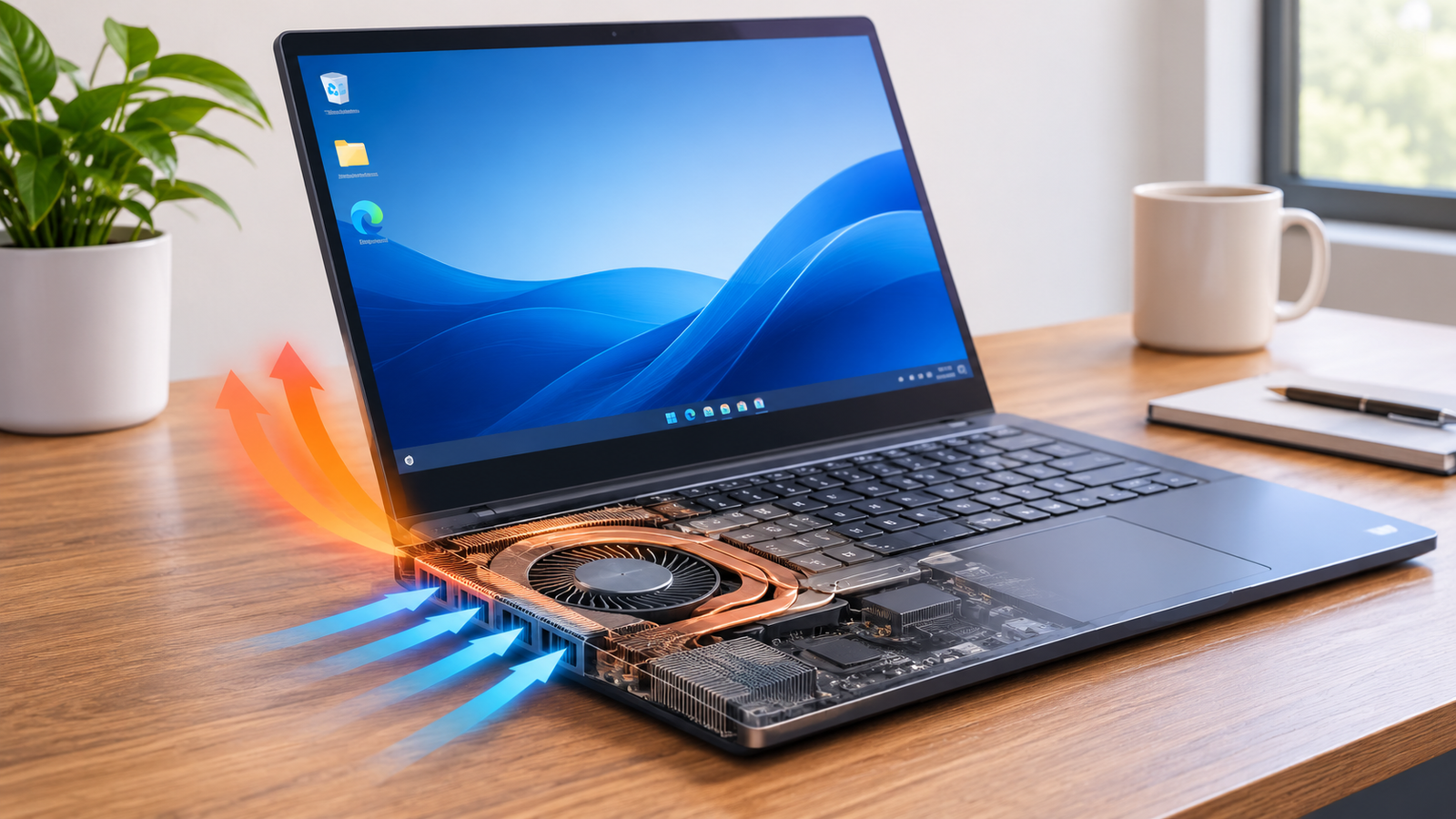
Laptop fan running constantly with no programs open? Discover common causes, overheating issues, and practical fixes to reduce unwanted fan noise. Have you ever noticed your laptop fan running loudly even when you have no applications open? You close your browser, save your work, and leave the desktop untouched, but the fan keeps spinning. Sometimes, it even sounds as if the laptop is handling a demanding task when you are doing absolutely nothing. This can be frustrating, especially when you expect your computer to remain quiet during idle periods. The good news is that a constantly running laptop fan does not automatically mean something is damaged. Background processes, high CPU temperatures, dust accumulation, Windows updates, and incorrect power settings can all contribute to the problem. Understanding what happens behind the scenes is the first step toward finding a practical solution and restoring normal laptop performance.
What Does It Mean When a Laptop Fan Runs Constantly With No Programs Open?
When a laptop fan continues running without visible applications, it usually means the cooling system is responding to internal heat or background hardware activity. Even if your desktop looks empty, Windows and other operating system components continue performing maintenance tasks, checking for updates, managing devices, and handling security operations.
The processor generates heat while completing these activities, and the cooling fan removes that heat to protect internal components. If the temperature remains elevated, the fan may continue spinning instead of slowing down. Sometimes, however, the fan runs because of a firmware problem, a faulty temperature sensor, or restricted airflow rather than heavy processing.
Why Is My Laptop Fan Running Constantly With No Programs Open?
There is rarely one explanation for every laptop. A computer running Windows 10 or Windows 11 may behave differently depending on its processor, cooling design, installed software, and overall condition. Here are the most common reasons worth investigating.
1. Background Processes Are Using CPU Resources
One of the first things to investigate is background CPU usage. Windows runs several services that are not visible as regular desktop applications, including system maintenance, antivirus protection, cloud synchronization, and update-related activities.
For example, you might close every application before leaving your laptop on the desk. However, a background service could still be processing files or checking system updates. This additional workload generates heat, causing the cooling fan to increase its speed.
What you can do: Open Task Manager by pressing Ctrl + Shift + Esc and select the Processes tab. Look at the CPU column to identify processes consuming resources. If an unfamiliar application consistently uses a significant amount of CPU, research its purpose before taking action.
2. High CPU Temperature Is Triggering the Cooling Fan
Your laptop fan may be working continuously because the processor is warmer than expected. Modern computers use temperature sensors to monitor internal components and automatically adjust cooling performance.
When the CPU becomes hot, the fan spins faster to remove excess heat. This is a protective feature, not necessarily a sign that something is broken. However, consistently high temperatures during idle periods deserve attention.
Poor ventilation, background workloads, dust, and aging thermal paste can all contribute to elevated temperatures. Checking CPU temperature with a reputable hardware monitoring utility can help you understand whether overheating is part of the problem.
3. Dust Is Blocking the Laptop’s Cooling System
Dust accumulation is easy to overlook because most of it collects inside the laptop rather than on the visible surface. Over time, particles can gather around the fan blades, heatsink, and air vents.
When airflow becomes restricted, hot air cannot escape efficiently. The cooling system then has to work harder to maintain a safe operating temperature. This often produces louder fan noise, even when the computer is handling simple tasks.
What you can do: Inspect the ventilation openings for visible dust and keep them unobstructed. If the laptop has significant internal buildup, professional cleaning may be necessary. Avoid inserting sharp objects into the vents or opening the device without the appropriate experience.
4. Windows Update Is Running in the Background
Windows updates sometimes require considerable processing power, particularly when the operating system is downloading, preparing, or installing larger updates.
You may not see an update window on your desktop, but related services can continue working in the background. This activity can temporarily increase processor usage and make the cooling fan more noticeable.
This behavior is especially common after restarting a computer or installing a major system update. In most cases, the fan should return to normal once the maintenance process finishes.
What you can do: Open Settings, navigate to Windows Update, and check whether updates are pending or installing. Allow the process to complete and restart your laptop if Windows requests it.
5. Too Many Startup Applications Are Running
Some programs automatically launch whenever Windows starts. Messaging applications, cloud storage tools, game launchers, and other utilities may continue operating without displaying an open window.
A single background application may not create much heat, but several unnecessary programs can increase CPU and memory usage. Over time, this can contribute to higher temperatures and continuous fan activity.
What you can do: Open Task Manager and select Startup Apps. Review the list and disable applications you do not need to launch automatically. Keep essential security software and important system components enabled.
6. Browser Extensions Are Running in the Background
Closing Google Chrome or Microsoft Edge does not always stop every browser-related process. Certain settings allow background extensions, notifications, and other browser services to continue running after the main window closes.
Some extensions also consume more resources than expected, particularly those handling multiple tabs, media, synchronization, or website monitoring.
What you can do: Review your browser’s performance and background activity settings. Remove extensions you no longer use and check Task Manager to see whether browser processes remain active after closing the application.
7. Incorrect Power Settings Are Increasing Heat
Windows power settings influence how your processor manages performance and energy consumption. A high-performance configuration may allow the CPU to maintain higher operating speeds, which can generate additional heat.
This does not mean performance mode is always bad. It can be useful when running demanding software, but it may be unnecessary for everyday browsing, reading, and basic office tasks.
What you can do: Open Settings, select System, and navigate to Power & Battery. Choose Balanced or Best Power Efficiency if those options are available. The exact settings depend on your laptop manufacturer and Windows version.
8. Outdated BIOS or Firmware Is Affecting Fan Control
Your laptop relies on firmware to communicate with internal hardware and manage important functions, including cooling behavior. If the firmware contains a problem or is outdated, the fan may respond incorrectly to temperature readings.
For instance, the cooling system might maintain a higher fan speed than necessary even when the processor is relatively cool. Manufacturer-specific thermal management utilities can also influence this behavior.
What you can do: Visit your laptop manufacturer’s official support website and check for compatible BIOS, chipset, and thermal management updates. Always verify your exact laptop model before installing firmware because an incorrect update can cause serious problems.
9. A Faulty Cooling Fan or Temperature Sensor
Sometimes, the problem is not related to software or dust. Physical components can wear out over time, especially in laptops that have been used regularly for several years.
A damaged fan bearing may produce unusual buzzing, clicking, or grinding sounds. A malfunctioning temperature sensor may also provide inaccurate readings, causing the cooling system to behave unexpectedly.
If the fan continues running loudly despite low CPU usage and reasonable temperatures, hardware inspection may be necessary. A qualified technician can check the fan assembly, temperature sensors, and motherboard-related cooling controls.
How to Fix a Laptop Fan Running Constantly With No Programs Open
Once you understand the possible causes, you can start troubleshooting. It is better to begin with simple checks rather than immediately changing advanced system settings or opening the laptop.
1. Check CPU Usage in Task Manager
Task Manager is one of the most useful built-in Windows tools for identifying unnecessary background activity. Press Ctrl + Shift + Esc and open the Processes tab to see which applications and services are consuming CPU resources.
Pay attention to processes that consistently use a large percentage of the processor. A temporary increase is not necessarily a problem, but unusually high usage that continues for several minutes deserves investigation.
2. Restart Your Laptop
A simple restart can resolve certain software-related problems. Sometimes, a background process becomes stuck or an application fails to close correctly, leaving unnecessary activity running.
Restarting Windows gives the operating system an opportunity to close existing processes and start fresh. It can also complete pending updates and clear temporary software issues.
If the fan becomes quieter after restarting, a background process may have been responsible.
3. Improve Airflow Around the Laptop
Laptop placement makes a bigger difference than many people realize. Using a computer on a bed, blanket, sofa, or pillow can block its ventilation openings and prevent proper airflow.
Place your laptop on a hard, flat surface and make sure there is enough space around the cooling vents. Avoid placing objects directly against the exhaust openings.
This simple adjustment can help reduce unnecessary heat, particularly on laptops with bottom-mounted air intakes.
4. Clean the Air Vents and Cooling System
If your laptop has not been cleaned for a long time, dust may be restricting airflow. Begin by inspecting the external ventilation openings and removing visible dust carefully.
For internal cleaning, consider a professional technician who can safely access the fan and heatsink. A proper cleaning can improve cooling efficiency when accumulated dust is the underlying problem.
Remember that cleaning will not solve every fan issue. If the cause is a background process, firmware problem, or damaged fan, additional troubleshooting will be necessary.
5. Change Windows Power Mode
Switching from a high-performance power configuration to a balanced setting may help reduce unnecessary processor activity.
Open Settings, select System, and choose Power & Battery. Look for Power Mode and select Balanced if available.
This adjustment can help prevent the processor from maintaining unnecessarily aggressive performance behavior during light workloads. However, it will not repair a blocked heatsink or faulty cooling fan.
6. Update Windows and Device Drivers
Outdated drivers can sometimes create performance or power management problems. Check Windows Update for available system updates and review your manufacturer’s support page for important chipset and thermal management drivers.
Install updates that are specifically designed for your laptop model. Avoid downloading drivers from unfamiliar third-party websites because incorrect or modified drivers can introduce additional problems.
7. Scan Your Laptop for Malware
Certain malicious programs can run without visible windows and consume significant processor resources. This activity may increase CPU temperature, reduce performance, and keep the fan running.
Open Windows Security, select Virus & Threat Protection, and run a full scan. If suspicious activity continues, consider using a reputable additional malware detection tool.
A security scan is particularly useful when fan activity appears alongside unexpected slowdowns, unusual processes, or unfamiliar applications.
How to Check Whether Your Laptop Is Overheating
A constantly running fan does not always mean your laptop is overheating. Checking internal temperatures can help you distinguish normal cooling activity from a possible thermal problem.
You can use reputable hardware monitoring software to check CPU temperatures. Compare the readings with the processor manufacturer’s specifications rather than relying on one universal temperature limit.
As a general reference, many laptops operate around 30–50°C during idle periods, although some models can run warmer. Temperatures may increase during software updates, multitasking, or demanding applications.
If the processor remains unusually hot while the computer is idle, investigate background CPU usage and cooling efficiency. Sustained temperatures near the processor’s thermal limit should not be ignored.
Is It Normal for a Laptop Fan to Run When Nothing Is Open?
Yes, occasional fan activity is normal. Your laptop continues performing essential tasks even when you are not actively using it, and the cooling system may activate whenever internal temperatures increase.
For example, the fan might briefly become louder after startup while Windows loads services or completes maintenance tasks. It may also continue spinning for a short period after you close a demanding application.
However, a fan that runs continuously at high speed, particularly when the laptop is cool and CPU usage is low, deserves further investigation.
Can a Cooling Pad Help Reduce Constant Fan Noise?
A laptop cooling pad can improve airflow by directing additional air toward the underside of the computer. It may help certain laptops maintain lower temperatures, particularly when their original cooling systems have limited airflow.
However, a cooling pad is not a universal solution. If your laptop fan is running because of malware, unnecessary background processes, incorrect firmware settings, or a damaged fan, additional external airflow will not address the underlying cause.
Before purchasing one, check whether your laptop actually has a ventilation problem. Improving placement and cleaning existing vents may be enough.
When Should You Get Professional Laptop Repair?
Not every fan problem requires a technician, but certain warning signs suggest that software troubleshooting is no longer enough.
If the laptop becomes extremely hot during idle periods, shuts down unexpectedly, or produces grinding noises, its cooling system may have a physical problem. A damaged fan, blocked heatsink, deteriorated thermal paste, or faulty temperature sensor could be responsible.
Professional inspection is also worthwhile when the fan remains at maximum speed despite low CPU usage and normal temperature readings.
Avoid disabling the fan or forcing it to operate at a lower speed through unofficial software. Cooling components protect the processor and other internal hardware, so reducing their operation without understanding the problem can create additional damage.
Common Mistakes to Avoid When Troubleshooting Laptop Fan Problems
Trying random fixes can sometimes make the situation worse. One common mistake is ending unfamiliar Windows processes simply because they consume CPU resources. Some processes are essential for operating system stability, and stopping them can create unexpected problems.
Another mistake is disabling the cooling fan to eliminate noise. This removes an important layer of hardware protection rather than fixing the underlying issue.
You should also avoid installing unofficial BIOS updates or changing advanced fan-control settings without understanding their purpose. Start with Task Manager, airflow checks, Windows updates, and temperature monitoring before considering more complicated solutions.
Conclusion
A laptop fan running constantly with no programs open can have several explanations, but it does not automatically mean your computer is damaged. Background processes, Windows updates, high CPU temperatures, dust accumulation, and power management settings are among the most common causes.
Start with Task Manager to check CPU activity, make sure the ventilation openings are clear, and review your Windows power settings. If the fan remains unusually loud despite low processor usage and reasonable temperatures, investigate possible firmware or hardware problems.
The important thing is to identify why the fan is working so hard instead of simply trying to stop it. A properly maintained cooling system helps protect your laptop, maintain performance, and extend the useful life of its internal components.
Frequently Asked Questions
1. Why does my laptop fan keep running when nothing is open?
Your laptop may still be running background services, Windows updates, antivirus scans, or other processes that generate heat and activate the cooling fan.
2. Can a virus cause my laptop fan to run constantly?
Yes. Some malware consumes CPU resources in the background, increasing processor temperature and fan activity. Run a full security scan to investigate suspicious activity.
3. Why is my laptop fan loud but the laptop is not hot?
Possible causes include incorrect fan-control settings, firmware problems, faulty temperature sensors, or worn fan components.
4. Should I turn off my laptop fan when it gets noisy?
No. The fan protects internal components from overheating. Disabling it can cause excessive temperatures, reduced performance, and hardware damage.
5. Does a constantly running laptop fan drain the battery?
Yes. The cooling fan consumes electricity while running. Additional CPU activity that causes the fan to work harder can increase battery consumption further.
Read also: Common Causes of Wireless Mouse Lagging During Computer Use