common causes of wireless mouse lagging during computer use, including weak batteries, signal interference, driver issues, and simple troubleshooting tips. A wireless mouse makes everyday computer use easier by removing the need for a physical cable. Whether you are browsing websites, working on documents, editing photos, or playing games, a responsive mouse helps you complete tasks comfortably. However, things can become frustrating when the cursor starts moving slowly, freezes unexpectedly, or responds several seconds after you move the mouse. These problems are more common than many users realize, and they do not always mean the mouse is damaged. Several factors, including weak batteries, wireless signal interference, outdated drivers, USB receiver problems, and computer performance issues, can affect how smoothly a wireless mouse works. Understanding the common causes of wireless mouse lagging during computer use can help you identify the source of the problem and find a suitable solution without spending money on unnecessary replacements.
What Causes a Wireless Mouse to Lag During Computer Use?
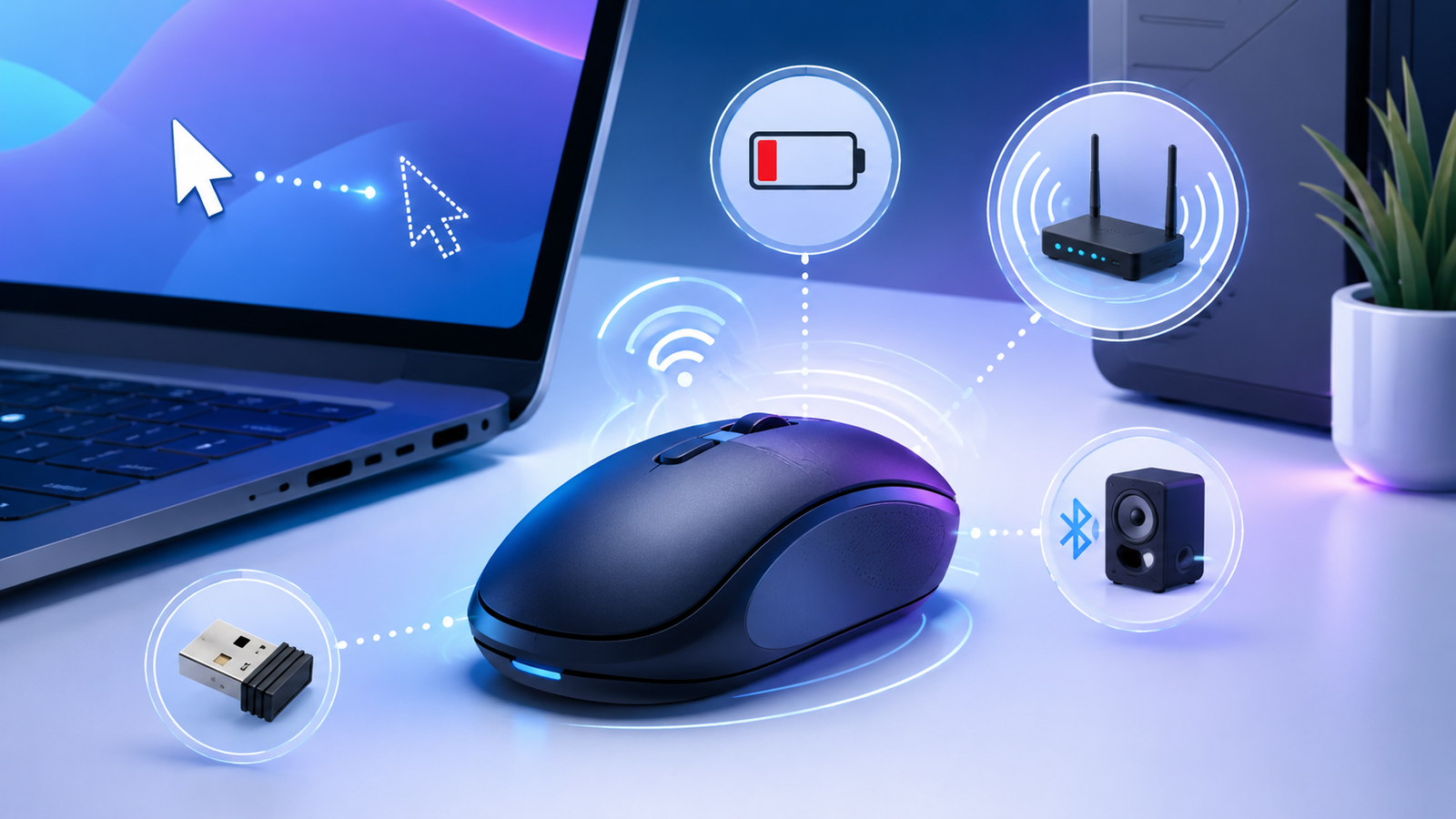
Wireless mouse lagging usually happens when communication between the mouse and computer becomes delayed or inconsistent. It can also occur when the computer struggles to process input signals or when the mouse sensor cannot track movement accurately. For example, you might move your mouse across a desk, but the cursor responds slowly or suddenly jumps to another part of the screen. In some situations, the mouse may stop responding for a few seconds before returning to normal. These symptoms can be connected to battery power, wireless connectivity, software settings, or physical hardware problems. Identifying when the lag happens is an important first step because it helps narrow down the possible causes.
1. Low or Weak Battery Power
One of the most common reasons a wireless mouse starts lagging is a weak battery. Unlike wired models, wireless mice need a reliable power supply to operate their sensors and maintain communication with a computer. When the battery becomes nearly empty, certain models may experience inconsistent performance, delayed cursor movement, or unexpected disconnections. You might notice that the mouse works normally for a few minutes before becoming unresponsive again. This can be particularly frustrating when you are working on something important and the cursor suddenly stops moving. Replacing disposable batteries or fully charging a rechargeable mouse is a simple way to check whether insufficient power is responsible. If your mouse includes a battery indicator, pay attention to its warning signals instead of waiting until the device stops working completely.
2. Wireless Signal Interference
Wireless mice communicate with computers through radio signals, usually using Bluetooth or a dedicated 2.4 GHz USB receiver. These signals can sometimes experience interference from other nearby electronic devices. Wi-Fi routers, Bluetooth accessories, wireless keyboards, and certain USB devices may contribute to an environment where wireless communication becomes less reliable. When interference affects the mouse connection, the cursor may move unevenly, freeze briefly, or respond with noticeable delays. You may also find that the problem becomes worse when several wireless devices are operating close to your computer. Moving the USB receiver away from other electronic accessories can sometimes improve performance. Keeping the mouse within a reasonable distance of the receiver and reducing unnecessary wireless activity nearby may also help maintain a more consistent connection.
3. Loose or Damaged USB Receiver
Many wireless mice include a small USB receiver that connects directly to a computer. This receiver handles communication between the mouse and the operating system, so even a minor connection problem can affect cursor responsiveness. If the receiver is loose, damaged, or connected to an unreliable USB port, the mouse may disconnect repeatedly or respond unpredictably. Dust inside a USB port can also interfere with a proper connection. Another issue occurs when the receiver is placed behind a desktop computer, where the metal case and surrounding objects may weaken the wireless signal. Removing the receiver and reconnecting it securely is a useful first step. You can also test another USB port to determine whether the original connection is causing the problem. If the receiver has visible physical damage, check whether the manufacturer offers a compatible replacement.
4. Outdated or Corrupted Mouse Drivers
Mouse drivers help your operating system communicate with connected hardware. When these drivers become outdated, corrupted, or incompatible with certain system updates, the mouse may not perform as expected. You might experience delayed pointer movement, unusual scrolling, inconsistent button responses, or temporary freezing. Windows usually installs basic drivers automatically, but some wireless mouse models also rely on manufacturer software for additional functions. If you recently updated your operating system and noticed mouse lag afterward, a driver compatibility issue may be worth investigating. Open Device Manager on your Windows computer and look under the mouse-related hardware category. Check for warning symbols and available driver updates. Installing software from the manufacturer’s official website is generally safer than downloading drivers from unfamiliar websites. Restarting your computer after an update can also help apply the changes correctly.
5. Bluetooth Connection Problems
Bluetooth mice are convenient because they can connect to compatible computers without occupying a USB port. However, Bluetooth connectivity is not always perfectly stable. A weak signal, outdated Bluetooth driver, low battery, or temporary pairing problem can cause the mouse to become slow or unresponsive. Sometimes, the mouse appears connected in Windows settings even though its communication with the computer is inconsistent. This can make troubleshooting confusing, especially when the problem disappears temporarily and then returns. Checking the Bluetooth connection and making sure the mouse is properly paired can help. If necessary, remove the device from the Bluetooth settings and pair it again. Keeping the mouse close to the computer and temporarily disconnecting unnecessary Bluetooth accessories can also help identify whether wireless congestion is contributing to the issue.
6. Dirty Optical Sensor or Unsuitable Mouse Surface
A wireless mouse needs a clean and suitable surface to track movement accurately. Its optical or laser sensor detects changes underneath the device and translates them into cursor movement on the screen. When dust, hair, or small particles collect around the sensor, tracking accuracy may decrease. The surface itself can create similar problems. For instance, some mice struggle on transparent glass, highly reflective desks, or glossy materials that do not provide reliable tracking. Instead of moving smoothly, the cursor may jump, stop briefly, or travel in unexpected directions. Turn the mouse over and inspect the sensor opening for visible dirt. Carefully clean the area using a soft, dry cloth, then test the device on a clean mouse pad. A suitable mouse pad can make a noticeable difference, particularly when the original desk surface is unsuitable for the sensor.
7. Too Many Background Applications Running
Sometimes, the wireless mouse is working correctly, but the computer is struggling to keep up with your activities. Running several demanding applications simultaneously can consume large amounts of processing power and memory. This may affect the overall responsiveness of the operating system, making cursor movement appear delayed. For example, opening dozens of browser tabs while downloading large files and editing videos can put considerable pressure on a computer with limited hardware resources. Background updates, antivirus scans, and other resource-intensive processes may also contribute to temporary performance problems. Windows users can open Task Manager by pressing Ctrl + Shift + Esc and checking the CPU, Memory, and Disk usage columns. If one application is consuming unusually high resources, closing unnecessary programs may improve overall responsiveness. Be careful not to end unfamiliar system processes because they may be required for normal computer operation.
8. Incorrect Mouse Polling Rate Settings
The polling rate determines how frequently a mouse reports its position to the computer. It is measured in hertz (Hz), and a higher value means the device sends movement updates more frequently. For example, a mouse operating at 125 Hz reports its position approximately 125 times per second, while a 1,000 Hz model reports approximately 1,000 times per second. Some wireless gaming mice allow users to change this setting through dedicated manufacturer software. Although a higher polling rate can provide smoother input in certain situations, it is not automatically the best choice for every computer. Some systems may struggle with unusually demanding settings, while higher rates can also increase battery consumption. If your mouse feels inconsistent, check its software and try a standard polling rate. Testing different available settings can help you find a balance between responsiveness, battery life, and system performance.
9. USB Power Management Issues
Modern operating systems use power management features to reduce unnecessary electricity consumption. These features can sometimes affect USB-connected devices, including wireless mouse receivers. For example, a receiver may become temporarily unresponsive after the computer enters an idle state or changes its power settings. You might notice that the mouse works normally when you first start using the computer but experiences delays after sitting unused for several minutes. Windows Device Manager provides access to certain USB power management options, depending on the hardware and driver. Checking whether the computer is allowed to turn off a relevant USB device to save power may help identify a connection problem. However, these settings vary between computers, so changing them is not necessary unless you suspect power management is involved. It is better to investigate this possibility after checking simpler causes such as batteries and USB connections.
10. Operating System Updates and Compatibility Problems
Operating system updates are important for security and general computer performance, but they can occasionally introduce hardware compatibility issues. A recent Windows update may affect Bluetooth functionality, USB communication, or an existing mouse driver. As a result, a wireless mouse that previously worked perfectly may begin experiencing delayed movement or unexpected disconnections. This can be confusing because the mouse itself may be in excellent condition. If the problem started immediately after a system update, check whether additional driver updates are available. You can also visit the official support website of your mouse manufacturer to look for compatibility information. Restarting the computer is worth trying because some updates require a restart before all changes take effect. Avoid removing important system updates without understanding the issue, particularly when the update includes security improvements.
11. Excessive Distance Between Mouse and Receiver
Wireless mice have a limited operating range, and their performance can become less reliable when the distance between the mouse and receiver increases. Although some manufacturers advertise relatively long connection ranges, actual performance depends on the surrounding environment. Walls, metal objects, furniture, and computer cases may weaken the signal or create obstacles. This is especially noticeable with desktop computers when the USB receiver is connected behind a large tower placed under a desk. The mouse may work perfectly when positioned close to the receiver but start lagging when used farther away. Moving the receiver to a more accessible USB port can improve communication. A short USB extension cable may also help position the receiver closer to your working area. Keeping the connection unobstructed is a simple way to reduce avoidable wireless problems.
12. Faulty or Aging Mouse Hardware
Wireless mice contain several internal components that can become damaged or worn out through regular use. Repeated drops, accidental liquid exposure, worn buttons, damaged sensors, and internal electrical faults may affect performance. An older mouse may also develop battery connection problems or unreliable wireless communication. In these situations, changing computer settings or reinstalling drivers may not solve the issue. One useful way to identify hardware failure is to test the mouse on another computer. If the same lagging behavior continues across different systems, the mouse itself may be responsible. You can also connect another wireless mouse to your original computer. If the replacement works normally, the first device may have a physical problem. When hardware damage is confirmed, repairing or replacing the mouse may be more practical than continuing with software troubleshooting.
13. Incorrect Mouse Sensitivity and Pointer Speed
Mouse sensitivity controls how far the cursor moves in response to physical movement. If the pointer speed is set too low, the cursor may travel shorter distances than expected, making the mouse feel slow. However, this is not necessarily the same as wireless lagging. Actual lag involves a delay between physical movement and the computer’s response, while incorrect sensitivity changes the distance the cursor travels. Windows provides built-in settings that allow users to adjust pointer speed according to their preferences. Open Settings, select Bluetooth and devices, and choose Mouse to find the available controls. You can experiment with different pointer speed levels until movement feels comfortable. If your mouse has manufacturer software, check whether it includes additional sensitivity or DPI settings. Finding a suitable configuration can improve everyday computer use without requiring a new device.
14. Computer Overheating and System Performance Issues
Computer overheating can affect how smoothly the entire system operates. When the processor becomes too hot, the computer may reduce its operating speed to control temperatures. This process is known as thermal throttling, and it can contribute to slower system performance. Although overheating does not directly explain every wireless mouse problem, it may cause the cursor and other computer functions to feel less responsive. You might notice additional symptoms, such as loud cooling fans, slow application loading, temporary freezing, or unusually high temperatures during demanding activities. If mouse lag appears alongside these problems, check whether your computer has proper ventilation. Dust blocking air vents, heavy background workloads, and inadequate cooling can contribute to overheating. Keeping ventilation areas clean and avoiding blocked air openings may help maintain normal performance.
How to Fix Wireless Mouse Lagging During Computer Use
Once you understand the possible causes, troubleshooting becomes much easier. Instead of changing several settings at once, start with basic checks and observe whether each change improves the mouse response. Replace or recharge the battery, reconnect the USB receiver, and test another USB port if your mouse uses a dongle. If you use Bluetooth, check the pairing and connection status. Clean the sensor and try a suitable mouse pad to rule out tracking problems. You should also check for outdated drivers and close unnecessary background applications if your computer is running slowly. If none of these steps works, test the mouse on another computer. This final check is particularly useful because it helps determine whether the problem is related to the mouse or the original system. Working through these steps gradually can save time and prevent unnecessary changes.
How to Prevent Wireless Mouse Lag in the Future
Preventing wireless mouse problems does not require complicated maintenance. A few simple habits can help keep your device working reliably. Replace batteries before they become completely empty, keep rechargeable models properly charged, and clean the sensor occasionally. Avoid placing the USB receiver behind large metal objects or too close to other wireless accessories. Use a suitable mouse pad and keep the device within its recommended operating range. It is also helpful to install legitimate driver updates and maintain your computer’s general performance by removing unnecessary background workloads. If you use a gaming mouse, review its polling-rate and sensitivity settings instead of assuming the highest available values will always provide the best experience. Regularly checking these basic things can reduce connection problems and help your wireless mouse remain responsive during everyday computer activities.
Conclusion
Wireless mouse lagging can turn simple computer activities into frustrating experiences, especially when the problem appears unexpectedly. Fortunately, the cause is often something relatively simple, such as a weak battery, an unstable USB connection, wireless interference, or a dirty sensor. In other situations, outdated drivers, background applications, and aging hardware may be responsible. The important thing is to avoid assuming that the mouse needs replacing before checking the basic possibilities. Start with the easiest troubleshooting steps, observe how the cursor responds, and gradually investigate more complicated issues if necessary. With proper maintenance and suitable connection settings, you can enjoy smoother cursor movement and a more comfortable computer experience.
Frequently Asked Questions
1. Why does my wireless mouse lag randomly?
A wireless mouse may lag randomly because of weak batteries, wireless interference, an unstable USB receiver, or temporary computer performance problems. Checking the battery and reconnecting the receiver are useful first steps.
2. Can a Wi-Fi router cause wireless mouse interference?
Yes, a Wi-Fi router can sometimes contribute to interference because many wireless mice use the 2.4 GHz frequency band. Moving the mouse receiver away from the router and other wireless devices may improve connection stability.
3. Why does my wireless mouse freeze for a few seconds?
Temporary freezing can happen because of an unstable wireless connection, low battery power, USB receiver problems, or excessive system resource usage. A dirty sensor or faulty hardware may also cause intermittent problems.
4. Does a mouse pad help fix cursor lagging?
A mouse pad can improve cursor tracking when the original surface is reflective, transparent, or unsuitable for the mouse sensor. However, it cannot fix problems caused by weak batteries, outdated drivers, or wireless interference.
5. Is Bluetooth or a USB receiver better for wireless mice?
Both connection types can provide reliable performance. A dedicated USB receiver often offers low latency and consistent communication, while Bluetooth provides convenience without occupying a USB port. The better option depends on your mouse, computer, and intended use.